How to Paste JSON in n8n: Beginner Guide (2026 Pro Method) | CSTechy
If you’ve just started your journey into workflow automation, you’ve likely realized that JSON (JavaScript Object Notation) is the “language” of the internet. Whether you are pulling data from a Bluehost database, a Stripe payment notification, or an AI agent, that data moves in JSON blocks. But for a beginner, looking at a wall of brackets and quotes can be intimidating.
🚀 Ready to take full control of your automation? Don’t miss our n8n Self Hosting Guide 2026: Powerful Automation Control to build secure, scalable workflows like a pro.
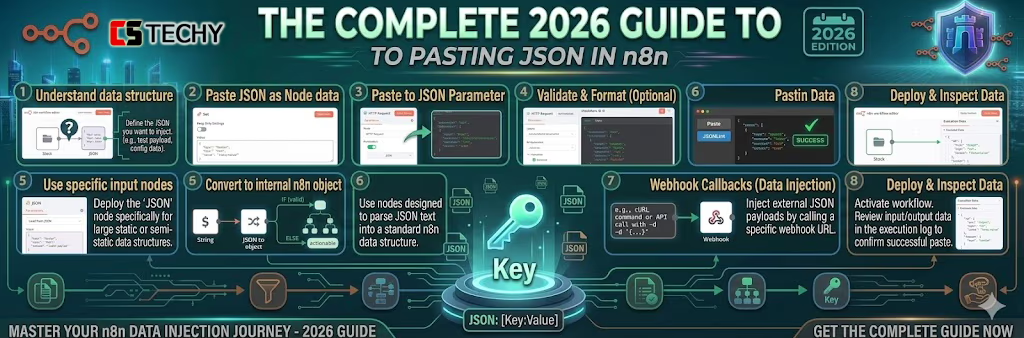
Learning how to paste JSON in n8n is the single most important “Micro-Skill” you can acquire in 2026. It allows you to skip manual data entry, import community-built workflows instantly, and mock up data for testing without needing a live API connection. This 2,500-word guide breaks down the three most common ways to handle JSON in n8n—from importing full workflows to injecting manual data for testing.
Why JSON is the “Oxygen” of n8n Workflows (How to Paste JSON in n8n Explained)
In 2026, n8n has become the global standard for “Low-Code” automation because of its JSON-First architecture. Unlike older tools that hide data behind complex forms, n8n shows you exactly what is moving through your server.
- Portability: You can copy an entire 50-node workflow as a single JSON string and paste it into a different n8n instance on a Hostinger VPS in seconds.
- AI Compatibility: Large Language Models (LLMs) like GPT-4o speak JSON fluently. Pasting JSON into n8n allows you to “teach” your AI agents what your data looks like.
- Debugging: If a workflow fails, you can copy the “Input JSON,” fix the error in a text editor, and paste it back to see if it works.
Before pasting, always validate your JSON using tools like JSONLint to avoid syntax errors and broken workflows.
Method 1: How to Paste JSON in n8n (Entire Workflow Copy-Paste Magic)
This is the most common reason people search for this topic. You found a cool automation on the n8n community forum or a GitHub repo, and you want it on your server.
The 3-Second Shortcut
- Copy the JSON code: Highlight the entire block of code (usually starts with
{ "nodes": [ ... ] }) and pressCtrl + C(Windows) orCmd + C(Mac). - Open your n8n Editor: Navigate to your self-hosted n8n dashboard.
- Paste directly: Just click anywhere on the empty white canvas and press
Ctrl + V.
🚀 Pro Tip for 2026: n8n now automatically detects whether the JSON in your clipboard is a “Workflow” or just “Data.” When learning how to paste JSON in n8n, this feature saves time—if it’s a workflow, n8n will instantly render all nodes, connections, and logic right before your eyes.
Method 2: How to Paste JSON in n8n (Edit Data Node Method)
Sometimes you don’t want to import a whole workflow; you just want to provide a specific node with some “dummy data” to test a filter or a function.
Step-by-Step Data Injection:
- Add a “Code” or “Edit Image/Data” Node: In 2026, the “Edit Image/Data” node is the easiest way for beginners to manually enter JSON.
- Switch to the “JSON” Tab: Inside the node settings, you will see a toggle for “Table” vs. “JSON.” Switch to JSON.
- Overwrite the Content: Select the default
[]or{}and paste your raw JSON data.
If your JSON is valid, n8n will immediately parse it into a readable table format in the “Output” preview. If it’s invalid, the editor will highlight the exact line with the missing comma or bracket—making it a powerful way to learn JSON syntax on the fly while practicing how to paste JSON in n8n.
Troubleshooting: Why Won’t My JSON Paste in n8n?
If you are hitting “Paste Errors” in 2026, it’s usually one of these three things:
- Hidden Characters: If you copy JSON from a Word doc or a PDF, it might include “Smart Quotes” (curly quotes) instead of straight ones (
"). JSON only accepts straight quotes. - Incomplete Copy: Ensure you included the very last closing bracket
}. A single missing bracket will cause n8n to reject the entire paste. - Version Mismatch: If you are trying to paste a 2026 workflow into a very old n8n version (from 2023 or 2024), it might fail because of new node parameters. Always keep your n8n updated! (See our How to Update n8n guide).
The Infrastructure Factor: Smooth UI Performance in n8n
When you are dealing with large JSON files, your browser’s performance is heavily dependent on the “Response Time” of your n8n server. If you are hosting on a cheap, overloaded “Shared Hosting” plan, the editor will lag when you paste complex JSON.
For a lag-free experience, we recommend Hostinger KVM 2 or Bluehost Standard VPS. These plans provide enough dedicated RAM to ensure the n8n “Visual Canvas” remains snappy, even when you are pasting 1,000-node mega-workflows.
Conclusion: You’ve Mastered How to Paste JSON in n8n
Knowing how to paste JSON in n8n is your “Level 1” graduation in the world of automation. It unlocks the ability to use community templates, debug like a pro, and build complex AI systems with ease.
Now that you know how to get data into n8n, why not learn how to connect it to the rest of the world? Check out our next guide on How to Change Webhook URLs to start receiving live data from your favorite apps!
Often, pasting JSON is just one half of the equation when dealing with third-party APIs. To ensure external apps are sending data to the right place, you will also need to master how to change your webhook URLs in n8n.
How to Paste JSON in n8n, FAQ:
1. How do I paste JSON data into n8n?
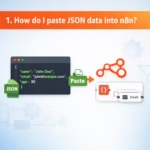
You can paste JSON directly inside nodes like Set, HTTP Request, or Function. Simply open the node editor, switch to JSON mode, and paste your JSON data into the input field.
2. Which nodes support JSON input in n8n?
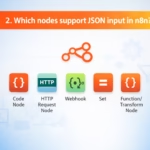
Several nodes support JSON input, including Set Node, HTTP Request Node, Webhook Node, and Function Node. These nodes allow you to create, modify, or process structured JSON data inside workflows.
3. Why is JSON used in n8n workflows?
JSON is the standard data format used by APIs and automation platforms, making it easy for n8n to exchange data between apps, services, and workflow steps.
4. What happens if the JSON format is incorrect in n8n?
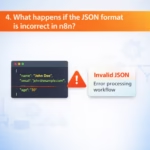
If the JSON syntax is invalid, n8n will show a parsing error and the workflow step may fail. Make sure the JSON includes correct brackets {}, quotes " ", and commas between fields.
5. Can I test JSON data before running an n8n workflow?
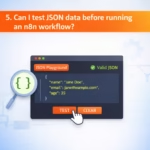
Yes. You can test JSON by using the “Execute Node” feature in the editor, which lets you preview how the JSON data flows through the workflow before activating it.