CSTechy · Hosting Guides
Hostinger Guide 2026: Plans, Pricing, Performance, Security & Setup
A single reference for readers in India, and elsewhere, who are trying to work out whether Hostinger fits their project, which plan tier makes sense for their budget, and what to check before committing to a hosting term.
Last reviewed 2026. Plan pricing, feature lists, and data-center availability change periodically — always confirm current details on Hostinger’s own site before purchasing.
What this guide covers
Quick answer: This page is CSTechy’s central Hostinger resource. It explains what Hostinger is, how its plans differ, what performance and security actually mean in day-to-day use, and where to go for deeper detail on VPS hosting, email, migrations, and competitor comparisons.
Hostinger is a web hosting company offering shared hosting, WordPress-oriented hosting, cloud hosting, VPS plans, and a drag-and-drop website builder, aimed largely at individuals, freelancers, small businesses, and agencies. Its own control panel, hPanel, replaces the licensed cPanel that many older hosts use, which is one of the more noticeable differences a new customer will run into on day one.
This guide is written for three kinds of readers: someone choosing a host for the first time and trying to understand what the plan names actually mean, someone who already hosts a site elsewhere and is weighing a move to or away from Hostinger, and an existing Hostinger customer who wants a deeper walkthrough of one specific area — VPS and n8n, hPanel, email, or migrations — through the linked articles further down the page.
Because hosting plans, prices, renewal terms, and data-center lists change fairly often, this guide separates what Hostinger publishes about its own product from CSTechy’s own observations, and is explicit about which is which. Where a section discusses something that varies by plan tier or changes over time — a price, an uptime figure, a resource limit — it explains how to check the current number rather than repeating a figure that may already be stale by the time you read it.
How to use this guide
The eleven sections below roughly follow the order most readers actually need them in: start with the general review, narrow down by budget and plan type, then look at the technical areas — performance, security, WordPress tooling, email — that matter once a plan family is chosen, then migration and backups if you’re moving an existing site, then head-to-head competitor comparisons, and finally current offers. Use the table of contents to jump straight to the section you need; you don’t have to read the whole page in order.
Three labels appear throughout the text, and they carry different weight:
- Hostinger states — published by Hostinger itself, in its documentation, plan pages, or marketing material.
- CSTechy observed — a specific observation made by CSTechy, tied to a screenshot, dashboard export, or dated note.
- CSTechy’s assessment — CSTechy’s reasoned interpretation of the above, offered as guidance rather than a guarantee of your own results.
This guide draws on Hostinger’s own published plan and feature pages, CSTechy’s linked in-depth articles on specific Hostinger products, and CSTechy’s own hands-on notes where indicated in the text. Anywhere a number genuinely needs to be current — pricing, renewal rates, uptime commitments, resource allocation — the guide points you to where to verify it rather than asserting a figure that could be out of date.
If you’re short on time, the fastest path through this page is: read the quick-answer box at the top of each section that matches your question, skip the surrounding detail unless something is unclear, and use the “what to check before deciding” list at the end of a section as your actual shopping checklist when you go to Hostinger’s site to compare current numbers. The deeper explanations in between exist for readers who want to understand why a factor matters, not just that it exists.
Hosting terms explained
A handful of terms come up repeatedly across this guide. Knowing them makes every section below easier to follow, whether or not you’ve hosted a site before.
Shared hosting
Shared hosting means multiple customer accounts run on the same physical server, each with an allotted share of its CPU, memory, and storage. It’s the least expensive architecture because the server’s cost is split across many accounts, and it suits low-to-moderate traffic sites well. The trade-off is less predictable performance under heavy load, since a resource-hungry neighboring account can, in principle, compete for the same underlying hardware.
Cloud hosting
Cloud hosting, in the way most hosting providers use the term, generally means your site runs across a pool of resources designed to isolate you more from other customers’ usage spikes than shared hosting does, often with more consistent CPU and memory guarantees. It typically costs more than entry shared hosting but less than a full VPS, and suits sites that have outgrown shared hosting’s variability without needing root-level server control.
VPS (Virtual Private Server)
A VPS gives you a dedicated slice of a physical server’s resources with root access, meaning you can install and configure software as if you owned the whole machine, within your account’s resource ceiling. This is what makes self-hosting tools like n8n possible, but it also means you’re responsible for server administration tasks that shared and cloud hosting typically handle for you.
CDN (Content Delivery Network)
A CDN caches copies of your site’s static assets — images, CSS, JavaScript — on servers distributed around the world, so a visitor loads those assets from a location near them rather than from your hosting account’s single data center. This mainly helps visitors who are geographically far from your server.
TTL (Time to Live) and DNS propagation
TTL is a setting on a DNS record that tells other servers how long to cache that record before checking for updates. Lowering your TTL a day or two before a migration means any DNS change you make afterward takes effect faster worldwide, which shortens the window where some visitors see the old server and others see the new one.
SSL/TLS certificate
An SSL certificate (technically TLS in current use, though “SSL” remains the common term) encrypts traffic between a visitor’s browser and your server, and is what enables the padlock icon and “https://” in a browser’s address bar. Most current hosting plans, Hostinger’s included, provide these free and largely automated, though it’s worth confirming auto-renewal and subdomain coverage for your specific setup.
Core Web Vitals
Core Web Vitals are a small set of page-experience metrics — covering loading speed, interactivity, and visual stability — that come up often in performance discussions. They’re a useful, standardized way to compare a page’s real-world loading experience across different tools and over time, which is why they’re referenced in the performance section of this guide.
WEB HOSTING OFFER
Ready to Start Your Website?
Explore Hostinger web hosting plans and check the latest available offers for your website.
Check Web Hosting Offers Now →Affiliate link · Offers and prices may vary.
1. Hostinger Main Review
Quick answer: Hostinger is a budget-to-mid-range host known for low entry-level shared hosting prices, its own hPanel control panel instead of cPanel, and a wide product range spanning shared hosting through VPS and cloud. Whether it’s a good fit depends heavily on which plan tier you’re comparing and what you need from support, backups, and performance headroom.
Most readers arrive at a review page wanting three things: a general sense of whether the company is stable and trustworthy, a summary of what’s actually included at each plan level, and an honest list of trade-offs rather than a uniformly positive pitch. This section focuses on the first of those. Plan-by-plan detail lives in the pricing cluster below, and technical detail on performance, security, and WordPress tooling has its own dedicated section further down this page, so none of it is repeated here.
What Hostinger is, in plain terms
Hostinger builds and operates its own hosting stack and management interface rather than reselling another company’s panel. Hostinger states that its shared and cloud plans include a website builder, email hosting, and one-click WordPress installation, and that plan tiers scale up in resource allocation — storage, number of websites, and processing headroom — as you move from entry-level to higher tiers. Exact current allocations per tier are worth checking directly on Hostinger’s plan page before buying, since these shift between promotional cycles.
Reasonable strengths
- A single company owns the panel, the hosting stack, and the support workflow, which can mean fewer moving parts to troubleshoot than a stack assembled from separate vendors.
- Entry-level pricing is generally positioned toward the lower end of the market, though the renewal price after the first term is usually higher than the introductory rate — worth confirming directly rather than assuming the advertised number is the ongoing one.
- hPanel is built from scratch rather than a licensed cPanel install, which some readers find simpler once they’ve adjusted to it, and others find less familiar if they’ve used cPanel elsewhere for years.
- The product range spans from very low-cost shared hosting up to VPS with root access, so a growing project can move up tiers within the same account rather than switching providers entirely.
Reasonable limitations
- Because hPanel is proprietary, migrating away from Hostinger to a cPanel-based host later can involve more manual work than a cPanel-to-cPanel move. The migration section below covers what that actually involves.
- Shared hosting on any provider, Hostinger included, carries the general limitation of shared server resources — a busier neighboring account can, in principle, affect performance on the same physical machine, though the degree varies by provisioning and is not something this guide can generalize without a specific benchmark.
- Introductory pricing structures typically require a longer commitment term — often two or four years — to reach the lowest advertised monthly-equivalent rate. Shorter terms are usually available but at a higher effective monthly cost.
- Support quality and response time on lower tiers is a common area readers ask about; Hostinger’s own site describes its support channels and hours, and that description is worth reading directly rather than relying on secondhand impressions.
Who Hostinger tends to suit, and who might look elsewhere
Hostinger is a reasonable starting point for readers who want a low entry price, are comfortable learning a new control panel, and are building a single site or a small number of sites without highly specialized server requirements. It’s a less natural fit for agencies standardized on cPanel-based workflows across many client accounts, or for teams that need very specific compliance or data-residency guarantees that must be confirmed contractually rather than assumed from a general hosting plan. Readers in either category are better served checking the competitor comparison section further down this page before committing.
How Hostinger’s plans tend to map to common project types
A personal blog, a portfolio, or a small local-business site with modest traffic is usually well served by an entry or mid shared-hosting tier, since these projects rarely push against shared hosting’s resource ceiling. A growing content site, small online store, or agency managing a handful of client sites typically benefits from a mid-to-upper shared tier or a cloud-hosting plan, where the added resource headroom and backup frequency matter more as traffic and content volume increase. A project that needs custom server software, a specific runtime version not offered on shared hosting, or a self-hosted automation tool like n8n generally needs a VPS, since only a VPS provides the root access those situations require. Matching your actual project type to this rough framework before comparing specific tier names tends to narrow the decision down faster than reading every plan’s feature list line by line.
Related reading
- Read CSTechy’s full Hostinger review for 2026, which this section summarizes and expands on with plan-by-plan detail.
2. Hostinger Plans, Pricing & Plan Comparisons
Quick answer: Hostinger’s lineup runs from entry shared hosting up through WordPress-optimized tiers, cloud hosting, and VPS. The biggest practical differences between tiers are resource allocation, the number of websites permitted, backup frequency, and support priority. Current rupee pricing and renewal rates should always be confirmed on Hostinger’s own pricing page before you buy.
The factors that actually distinguish one tier from another
Rather than repeating specific price points that can go stale quickly, it’s more useful to understand the axes plans typically differ on, so you can compare tiers correctly whatever the current numbers happen to be when you check:
- Number of websites allowed — entry tiers are commonly capped at a single website, with higher tiers permitting several.
- Storage and bandwidth allocation — usually scales upward with tier, sometimes marketed as effectively unlimited with fair-use conditions attached.
- Backup frequency and retention — higher tiers commonly include more frequent automated backups; the retention window is worth confirming rather than assuming it matches what another provider offers.
- Performance-related allocation — CPU and memory limits, and sometimes access to a different underlying architecture, such as cloud rather than shared, at higher tiers.
- Support priority — some hosts, Hostinger included, position faster or prioritized support access as a higher-tier benefit worth checking against current terms.
| Factor | Typical pattern on entry tiers | Typical pattern on upper tiers |
|---|---|---|
| Websites permitted | Single website | Multiple websites |
| Backup frequency | Weekly or on request | Daily or more frequent |
| Resource ceiling | Lower CPU and memory allocation | Higher allocation, sometimes dedicated resources |
| Architecture | Shared hosting | Cloud or VPS |
| Support priority | Standard queue | Prioritized, depending on current terms |
Shared hosting vs. cloud hosting: the choice that matters more than the exact price
The more consequential decision for most readers is not which exact shared-hosting tier to pick, but whether shared hosting is the right architecture at all versus cloud hosting or VPS. Shared hosting suits low-to-moderate traffic sites where cost matters more than resource isolation. Cloud hosting suits sites that need steadier performance headroom without the administrative overhead of managing a full VPS. VPS suits readers who need root access or plan to run non-standard software, which is covered in more depth in the VPS and n8n section below.
Business vs. Cloud, and Premium vs. Business
Two of CSTechy’s articles go deeper into adjacent tier decisions than this section can cover without repeating them. One contrasts Hostinger’s Business and Cloud hosting tiers directly, looking at where the architecture change actually shows up in day-to-day use. The other contrasts Premium and Business tiers, focused on the resource and feature step between them. Because plan names and inclusions are revised periodically, read both with an eye toward checking Hostinger’s current plan page for anything that looks like it might have shifted since either article was written.
How billing cycles and renewal actually work
Hosting providers, Hostinger included, generally advertise their lowest per-month price against their longest available commitment term, since spreading a discount over more months lowers the displayed monthly figure. That introductory rate applies only to the initial term you pay for upfront; renewal happens at a separate, usually higher, rate once that term ends, and you’re typically billed for the next full term rather than month to month unless you specifically choose a monthly billing option where one is offered. Before committing to a multi-year term to capture the lowest headline price, weigh that against the flexibility of a shorter term at a higher monthly-equivalent rate, particularly if you’re not yet certain the platform is the right long-term fit for your project.
What to check before deciding on a plan tier
- Current price for the exact term length you intend to pay for, and the renewal price after that term ends
- Whether your required data-center region is available on the specific tier you’re choosing, not just on the product family generally
- Backup frequency and how far back you can restore
- Whether the plan includes a free domain or SSL certificate, and for how long
- Whether assisted migration is included for this tier, and what it covers
Related reading
WEB HOSTING OFFER
Ready to Start Your Website?
Explore Hostinger web hosting plans and check the latest available offers for your website.
Check Web Hosting Offers Now →Affiliate link · Offers and prices may vary.
3. Hostinger VPS Hosting & n8n
Quick answer: A VPS plan gives you an isolated virtual server with root access, which matters if you want to self-host automation tools like n8n rather than pay for a hosted plan. Hostinger’s VPS tiers differ mainly in CPU, RAM, and storage allocation; which tier is enough for n8n depends on how many workflows you run concurrently and how resource-intensive they are.
Why readers look at VPS specifically for n8n
n8n is a workflow-automation tool that can be self-hosted, and doing so on a VPS avoids the recurring per-workflow or per-execution costs of a hosted plan. Self-hosting on a VPS requires comfort with basic server administration — installing dependencies, keeping software updated, and managing your own backups unless the host provides them — which is a meaningfully different commitment from shared hosting, where most of that is handled for you.
What determines whether a VPS tier is enough
Sizing depends on several factors working together: how many n8n workflows run at once, whether workflows call external APIs and wait on responses, whether you’re also running a database and reverse proxy on the same VPS, and how much headroom you want for traffic spikes. Readers running a handful of lightweight, infrequent workflows have very different resource needs from readers running dozens of concurrent, API-heavy workflows, and the entry VPS tier that suits one may not suit the other. Start with Hostinger’s published specification for each VPS tier, then size upward based on your own workflow count rather than assuming a single tier fits every use case.
Setting up n8n on a Hostinger VPS: the practical steps
- Choose your VPS tier and operating system. Pick a current Linux distribution supported by Hostinger’s VPS product, and size the plan based on your expected concurrent workflow count.
- Point a subdomain at the VPS. Create an A record for the subdomain you plan to run n8n on, pointing to your VPS’s IP address.
- Install Docker. Running n8n via Docker simplifies future updates and keeps the installation self-contained, at the cost of a small amount of resource overhead versus a bare install.
- Configure a reverse proxy and SSL. Set up a reverse proxy in front of n8n and obtain an SSL certificate for the subdomain so the workflow editor is served over HTTPS.
- Set environment variables for your domain and timezone. n8n needs to know its own public URL to generate correct webhook links.
- Test with a simple workflow before building anything business-critical. Confirm webhooks, scheduled triggers, and any external API calls work end-to-end before relying on the instance.
- Plan your own backup of the workflow database. Confirm whether your VPS backup plan covers this data, and if not, schedule your own export routine.
Trade-offs worth weighing before choosing self-hosting
- Self-hosting removes recurring per-execution fees but adds ongoing maintenance responsibility for security patches, Docker image updates, and uptime monitoring.
- A reverse proxy and SSL setup is a one-time task but does require some comfort with the command line if something needs adjusting later.
- Running a database and reverse proxy alongside n8n on the same VPS uses more resources than running n8n in isolation; account for that when sizing your plan.
Related reading
Power Your Next Big Idea
Get more control with VPS hosting or explore self-hosting for your n8n automations.
Affiliate Disclosure: We may earn a commission if you purchase through our links, at no extra cost to you. You won’t pay extra because of our commission.
4. Hostinger Performance & Uptime
Quick answer: Performance for a hosting provider generally means server response time, how consistently the site stays reachable, and how well the infrastructure handles traffic spikes. Hostinger publishes its own uptime commitment and performance-related features; read them directly, and treat any speed test you run yourself as specific to your own site’s configuration rather than a universal figure.
What uptime actually measures, and its limits
An uptime figure, commonly expressed as a percentage over a rolling period, reflects how much of the time a monitored endpoint responded successfully during that window. It is a useful signal but not a guarantee of your own site’s future uptime, since your specific configuration, plugins, traffic pattern, and content all affect real-world reliability on top of the underlying infrastructure. Hostinger states its own uptime commitment on its site, and that page is the right place to check the current figure and any associated service-credit policy.
Google performance report
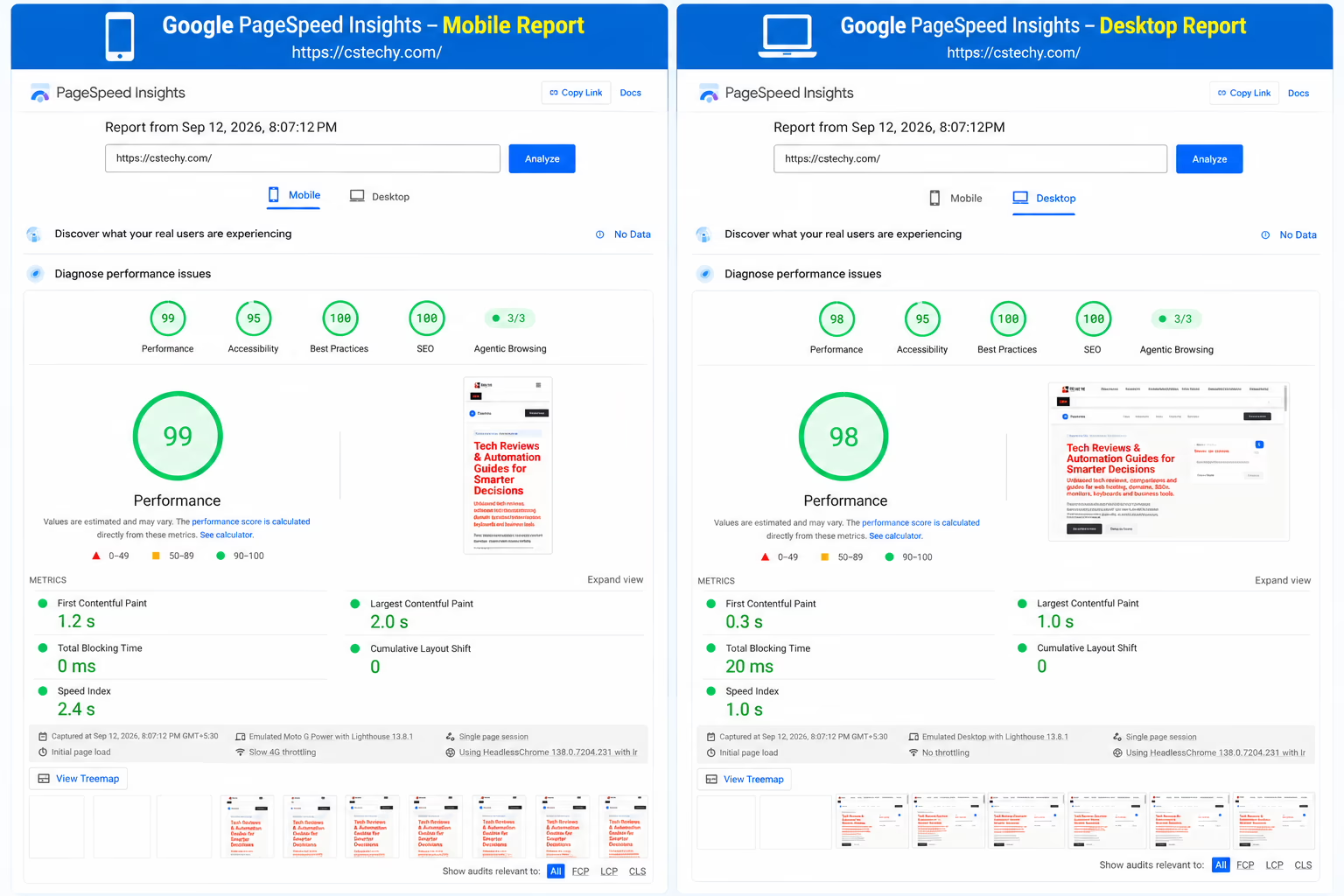
A page-speed report from a tool such as Google’s PageSpeed Insights gives a repeatable way to check how a specific page loads, broken down into metrics like Largest Contentful Paint and Cumulative Layout Shift. Running this test against your own site, on your own plan tier, gives a far more useful number than any generic hosting benchmark, since results depend heavily on the theme, plugins, and images used on the site being tested.
hPanel performance report
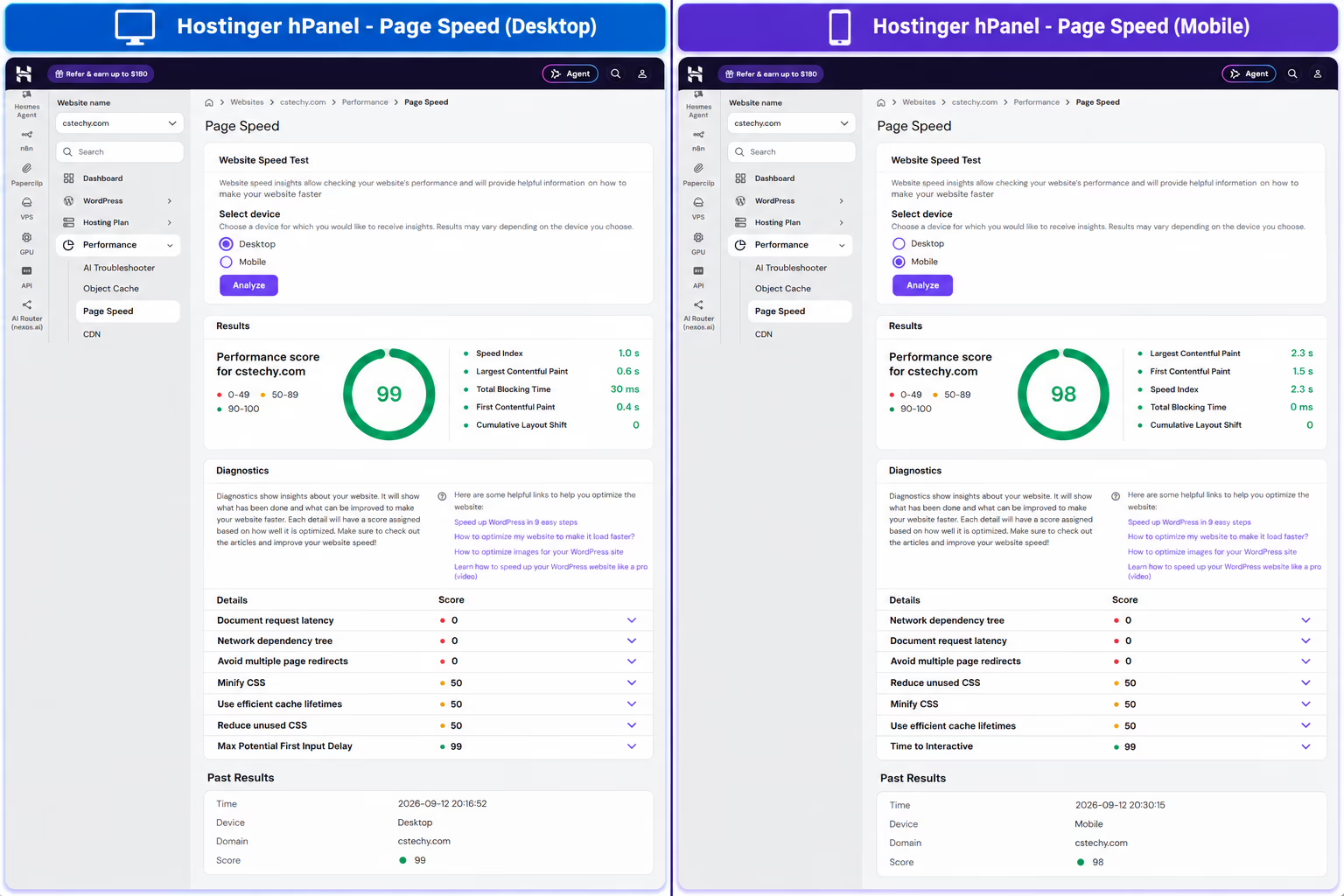
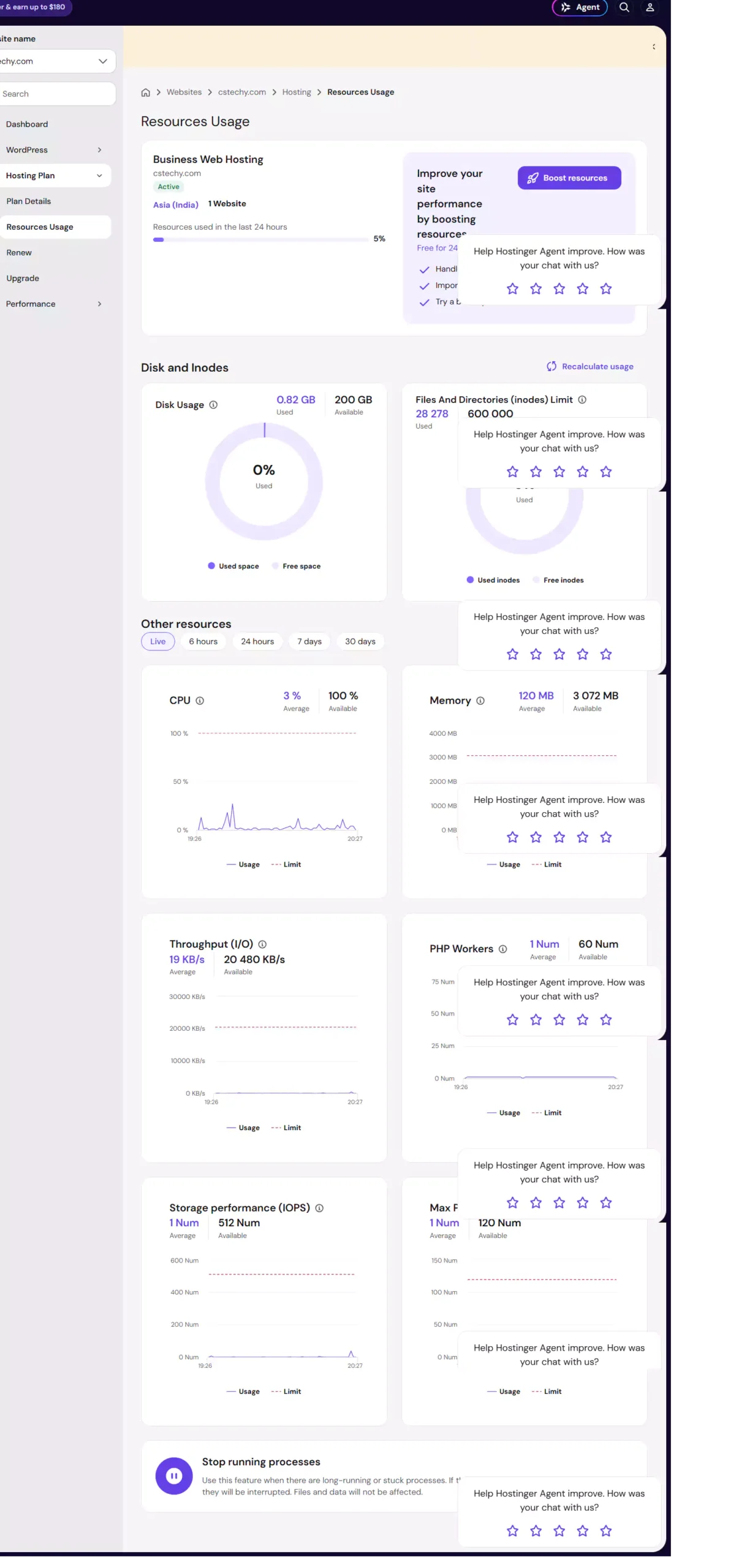
hPanel itself surfaces some resource-usage and performance data for your account — CPU and memory usage over time, and in some plans, cache-hit statistics. This is a useful second data point alongside an external speed test, since it reflects your account’s actual resource consumption rather than only the rendered page’s load time.
What performance features typically involve
- Caching — server-level or application-level caching can reduce page load time, particularly for WordPress sites; whether it’s included and how it’s configured varies by plan.
- Data-center location — choosing a data center geographically closer to your audience generally reduces latency; confirm which regions are actually offered on your specific plan tier.
- CDN availability — a content delivery network can improve load times for visitors far from the origin server; check whether it’s bundled, a paid add-on, or unavailable at your tier.
- Underlying architecture — cloud and VPS plans generally offer more consistent resource allocation than shared hosting, which can translate into steadier performance under load.
Reading a Core Web Vitals report without overreacting to it
A single Core Web Vitals report is a snapshot, not a verdict on your host. Largest Contentful Paint depends heavily on your largest image or content block and how well it’s optimized, Cumulative Layout Shift depends on whether images and ads reserve their space before loading, and interactivity metrics depend on how much JavaScript your theme and plugins run. A slow result often points to a theme, plugin, or unoptimized image rather than the hosting infrastructure itself, so it’s worth checking those factors before concluding the host is the bottleneck. Running the same test on the same page a few times, at different times of day, also gives a more reliable picture than a single run.
What to check before deciding
- Hostinger’s current stated uptime commitment and whether it comes with a service-credit policy
- Which data centers are available on your specific plan, not just the product family
- Whether a CDN or caching layer is included, or a paid extra, at your tier
Related reading
5. Hostinger Security
Quick answer: Hosting-level security generally covers SSL provisioning, malware scanning, firewall protection, DDoS mitigation, and backup availability for recovery. Which of these are included by default versus offered as paid add-ons varies by plan tier, and is worth confirming directly rather than assuming it matches another provider’s baseline.
Baseline features worth checking
- SSL certificates — commonly included free on most modern hosting plans, including Hostinger’s; confirm whether it auto-renews and whether it covers subdomains if you need that.
- Malware scanning and removal — some plans include automated scanning; removal assistance may be a paid service or a support-ticket process depending on tier.
- Firewall and DDoS protection — infrastructure-level protection is common across mainstream hosts; the specific thresholds and mitigation approach are rarely published in fine detail by any provider.
- Two-factor authentication for your hosting account — worth enabling on the hPanel login itself, separate from any site-level security, since the control panel account is a meaningful attack surface on its own.
- Automated backups — a security control in the sense that it limits damage from a compromise or accidental deletion; frequency and retention vary by plan.
Practical security steps worth taking regardless of host
- Enable two-factor authentication on your hPanel account and your WordPress admin login separately.
- Keep WordPress core, themes, and plugins updated, and remove any that are no longer maintained.
- Use a unique, strong password for the database and any admin accounts, generated rather than reused from another service.
- Review user accounts periodically and remove access for anyone who no longer needs it.
- Confirm your backup restore process works before you need it, by testing a restore to a staging area if one is available.
Security is a shared responsibility
Hosting-level protection covers the server and network layer, but a meaningful share of real-world compromises happen through weak passwords, outdated plugins, or overly broad user permissions at the application level — none of which a host’s firewall or malware scanner can fully prevent on its own. Treat the hosting provider’s security features as one layer of a broader approach that also includes your own account hygiene, update discipline, and access control, rather than a complete substitute for them.
What to check before deciding
- Whether SSL, malware scanning, and firewall protection are included at your specific plan tier or require an upgrade
- Whether hPanel supports two-factor authentication, and whether you’ve enabled it
- How backups are stored, how far back you can restore, and whether restoring is self-service or requires a support ticket
Related reading
6. Hostinger WordPress & hPanel
Quick answer: Hostinger runs its own control panel, hPanel, rather than licensing cPanel, and offers WordPress-specific plan tiers with one-click installation and some managed-WordPress conveniences. The learning curve for hPanel is a fair consideration for anyone coming from cPanel-based hosting, and is worth weighing against whatever WordPress-specific conveniences the tier includes.
hPanel versus cPanel, honestly
Neither panel is objectively better in every respect — they organize the same broad set of hosting-management tasks (file management, databases, domains, email, SSL, backups) differently. Readers who have used cPanel extensively elsewhere should expect a short adjustment period with hPanel’s different layout and terminology, not a loss of core functionality. This is primarily a familiarity cost rather than a capability gap, though specific advanced cPanel plugins or workflows some agencies rely on may not have a direct hPanel equivalent, which is worth checking against your specific workflow before switching.
Setting up a new WordPress site on Hostinger: the practical steps
- Log in to hPanel and select the domain you want to install WordPress on, or connect a new domain first if you haven’t already.
- Use the one-click WordPress installer from hPanel’s website section, choosing an admin username and password that aren’t defaults.
- Install an SSL certificate for the domain if it isn’t already active, and force HTTPS in WordPress’s site settings.
- Set up a caching plugin or enable hPanel’s built-in caching option if your tier includes one, and clear the cache after any theme or plugin change.
- Configure automatic backups at the frequency your plan allows, and note where and how to trigger a restore.
- Install only the plugins you actually need, and remove the default theme and sample content once your real theme is active.
WordPress-specific conveniences to check for
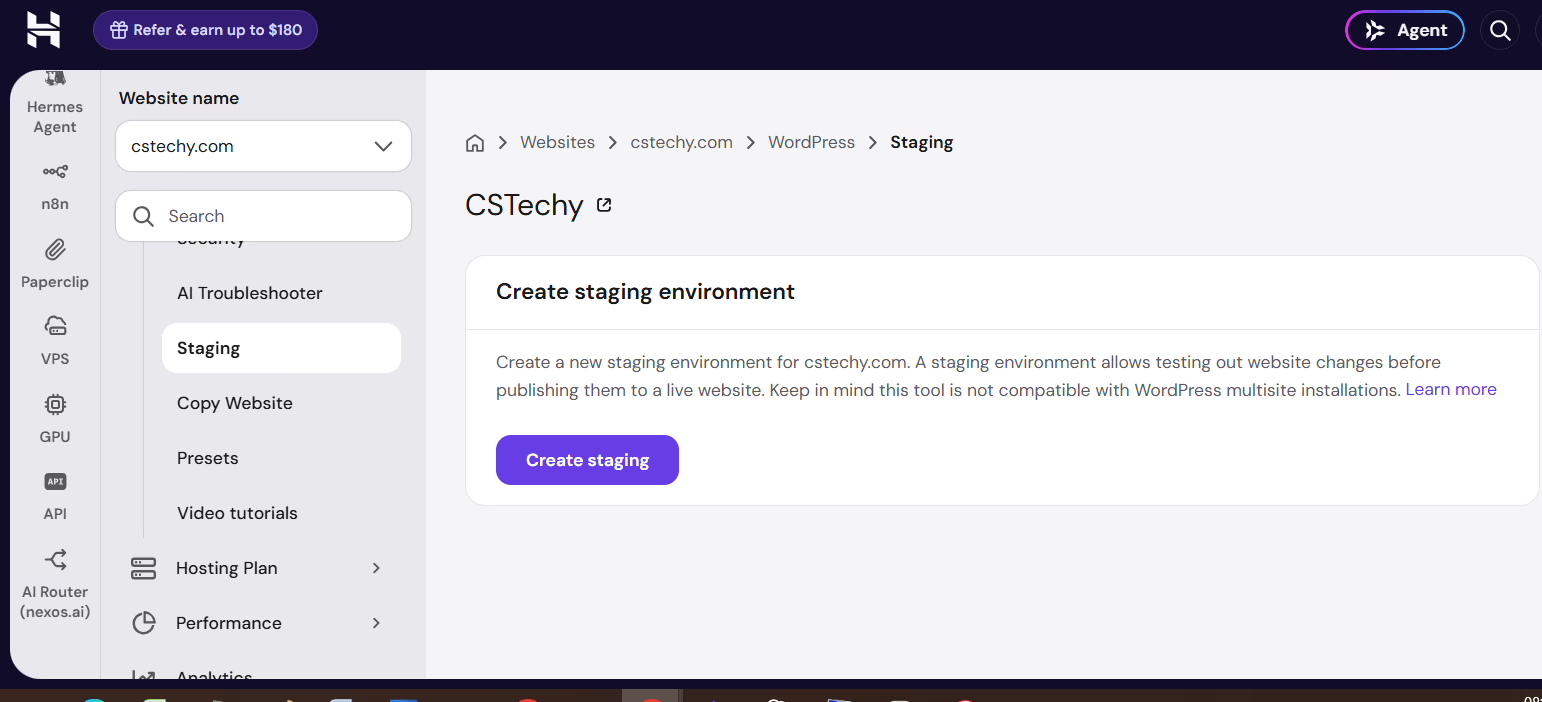
- Whether staging environments are included at your tier, which let you test changes before pushing them live
- Automatic WordPress core updates, and whether plugin or theme updates are handled or left to you
- Any WordPress-specific caching or performance layer bundled with the WordPress plan tier specifically, as distinct from general shared hosting
- Whether a managed-WordPress support tier is available with WordPress-specific troubleshooting, versus general hosting support
Related reading
WORDPRESS HOSTING OFFER
Ready to Launch Your WordPress Website?
Find a hosting plan for your WordPress site. Explore Hostinger’s plans and check the latest available offers.
Check WordPress Hosting Offers →Affiliate disclosure: We may earn a commission if you purchase through this link, at no extra cost to you.
7. Hostinger Email Hosting
Quick answer: Hostinger offers email hosting tied to your domain, either bundled into web hosting plans at a limited mailbox allowance or as a standalone email product with more mailboxes and storage. Which option makes sense depends mainly on how many mailboxes you need and whether email volume or storage is likely to exceed what’s bundled into your web hosting tier.
Bundled versus standalone email
Web hosting plans commonly include a limited number of email accounts and a fixed storage allowance per mailbox. If you need more mailboxes than the plan includes, more storage per mailbox, or better deliverability tooling, a dedicated email hosting product is generally the more scalable option rather than trying to stretch a bundled allowance. Confirm current mailbox counts and storage limits for both the bundled and standalone options directly, since this is exactly the kind of numeric detail that shifts between plan revisions.
Setting up email on a new domain: the practical steps
- Create the mailbox in hPanel’s email section, and set a strong, unique password.
- Add SPF, DKIM, and DMARC records for your domain through hPanel’s DNS zone editor, following Hostinger’s current documentation for the exact record values.
- Configure your mail client (or use webmail directly) with the IMAP or POP settings hPanel provides.
- Send a test email to an external address and check that it doesn’t land in spam, adjusting DNS records if it does.
- Set up mailbox-full alerts or monitor usage periodically so you’re not surprised by a full inbox.
Deliverability basics worth checking regardless of plan
- Whether SPF, DKIM, and DMARC records are set up correctly for your domain — this affects whether outgoing mail lands in inboxes rather than spam folders, independent of which host you use
- Whether the email plan includes a webmail interface and IMAP/POP support for use with a separate mail client
- Storage limits per mailbox and what happens once a mailbox is full
- Whether spam and malware filtering is included by default
A note for readers sending email to Indian inboxes
Deliverability issues are rarely about which country a mailbox provider is based in and much more about whether your domain’s authentication records are configured correctly and whether your sending pattern looks legitimate to spam filters. A newly registered domain sending a large volume of email immediately, without any prior sending history, is more likely to be flagged regardless of host. Warming up gradually — starting with lower volumes and increasing over time — tends to help deliverability more than switching providers does.
Related reading
8. Hostinger Website Builder
Quick answer: Hostinger’s website builder is a drag-and-drop tool aimed at readers who want a working site without managing WordPress or code, with the trade-off being less flexibility and, typically, a separate underlying platform from your WordPress hosting if you later want to switch approaches.
Who the builder suits, and who it doesn’t
A website builder generally suits straightforward brochure sites, portfolios, and small-business landing pages where the priority is getting online quickly with template-based design. It suits WordPress users less well if they expect the same plugin ecosystem, theme flexibility, or the ability to move the resulting site to a different host by copying files, since builder-based sites are typically tied to the builder’s own platform rather than being portable in the way a self-hosted WordPress install is.
Getting started with the builder
- Choose a template that matches your site type — portfolio, service business, or store — rather than picking on looks alone, since some templates are structured more suitably for certain content types.
- Replace all placeholder text and images before publishing; templates ship with sample content that needs full replacement.
- Connect your domain and confirm SSL is active before sharing the site publicly.
- If you need e-commerce features, confirm payment gateway support and any transaction limits for your region before building out a full product catalog.
What to check before choosing the builder over WordPress
- Whether the templates available cover the type of site you’re building
- Whether AI-assisted content or design tools are included, and whether that’s a genuine time-saver for your use case
- Export or migration options if you later want to move away from the builder
- Whether e-commerce features, if you need them, meet your specific requirements — payment gateways, inventory limits, tax handling
A note on SEO and long-term flexibility
Website builders have improved considerably on basic on-page SEO controls — title tags, meta descriptions, and heading structure are typically editable directly in the builder interface. Where builders still tend to lag a mature WordPress setup is in fine-grained control over technical SEO details and in the sheer breadth of specialized plugins available for WordPress. For a straightforward small-business site, this gap rarely matters in practice; for a content-heavy site planning significant future growth, it’s worth weighing before committing to a builder-based structure that would need to be rebuilt later if you outgrow it.
Related reading
9. Hostinger Migration & Backups
Quick answer: Moving an existing site to Hostinger generally involves either a Hostinger-assisted migration service, where available for your source host and site type, or a manual migration using a plugin or manual file and database transfer. Backups matter both during migration, as a safety net, and afterward, as ongoing protection.
Assisted versus manual migration
An assisted migration, where offered, typically reduces the technical burden on the site owner but may have limits on site size, platform type, or the number of included migrations per plan. A manual migration gives more control but requires comfort with file transfer, database export and import, and DNS changes. Hostinger states its own current migration policy and any included migration count on its site — check that page directly, since migration allowances are a plan detail that changes.
A step-by-step manual migration checklist
- Take a full backup of your current site — files and database — independent of any automated backup your current host provides.
- Set up the new Hostinger plan and hosting account before touching DNS, so it’s ready to receive the transferred files.
- Transfer files via FTP/SFTP or a migration plugin, and import the database into the new environment.
- Update the site’s configuration file with the new database credentials, and update any hardcoded URLs if the domain or path has changed.
- Test the site on a temporary URL or via a local hosts-file edit before changing DNS, checking key functionality such as forms, checkout, and login.
- Lower your DNS TTL a day or two in advance if possible, so the eventual cutover propagates faster.
- Update DNS to point to Hostinger, and keep the old hosting account active until you’ve confirmed the new one is fully working.
- Recheck email routing if you’re also moving email hosting, since DNS changes affecting the domain can affect mail delivery too.
Common migration pitfalls worth avoiding
- Forgetting hardcoded URLs. If your domain or folder structure changes during the move, search the database for the old URL and replace it consistently, since a partial replacement can leave broken links or mixed-content warnings.
- Skipping the pre-cutover test. Testing the site only after DNS has already switched over makes it harder to tell whether a problem is with the migration itself or with something unrelated that changed at the same time.
- Not checking email separately. If your domain’s email is hosted separately from the website, changing DNS for the website can unintentionally affect mail routing if the records aren’t handled carefully.
- Deleting the old hosting account too soon. Keep the previous host active for at least a few days after cutover, so you have a fallback if something on the new host needs troubleshooting.
- Assuming the assisted migration covers everything. Confirm exactly what an assisted migration includes — for example, whether it covers email, custom scripts, or only the core website files and database — before relying on it as complete.
Backup practices worth confirming regardless of provider
- Automated backup frequency at your specific plan tier, and how far back the retention window goes
- Whether restoring from a backup is self-service through hPanel or requires contacting support
- Whether backups are stored separately from the live site’s infrastructure, reducing the risk of losing both simultaneously
- Keeping your own independent backup outside the host, particularly before any major change like a plugin update, theme change, or migration
Related reading
10. Hostinger Competitor Comparisons
Quick answer: How Hostinger compares to a specific competitor depends heavily on which competitor and which use case — budget shared hosting, managed WordPress, e-commerce, or VPS. This section frames the general comparison factors; the linked pages below cover specific head-to-head matchups in more depth.
Factors that matter more than a single “winner”
Rather than declaring one host universally best, which rarely holds up across every use case, it’s more useful to name the factors that actually drive a sensible comparison: entry and renewal pricing for the term length you’d actually choose, panel familiarity — cPanel versus a proprietary panel like hPanel — included migration assistance, backup policy, and how each provider’s support model fits your comfort level with self-service versus ticket-based help.
Hostinger vs. ScalaHosting
ScalaHosting is often compared against Hostinger on managed cloud VPS pricing and its own sPanel control panel. Readers deciding between the two should weigh panel preference alongside the specific resource allocation at the price point they’re actually comparing, rather than a general brand impression.
Hostinger vs. MilesWeb
MilesWeb is a comparison more relevant to readers specifically prioritizing Indian data-center presence and rupee-denominated billing. The practical difference for many Indian readers comes down to data-center location options and current local pricing more than a broad feature gap.
Hostinger vs. Namecheap
Namecheap is frequently compared against Hostinger by readers who already use Namecheap for domain registration and are weighing whether to consolidate hosting with the same company. This comparison is often more about account-management convenience than a large technical difference between the underlying hosting products.
Hostinger vs. Bluehost for e-commerce
Two CSTechy articles look at Hostinger against Bluehost specifically from an e-commerce hosting angle, covering different aspects of that comparison — plan-level resource allocation on one hand, and store-specific features and checkout performance on the other. Reading both gives a fuller picture than either alone for readers building an online store.
Hostinger vs. SiteGround
SiteGround is generally positioned at a higher price point with a managed-hosting emphasis; the comparison against Hostinger usually comes down to whether the extra cost buys enough additional support and performance consistency to matter for your specific project.
Hostinger vs. Cloudways
Cloudways operates as a managed cloud-hosting layer over infrastructure from providers like DigitalOcean, AWS, and Google Cloud, which is a different model from Hostinger’s own infrastructure. The comparison is most relevant to readers who specifically want that underlying cloud-provider choice, versus readers happy with Hostinger managing the full stack itself.
Related reading
11. Hostinger Coupons & Offers
Quick answer: Hostinger runs periodic promotional pricing and coupon codes, most commonly tied to longer commitment terms. Because offers rotate and expire, the most useful thing this section can do is explain how to evaluate whatever current offer you’re looking at, rather than list a discount percentage that may have already changed.
How to evaluate a current offer, regardless of what it advertises
- Confirm the renewal price after the discounted term ends, not just the introductory rate
- Check whether the discount requires a long commitment, and whether that fits your actual plans
- Confirm what’s bundled — free domain, free SSL, included migrations — and for how long each bundled item lasts
- Check the refund policy and window in case the plan doesn’t work out
- Compare the discounted price against a competitor’s current equivalent offer, not against a competitor’s undiscounted list price
Applying these five checks to any promotion you find gives a far more reliable read on whether it’s genuinely a good deal than the headline discount percentage alone, which is calculated against a list price that may itself be inflated ahead of a sale.
Related reading
Decision summary
Pulling the sections above together into a practical starting point:
- If you’re choosing between plan tiers, start with the pricing cluster’s comparison factors and confirm current numbers directly on Hostinger’s site.
- If you plan to self-host tools like n8n, use the VPS cluster’s setup steps and size your tier based on your actual workflow load.
- If you’re migrating an existing site, follow the migration checklist above, and take your own independent backup regardless of what the host provides automatically.
- If you’re weighing Hostinger against a specific competitor, use the comparison factors in that section rather than looking for a single universal winner, since the right choice depends on your specific use case.
- If you’re comparing offers, apply the five-point coupon-evaluation checklist above to whatever current promotion you’re looking at.
Hostinger suits a wide range of budgets and project sizes, from a first personal site on the cheapest shared tier up to a self-managed VPS running automation tools. The right entry point depends on your technical comfort and how much resource isolation your project actually needs — not on a single “best plan” answer that applies to every reader equally.
Quick picks by reader type
- First-time site owner on a tight budget: start with entry shared hosting, use the one-click WordPress installer, and revisit the plans section above once your traffic or content volume actually grows.
- Small business or agency managing a few client sites: compare mid-to-upper shared tiers against cloud hosting using the factors in the pricing section, prioritizing backup frequency and support priority.
- Developer or automation user needing root access: go straight to the VPS section, size your tier against your actual workflow count, and follow the n8n setup steps if that’s your use case.
- Reader migrating from another host: read the migration section fully before starting, and use the step-by-step checklist rather than improvising the DNS cutover.
- Reader still comparing hosts generally: use the competitor comparisons section’s factors — pricing at your actual term length, panel familiarity, and support model — rather than a single blanket recommendation.
Frequently asked questions
Is Hostinger a good choice for a first website?
For a first website with a modest budget, Hostinger’s entry-level shared hosting is a reasonable starting point, since it includes a one-click WordPress installer and a free SSL certificate on most current plans. The main adjustment for a first-time host owner is learning hPanel rather than a more commonly documented panel like cPanel, which involves a short learning curve rather than any loss of core functionality.
Do I need a VPS instead of shared hosting?
Most small sites do not need a VPS. A VPS becomes relevant once you need root access — for example, to self-host software like n8n — or once your traffic and resource needs consistently exceed what shared hosting comfortably provides. Cloud hosting is often a middle option worth checking before jumping straight to a VPS.
How do I migrate my current site to Hostinger?
Check whether Hostinger’s current assisted migration service covers your source host and site type; if it does, that’s usually the lower-effort path. If not, follow a manual migration process: back up your current site fully, set up the new Hostinger account, transfer files and the database, test on a temporary URL, and only then update DNS. The full checklist is in the migration section above.
Does Hostinger include email hosting?
Most Hostinger web hosting plans include a limited number of email mailboxes at a fixed storage allowance. If you need more mailboxes or storage than your plan includes, a standalone email hosting product is generally the more scalable option. Confirm current mailbox counts directly, since these vary by plan tier.
Is hPanel harder to use than cPanel?
Not inherently harder, just different. Readers coming from cPanel should expect a short adjustment period learning where familiar tasks — file management, databases, email, backups — live in hPanel’s layout, rather than any real loss of functionality for typical use cases.
Can I run n8n on Hostinger without a VPS?
Self-hosting n8n requires root access to install and run the software directly, which shared and cloud hosting plans don’t provide. A VPS plan is the entry point for self-hosting n8n on Hostinger; readers who don’t want to manage a VPS themselves would need to use n8n’s own hosted offering instead.
How do I know which Hostinger data center to choose?
Choose the data-center location closest to the majority of your visitors, since geographic distance to the server generally affects load time. Check which regions are actually available on the specific plan tier you’re buying, since not every data center is necessarily offered on every tier, and confirm this before completing your purchase rather than assuming all locations are available everywhere.
Conclusion
Hostinger covers a wide range of hosting needs, from simple shared plans through to VPS hosting suited to self-hosted tools like n8n, with its own hPanel control panel running across the entire product line. The right entry point depends on your budget, technical comfort, and whether your project needs the resource isolation that cloud or VPS hosting provides over shared hosting. The most useful next step for most readers is to pick the cluster above that matches their immediate question — plan pricing, performance, security, or migration — read the linked deep-dive article for that topic, and confirm any current price, uptime commitment, or resource limit directly on Hostinger’s site before making a purchasing decision.
Ready to Build Your Website?
Explore Hostinger hosting plans, compare features, and find a hosting solution that fits your website and budget.
Explore Hostinger PlansDisclosure: CSTechy may earn a commission if you purchase through this affiliate link, at no additional cost to you.