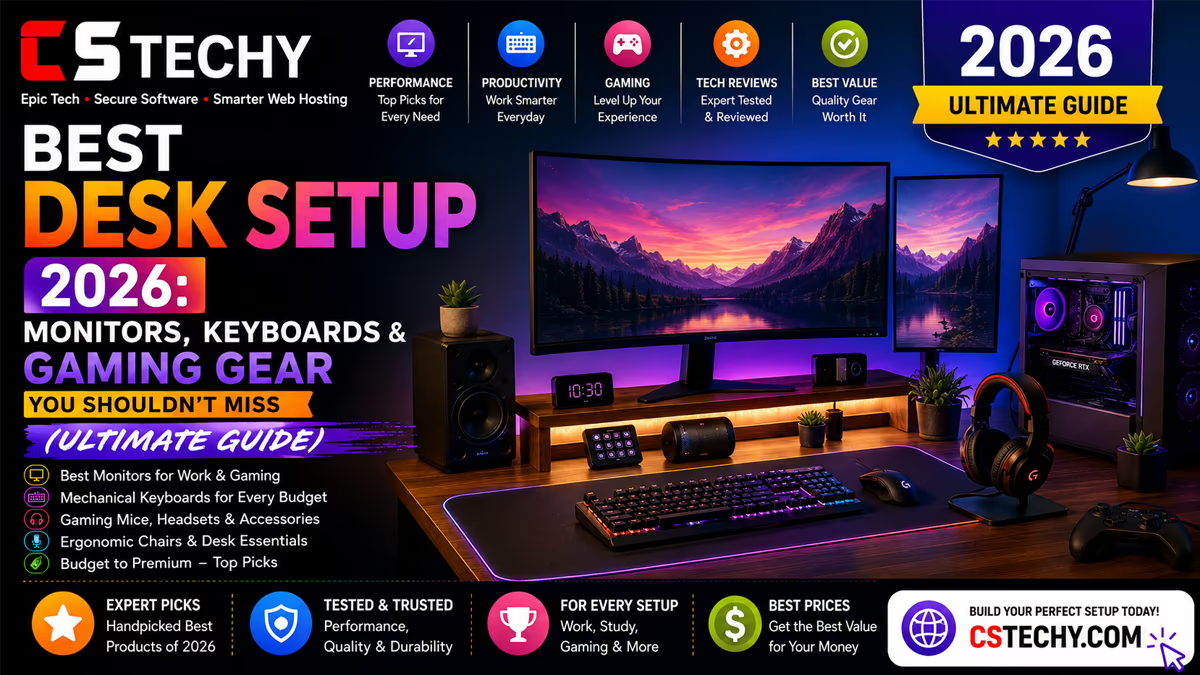
best desk setup 2026

Best Desk Setup 2026: Monitors, Keyboards & Gaming Gear You Shouldn’t Miss (Ultimate Guide)

🔥 Your Desk Setup is RUINING Your Productivity (Fix This Today)

Most people focus on buying the best laptop or monitor, but ignore their desk setup. This is a big mistake. A poor setup can reduce your productivity, cause discomfort, and even lead to long-term health issues.

If your workspace feels messy, uncomfortable, or tiring, your setup is working against you—not for you.

  • Pros of a Good Setup:
    • Better focus and productivity
    • Less physical strain (neck, back, eyes)
    • Improved workflow and comfort
  • Cons of a Bad Setup:
    • Low concentration and distractions
    • Frequent fatigue and discomfort
    • Slow work and poor performance

👉 Common Mistakes:

  • Using a laptop without a stand (causes neck pain)
  • Sitting in poor posture for long hours
  • Cluttered desk with no organization
  • Ignoring lighting and screen positioning

Fixing these small issues can instantly improve your productivity and comfort. You don’t need an expensive setup—just a smart one.


🔥 Gaming vs Work Setup – 90% People Choose Wrong (Don’t Be One)

Many people try to use the same setup for gaming and work, but both require completely different priorities. This is where most users go wrong.

A gaming setup focuses on performance and visuals, while a work setup focuses on comfort and productivity.

  • Gaming Setup (Pros):
    • High refresh rate monitors for smooth visuals
    • Powerful hardware for performance
    • Immersive experience
  • Gaming Setup (Cons):
    • Not optimized for long work hours
    • Can cause fatigue due to aggressive lighting
    • Focus is on visuals, not comfort
  • Work Setup (Pros):
    • Comfortable for long hours
    • Better posture and ergonomics
    • Improves productivity and efficiency
  • Work Setup (Cons):
    • May lack high-end visuals for gaming
    • Less focus on entertainment features

👉 Common Mistakes:

  • Buying gaming chairs without ergonomic support
  • Using RGB-heavy setups for work (causes distraction)
  • Ignoring keyboard and mouse comfort
  • Choosing looks over usability

👉 Smart Tip: If you do both gaming and work, build a balanced setup—focus on comfort first, then performance.

Top gaming monitors under 10000

🔥 Step-by-Step Desk Setup Guide (Build a Pro Setup in 2026)

Now let’s build a smart desk setup step by step. You don’t need a luxury setup—just follow these basics to create a professional and comfortable workspace.

Step 1: Choose the Right Desk & Chair

  • Pros:
    • Better posture and comfort
    • Reduces long-term health issues
  • Cons:
    • Cheap chairs can cause back pain

👉 Mistake: Choosing style over comfort

Step 2: Optimize Monitor Position

  • Pros:
    • Reduces eye and neck strain
    • Improves focus
  • Cons:
    • Wrong height causes discomfort

👉 Mistake: Keeping monitor too low or too close

Step 3: Improve Lighting

  • Pros:
    • Reduces eye strain
    • Improves visibility
  • Cons:
    • Poor lighting causes fatigue

👉 Mistake: Using harsh or dim lighting

Step 4: Organize Your Desk

  • Pros:
    • Clean setup improves focus
    • Easy access to essentials
  • Cons:
    • Clutter reduces productivity

👉 Mistake: Keeping unnecessary items on desk

Step 5: Use Proper Accessories

  • Pros:
    • Better comfort and efficiency
    • Enhances workflow
  • Cons:
    • Wrong accessories waste money

👉 Mistake: Buying unnecessary gadgets


🔥 Final Tip: A perfect desk setup is not about expensive gear—it’s about comfort, balance, and smart choices.

Best 4K & Ultrawide Monitors (Don’t Buy Before Reading This)

Choosing the best 4K or ultrawide monitor is not just about resolution or size. Many buyers make costly mistakes by focusing only on specs without understanding real usage. Whether you are a gamer, creator, or office user, the right monitor can completely change your experience.

In this guide, we break down everything you need to know before buying a monitor—so you don’t waste money or regret your purchase later.


4K vs Ultrawide – The Truth No One Tells You

The biggest confusion buyers face is choosing between 4K monitors vs ultrawide monitors. Both offer unique benefits, but the best choice depends on your usage.

  • 4K Monitors (Pros):
    • Extremely sharp and detailed visuals
    • Best for editing, design, and content creation
    • Better color accuracy
  • 4K Monitors (Cons):
    • Requires powerful hardware
    • Higher cost
  • Ultrawide Monitors (Pros):
    • More screen space for multitasking
    • Better for productivity and workflow
    • Immersive experience
  • Ultrawide Monitors (Cons):
    • Not ideal for all content formats
    • Can be expensive

👉 Common Mistake: Choosing ultrawide for editing or 4K for multitasking without understanding the use case.

👉 Smart Tip: Choose 4K for clarity, ultrawide for productivity.


Best Monitors for Editing, Design & Creative Work (Top Picks)

If you are into photo editing, video editing, or design, your monitor is your most important tool. A poor display can ruin your work quality.

  • Pros:
    • Accurate colors for professional work
    • High resolution for detailed editing
    • Better brightness and contrast
  • Cons:
    • Higher price for professional monitors

👉 Common Mistake: Buying cheap monitors for creative work.

👉 Smart Tip: Always prioritize color accuracy over just resolution.


Ultrawide Monitors for Multitasking – Game Changer or Overhyped?

Ultrawide monitors are often marketed as productivity boosters. But are they really worth it?

  • Pros:
    • Multiple windows side by side
    • No need for dual monitors
    • Improves workflow efficiency
  • Cons:
    • Takes more desk space
    • Not all apps support ultrawide perfectly

👉 Common Mistake: Buying ultrawide without enough desk space.

👉 Smart Tip: Great for multitasking, but not always necessary for basic users.


Cheap vs Expensive Monitors – What’s Actually Worth It?

Many buyers struggle between budget and premium monitors. But price alone does not define value.

  • Cheap Monitors (Pros):
    • Affordable and budget-friendly
    • Good for basic tasks
  • Cheap Monitors (Cons):
    • Lower color accuracy
    • Limited features
  • Expensive Monitors (Pros):
    • Better build and display quality
    • Advanced features
  • Expensive Monitors (Cons):
    • Higher cost

👉 Common Mistake: Paying extra for features you don’t use.

👉 Smart Tip: Choose based on usage, not price.


5 Features You MUST Check Before Buying Any Monitor

Before buying any monitor, always check these essential features to avoid mistakes.

  • Resolution: Higher resolution = sharper display
  • Refresh Rate: Important for gaming and smooth visuals
  • Panel Type: IPS, VA, TN – affects color and viewing angles
  • Connectivity: HDMI, DisplayPort, USB-C options
  • Ergonomics: Adjustable stand for comfort

👉 Common Mistake: Ignoring panel type and ergonomics.

👉 Smart Tip: Always check real-world usability, not just specs.


🔥 Final Tip: The best monitor is not the most expensive—it’s the one that fits your needs perfectly.

Best Gaming Monitors 2026 (Speed, Clarity & Performance Tested)

Choosing the best gaming monitor in 2026 is not just about buying the most expensive option. It’s about finding the perfect balance between refresh rate, resolution, panel type, and real-world performance. Many gamers waste money by following hype instead of understanding what actually improves gameplay.

In this guide, we break down everything—from 144Hz vs 240Hz monitors to 1080p vs 4K gaming—so you can make a smart decision without confusion.


60Hz vs 144Hz vs 240Hz – Huge Difference or Just Marketing?

Refresh rate defines how smooth your gameplay feels. Higher Hz = smoother motion.

  • 60Hz (Pros):
    • Affordable
    • Good for casual gaming
  • 60Hz (Cons):
    • Not smooth for competitive gaming
  • 144Hz / 165Hz (Pros):
    • Massive improvement in smoothness
    • Best balance of price and performance
  • 144Hz / 165Hz (Cons):
    • Requires decent GPU
  • 240Hz+ (Pros):
    • Ultra-smooth gameplay
    • Best for esports
  • 240Hz+ (Cons):
    • Very expensive
    • Not noticeable for most users

👉 Mistake: Buying 240Hz without a powerful GPU

👉 Smart Tip: 144Hz–165Hz is the sweet spot


1080p vs 1440p vs 4K – Which One Gives You Real Advantage?

  • 1080p (Pros):
    • High FPS
    • Best for competitive gaming
  • 1080p (Cons):
    • Lower visual quality
  • 1440p (Pros):
    • Better visuals + good FPS
    • Perfect balance
  • 1440p (Cons):
    • Needs stronger GPU
  • 4K (Pros):
    • Stunning visuals
  • 4K (Cons):
    • Lower FPS
    • Expensive hardware needed

👉 Smart Tip: 1440p is best for most gamers


Best Budget Gaming Monitors (Don’t Waste Money Here)

  • Pros:
    • Affordable entry into gaming
    • Decent performance
  • Cons:
    • Limited features

👉 Mistake: Buying cheapest monitor without checking panel & refresh rate


Best 144Hz & 165Hz Monitors – Perfect Sweet Spot?

This is the best choice for most gamers.

  • Smooth gameplay
  • Affordable compared to 240Hz
  • Works with mid-range GPUs

👉 Verdict: YES, best value


Best 240Hz & 360Hz Monitors – Do You REALLY Need This?

  • Pros:
    • Extreme smoothness
    • Competitive edge
  • Cons:
    • Very expensive
    • Requires top-tier PC

👉 Only for esports players


Best 4K Gaming Monitors – Stunning or Overkill?

  • Pros:
    • Best visuals
  • Cons:
    • Low FPS
    • High cost

👉 Best for story games, not FPS


IPS vs VA vs TN – Which Panel is Actually Best for Gaming?

  • IPS: Best colors + good speed
  • VA: Best contrast
  • TN: Fastest but poor colors

👉 Best choice: IPS


G-Sync vs FreeSync – Worth It or Just Hype?

  • Pros:
    • Smoother gameplay
    • Reduces screen tearing
  • Cons:
    • Extra cost

👉 Worth it if you game regularly


Best Monitor Setup for FPS, Story Games & Console Players

  • FPS Games: 1080p + 144Hz+
  • Story Games: 4K or 1440p
  • Console: 4K + HDR

👉 Choose based on your game type, not hype.

Premium Display Choice: Samsung Odyssey Series

For those looking to maximize screen real estate in their 2026 desk setup, the Samsung Odyssey lineup offers unparalleled immersion. Its extreme curvature matches the human eye’s field of view, reducing eye strain during long blogging or coding sessions.


🔥 Final Verdict: The best gaming monitor is the one that matches your GPU, games, and budget—not the most expensive one.

Best Keyboards 2026 (Mechanical vs Wireless – Ultimate Showdown)

Choosing the best keyboard in 2026 is no longer just about typing—it’s about speed, comfort, and overall experience. The biggest debate right now is mechanical vs wireless keyboards, and many users get confused about which one actually delivers better performance.

Mechanical keyboards are known for their fast response, tactile feedback, and durability, making them perfect for gamers and heavy typists. On the other hand, wireless keyboards offer clean setups, portability, and convenience, ideal for modern workspaces.

👉 Quick Insight: If you want performance, go mechanical. If you want flexibility and minimal setup, wireless is the better choice.

Mechanical vs Membrane – Which One Feels Better?

When it comes to typing feel, this is where the real difference happens. The battle between mechanical vs membrane keyboards is not about specs—it’s about how the keyboard actually feels when you use it every day.

Mechanical keyboards use individual switches for each key, giving a tactile and clicky feedback, while membrane keyboards use a soft rubber layer, resulting in a smoother and quieter typing experience.

  • Mechanical Keyboards (Feel):
    • Strong tactile feedback (you feel every keypress)
    • Clicky or linear options available
    • Faster and more accurate typing
    • Very satisfying for long typing sessions
  • Mechanical (Cons):
    • Noisy (can be distracting)
    • Heavier keypress for some users
  • Membrane Keyboards (Feel):
    • Soft and smooth keypress
    • Quiet typing (good for office use)
    • Light touch required
    • Comfortable for casual users
  • Membrane (Cons):
    • Mushy feel (less feedback)
    • Less precise typing experience

👉 Real Truth: Mechanical feels more “responsive and premium,” while membrane feels “soft and silent.” 👉 Mechanical keyboards also last longer and maintain performance better over time. :

👉 Common Mistake: Buying membrane for gaming or heavy typing and expecting mechanical-level feedback.

👉 Final Verdict:

  • For gaming & typing → Mechanical wins
  • For quiet & budget use → Membrane is enough

🔥 Simple Rule: If you care about feel → go mechanical. If you care about silence → go membrane.

⌨️ Best Gaming Keyboards (Fast, Responsive & Worth It)

A gaming keyboard is not just a typing tool — it’s your reaction speed, accuracy, and control in every game you play.

Choosing the wrong keyboard can slow you down, while the right one can instantly improve your performance.

🎯 Why Gaming Keyboards Matter More Than You Think

Every millisecond counts in gaming — especially in FPS, esports, and competitive matches.

A high-quality keyboard reduces input delay, improves responsiveness, and ensures every keypress registers instantly.

  • ⚡ Faster response time
  • 🎯 Accurate keystrokes
  • 🔥 Better durability for long sessions
  • 🎮 Competitive edge in gameplay

⚙️ Types of Gaming Keyboards (Understand Before Buying)

🟢 Mechanical Keyboards

Mechanical keyboards use individual switches for each key, giving precise feedback and faster actuation.

  • ✔ Best for gaming performance
  • ✔ Extremely durable (50M+ clicks)
  • ✔ Different switch types (Red, Blue, Brown)

🟠 Membrane Keyboards

Membrane keyboards use a soft rubber layer, making them quieter but less responsive.

  • ✔ Budget-friendly
  • ✔ Quiet typing
  • ❌ Slower response
  • ❌ Less durable

🟢 Optical Keyboards

Optical keyboards use light-based actuation, making them insanely fast and highly durable.

  • ✔ Ultra-fast input
  • ✔ Lower debounce delay
  • ✔ Premium performance

⚡ Key Features You MUST Check

🎮 1. Switch Type (Most Important)

Your gaming feel depends entirely on switches — choose wisely based on your usage.

  • Red Switch: Smooth, fast, best for FPS gaming
  • Blue Switch: Clicky, loud, best for typing
  • Brown Switch: Balanced for gaming + typing

⚡ 2. Response Time & Polling Rate

Higher polling rate (1000Hz) means faster communication between keyboard and PC.

Lower latency = better gaming performance.

🎯 3. Anti-Ghosting & N-Key Rollover

These features ensure multiple key presses register correctly — crucial for gaming combos.

  • ✔ No missed inputs
  • ✔ Smooth multi-key actions

🌈 4. RGB Lighting (More Than Just Looks)

RGB helps identify keys faster in dark setups and enhances immersion.

Custom lighting profiles can also improve workflow.

🔧 5. Build Quality

A solid metal frame lasts longer and feels premium during intense gaming sessions.

🔥 Pros & Cons of Gaming Keyboards

✔ Advantages

  • ⚡ Faster input speed
  • 🎯 Higher accuracy
  • 💪 Long-lasting durability
  • 🎮 Better gaming experience
  • 🌈 Customization options

❌ Disadvantages

  • 💰 Expensive compared to normal keyboards
  • 🔊 Some switches are noisy
  • ⚖ Slight learning curve for beginners

🚨 Common Mistakes People Make (Avoid These!)

❌ 1. Buying Only Based on RGB

RGB looks cool but does NOT improve performance — focus on switches and response time first.

❌ 2. Ignoring Switch Type

Many users buy keyboards without understanding switches — leading to poor gaming experience.

❌ 3. Choosing Cheap Build Quality

Low-quality keyboards break quickly and feel inconsistent during gameplay.

❌ 4. Not Checking Compatibility

Some keyboards require software support — always check compatibility with your system.

❌ 5. Ignoring Size & Layout

Full-size, TKL, or 60% keyboards — choose based on your desk space and usage.

🧠 Easy Tips to Choose the Best Gaming Keyboard

  • 👉 Choose mechanical or optical for gaming
  • 👉 Go for Red switches if you play FPS games
  • 👉 Always check anti-ghosting support
  • 👉 Pick 1000Hz polling rate minimum
  • 👉 Ensure strong build quality
  • 👉 Choose size based on your desk setup

📊 Keyboard Size Guide

  • Full Size: Best for all use (includes numpad)
  • TKL (Tenkeyless): Compact + gaming focused
  • 60%: Ultra-compact, best for minimal setups

🏆 Who Should Buy Gaming Keyboards?

  • 🎮 Competitive gamers
  • ⚡ FPS & esports players
  • 💻 Streamers & content creators
  • ⌨️ Heavy typing users

💡 Final Thoughts

A gaming keyboard is an investment in performance — not just aesthetics.

Focus on speed, reliability, and durability instead of just looks.

The right keyboard will not only improve your gameplay but also make every session more enjoyable and efficient.

Choose smart, play faster, and stay ahead of your competition.

⌨️ Best Keyboards for Typing – Comfort + Speed Combo

Typing is not just about speed — it’s about comfort, accuracy, and long-term health.

The right keyboard can increase your typing speed, reduce fatigue, and prevent wrist pain during long sessions.

🎯 Why a Good Typing Keyboard Matters

If you type daily for blogging, coding, or office work, your keyboard directly impacts productivity.

A well-designed keyboard improves posture, reduces strain, and allows faster, more accurate typing.

  • ⚡ Faster typing speed
  • 🎯 Fewer typing errors
  • 🧠 Better focus & flow
  • 💪 Less wrist fatigue

🔥 Best Keyboards for Typing (Top Picks)

🏆 Best Overall Typing Keyboard

This keyboard is built for serious productivity. The keys are perfectly shaped for your fingertips, reducing typing mistakes.

Ideal for bloggers, writers, and professionals who type for hours daily.

💼 Best Budget Typing Keyboard

Great for beginners or budget users. Soft keys make typing comfortable without noise.

⌨️ Best Mechanical Keyboard for Typing

Mechanical switches provide better feedback, helping you type faster and more accurately.

🧠 Best Ergonomic Keyboard

Ergonomic keyboards are designed for natural hand positioning, reducing strain during long sessions.

📊 Product Comparison Table

FeatureProduct 1Product 2Product 3Product 4
Typing Comfort⭐⭐⭐⭐⭐⭐⭐⭐⭐⭐⭐⭐⭐⭐⭐⭐⭐⭐
Noise LevelSilentVery QuietMediumLow
Best ForProfessionalsBudget UsersWriters + CodersLong Hours
ConnectivityWirelessBluetoothWireless/WiredWired
Build QualityPremiumGoodExcellentErgonomic Design

🚨 Common Mistakes When Buying Typing Keyboards

❌ 1. Choosing Gaming Over Comfort

Gaming keyboards focus on speed, but typing keyboards focus on comfort and accuracy — don’t confuse them.

❌ 2. Ignoring Ergonomics

A bad keyboard can cause wrist pain and long-term strain.

❌ 3. Buying Cheap Low-Quality Keys

Cheap keyboards feel mushy and reduce typing speed over time.

❌ 4. Not Testing Key Travel

Too shallow or too deep keys can affect your typing rhythm.

🧠 Easy Tips for Better Typing Experience

  • 👉 Choose low-profile keys for faster typing
  • 👉 Go for ergonomic design if typing long hours
  • 👉 Prefer mechanical (brown/blue) for feedback
  • 👉 Use wrist rest for comfort
  • 👉 Maintain proper typing posture

🏆 Who Should Buy Typing-Focused Keyboards?

  • ✍️ Bloggers & writers
  • 💻 Programmers & developers
  • 📊 Office professionals
  • 📚 Students

💡 Final Thoughts

A typing keyboard is all about comfort + consistency — not flashy features.

Invest in a keyboard that supports your hands, improves speed, and keeps you comfortable for hours.

Your productivity depends on it.

📡 Wireless Keyboards – Clean Setup or Lag Issues?

Wireless keyboards give you a clean, clutter-free desk — but many users worry about lag, delay, and reliability.

So the real question is: are wireless keyboards worth it in 2026, or should you still stick to wired?

🎯 Wireless Keyboards – The Reality

Modern wireless keyboards are NOT like old ones — lag has reduced massively with new technologies.

High-end wireless keyboards now offer near-zero latency, making them suitable even for gaming.

  • ⚡ Faster wireless protocols (2.4GHz, Bluetooth 5.0+)
  • 🔋 Long battery life (months to years)
  • 📡 Stable connection without dropouts

🔥 Best Wireless Keyboards (Top Picks)

🏆 Best Overall Wireless Keyboard

Perfect for professionals — smooth typing, zero noticeable lag, and premium feel.

🎮 Best Wireless Gaming Keyboard (Low Latency)

Gaming-grade wireless with performance close to wired keyboards — ideal for FPS and esports.

💰 Best Budget Wireless Keyboard

Great for everyday use — simple, reliable, and highly portable.

⌨️ Best Mechanical Wireless Keyboard

Ideal for typing + gaming combo — strong connectivity and premium mechanical feedback.

📊 Wireless Keyboard Comparison (Lag vs Performance)

| Feature | | Latency | Very Low | Ultra Low (Gaming Grade) | Low | Low | | Connection Type | Bluetooth | Lightspeed + Bluetooth | Bluetooth | Bluetooth + Wired | | Battery Life | High | Medium | Very High | High | | Typing Experience | Premium | Fast | Soft | Mechanical | | Best Use | Work | Gaming | Budget | Hybrid |

🚨 When Wireless Keyboards Feel Laggy

❌ 1. Using Cheap Bluetooth Keyboards

Low-quality keyboards often have input delay and connection drops.

❌ 2. Interference Issues

Wi-Fi routers and other devices can cause signal interference.

❌ 3. Low Battery

Weak battery = slower response and connection instability.

❌ 4. Using Bluetooth for Gaming

Bluetooth is fine for typing — but for gaming, 2.4GHz wireless is much faster.

⚡ Pros & Cons of Wireless Keyboards

✔ Advantages

  • 🧼 Clean, cable-free setup
  • 📱 Multi-device connectivity
  • 🎒 Portable & flexible
  • 🔋 Long battery life

❌ Disadvantages

  • ⚠ Possible lag in cheap models
  • 🔋 Needs charging or batteries
  • 📡 Interference risk

🧠 Pro Tips to Avoid Lag Completely

  • 👉 Choose 2.4GHz wireless (gaming) instead of Bluetooth
  • 👉 Use Bluetooth 5.0+ for better stability
  • 👉 Keep keyboard close to receiver
  • 👉 Avoid cheap unknown brands
  • 👉 Keep battery above 30%

🏆 Final Verdict – Clean Setup vs Performance

👉 For office work, typing, and productivity — wireless keyboards are PERFECT.

👉 For gaming — only choose premium low-latency wireless models.

👉 Cheap wireless keyboards = lag issues.

👉 Premium wireless keyboards = almost same as wired.

In 2026, wireless is no longer a compromise — it’s a smart upgrade if you choose the right one.

🌈 RGB Keyboards – Cool Feature or Waste of Money?

RGB keyboards look stunning — but do they actually improve performance, or are they just for show?

Let’s break it down honestly so you don’t waste money on hype.

🎯 What RGB Keyboards Really Do

RGB simply means customizable lighting — it does NOT change how fast your keyboard works.

Performance depends on switches, response time, and build quality — not colors.

👉 RGB = visual + customization, not raw performance boost.

🔥 Where RGB Actually Helps

🎮 1. Better Key Visibility

In low-light setups, RGB lighting helps you clearly see keys while gaming or typing.

You can highlight important keys like WASD for faster access.

🎯 2. Custom Key Mapping (Useful)

Different colors for different keys = easier muscle memory and faster reactions.

Especially useful in complex games or editing workflows.

🌈 3. Aesthetic & Setup Upgrade

RGB massively improves desk setup visuals and creates an immersive environment.

It’s one of the main reasons gamers prefer it. :

🧠 4. Psychological Boost

Colors and lighting can improve mood and engagement during gaming sessions.

This doesn’t make you faster — but it makes gaming more enjoyable.

🚨 Where RGB is Overhyped

❌ 1. No Real Performance Gain

RGB does NOT increase speed, FPS, or response time.

Those depend on switches and hardware, not lighting. :

❌ 2. You Pay Extra for Looks

RGB keyboards are usually more expensive than non-RGB versions.

You’re paying for aesthetics, not core functionality.

❌ 3. Can Be Distracting

Too many lighting effects can reduce focus during intense gaming.

Some users even turn RGB off after buying.

❌ 4. Higher Power Usage

RGB lighting consumes more power, especially in wireless keyboards.

⚖️ RGB vs Non-RGB – Quick Reality Check

  • 👉 Same typing & gaming performance
  • 👉 Same durability (if build quality is same)
  • 👉 Only difference = lighting + customization

Even many users say RGB is mostly preference, not necessity.

“no difference… except price rgb features”

🔥 Pros & Cons of RGB Keyboards

✔ Advantages

  • 🌈 Stunning visual setup
  • 🎮 Better key visibility in dark
  • 🎯 Custom key highlighting
  • 🧠 More immersive experience
  • 🎨 Personalization & style

❌ Disadvantages

  • 💰 Higher price
  • ⚠ No real performance boost
  • 🔋 More battery usage
  • 👀 Can be distracting

🧠 Smart Buying Advice (Very Important)

👉 First focus on switch type, build quality, and response time.

👉 Only consider RGB AFTER performance basics are good.

  • ✔ Buy RGB if you care about setup aesthetics
  • ✔ Skip RGB if you want best value for money
  • ✔ Use static color instead of flashy effects for focus

🏆 Final Verdict – Worth It or Waste?

👉 RGB is NOT a waste — but it’s NOT essential either.

👉 It’s a luxury feature, not a performance upgrade.

👉 If your budget is tight → skip RGB.

👉 If you want a premium setup → RGB is worth it.

Choose based on your needs — not hype.

🖱️ Best Mouse 2026 (Gaming + Work – Top Picks Compared)

A mouse is one of the most underrated tools — but it directly affects your speed, accuracy, and comfort.

Whether you’re gaming, editing, or working long hours, the right mouse can massively improve your performance.

In 2026, modern mice are faster, lighter, and smarter than ever — but choosing the wrong one can ruin your experience.

🔥 Best Mouse 2026 (Top Picks)

🏆 Best Overall Mouse (Gaming + Work)

This is the perfect balance of speed, precision, and comfort. Ideal for FPS gaming and long work sessions.

🎯 Best FPS Gaming Mouse

One of the fastest mice available — designed for competitive gaming and ultra-low latency.

It features a 35K DPI sensor and ultra-light design (~54g), making it perfect for fast reactions. :

💼 Best Mouse for Work & Productivity

Best for professionals, designers, and coders — comfort + productivity features.

💰 Best Budget Gaming Mouse

Gives excellent performance without spending too much — great value choice.

📊 Mouse Comparison Table (Gaming + Work)

| Feature | : | Type | Wireless | Wireless | Wireless | Wired/Wireless | | Weight | Ultra Light | Ultra Light (~54g) | Heavy | Light | | Best For | Gaming + Work | FPS Gaming | Productivity | Budget Gaming | | DPI | High | 35K DPI | Medium | High | | Latency | Ultra Low | Ultra Low | Low | Low | | Ergonomics | Balanced | Competitive | Excellent | Good | | Battery | Long | Long | Long | Medium |

⚙️ Key Features You MUST Check

  • 🎯 DPI & Sensor: Higher DPI = better precision (important for gaming)
  • Polling Rate: 1000Hz+ ensures faster response
  • 🪶 Weight: Lighter = faster movement (FPS advantage)
  • 🖐️ Ergonomics: Important for long work sessions
  • 📡 Wireless Tech: Modern wireless = no lag

🚨 Common Mistakes (Avoid These!)

❌ Buying Only Based on DPI

Higher DPI doesn’t mean better performance — sensor quality matters more.

❌ Ignoring Weight

Heavy mouse slows down gaming performance.

❌ Choosing Cheap Wireless

Low-quality wireless mice can have lag and connection issues.

❌ Ignoring Grip Style

Palm, claw, fingertip — your grip style should match the mouse shape.

🧠 Pro Tips (High Impact)

  • 👉 FPS gaming → choose lightweight mouse
  • 👉 Work + editing → choose ergonomic mouse
  • 👉 Budget → go wired for better performance
  • 👉 Hybrid use → choose wireless premium models

🏆 Final Verdict

👉 For gaming → go lightweight + high polling rate

👉 For work → go ergonomic + comfort-focused

👉 For both → choose premium wireless hybrid mouse

In 2026, the best mouse is not the most expensive — it’s the one that fits your usage perfectly.

⚔️ Wired vs Wireless Mouse – Which One Wins in 2026?

This is one of the biggest debates in tech — wired vs wireless mouse.

In 2026, the gap is smaller than ever… but the “best” choice depends on how you use it.

🎯 The Truth in 2026

Both wired and wireless mice are excellent today — there is NO wrong choice anymore.

The winner depends on your priority: performance vs convenience.

👉 Wired = maximum stability 👉 Wireless = clean setup + flexibility

🔥 Top Examples (Wired vs Wireless)

🧵 Best Wired Mouse Example

Perfect for gamers who want stable performance with zero risk of lag.

📡 Best Wireless Mouse Example

Modern wireless mice like this perform almost identical to wired — even in esports.

📊 Wired vs Wireless Mouse (2026 Comparison)

a
FeatureWired MouseWireless Mouse
LatencyZero (Direct)Near Zero (Advanced Wireless)
ReliabilityExtremely StableVery Stable (Premium Models)
SetupCable RequiredClean & Wireless
WeightSlightly HeavierUltra Lightweight
BatteryNot NeededNeeds Charging
Gaming PerformancePerfectAlmost Identical
PriceMore AffordableMore Expensive

⚡ Performance – Who Wins?

👉 Wired mice still have the most consistent signal and zero interference.

👉 Wireless mice now offer ultra-low latency — almost equal to wired in real-world use.

Even experts confirm that modern wireless gaming mice deliver “near-zero latency” performance.

However, wired still has slightly more consistent polling stability in extreme cases (like 8K polling).

🧼 Setup & Comfort – Who Wins?

👉 Wireless wins easily here.

  • ✔ No cable drag
  • ✔ Clean desk setup
  • ✔ Better movement freedom

Once you switch to wireless, going back to wired feels restrictive.

🚨 When Each One Fails

❌ Wireless Problems

  • Battery runs out during use
  • Cheap models may lag
  • Signal interference possible

❌ Wired Problems

  • Cable drag affects movement
  • Messy desk setup
  • Less portability

🧠 Real User Opinion (Community Insight)

“Wired feels more reliable for gaming, and wireless is just so convenient for work.”

👉 This perfectly summarizes the real-world usage difference.

🏆 Final Verdict – Who Wins in 2026?

👉 For gaming (competitive): Wired still slightly wins for consistency

👉 For most users: Wireless is the better overall choice

👉 For hybrid use (gaming + work): Premium wireless wins

👉 For budget users: Wired gives best value

🔥 Final answer: Wireless wins in 2026 — but only if you choose a good one.

🎯 Best Gaming Mouse for FPS Players (Accuracy Matters)

In FPS games, your mouse is your weapon — accuracy, speed, and control decide whether you win or lose.

A bad mouse = missed shots. A good mouse = perfect tracking, faster flicks, and better aim consistency.

Let’s find the BEST FPS mouse based on real performance — not hype.

🔥 Best FPS Gaming Mouse (Top Picks)

🏆 Best Overall FPS Mouse

This is used by pro players for a reason — extremely light, insanely accurate, and built for competitive FPS.

Lightweight design improves aim control and reduces fatigue during long matches.

🎯 Best Precision FPS Mouse

This mouse delivers extreme tracking accuracy with advanced optical sensor technology.

Modern sensors can reach 50K DPI with near-perfect tracking — ideal for competitive play.

💰 Best Budget FPS Mouse

One of the best value options — lightweight design + good sensor = great for beginners and mid-level players.

Affordable ultralight mice still deliver excellent performance for ranked play.

⚡ Best Wired FPS Mouse (Zero Lag)

Perfect if you want absolute stability and no wireless concerns.

📊 FPS Mouse Comparison (Accuracy Focus)

FeatureMouse 1Mouse 2Mouse 3Mouse 4
WeightUltra Light (~60g)Ultra Light (~54g)LightHeavy
Sensor AccuracyExcellentExtreme (Pro Level)Very GoodGood
LatencyNear ZeroNear ZeroLowZero
Best ForEsportsPrecision AimBudget FPSStability
Grip TypeAllFingertip/ClawAllPalm
Price RangeHighHighMidBudget

🎯 What Actually Improves FPS Accuracy

👉 Lightweight mice improve aim control and reduce fatigue.

👉 High-end sensors provide accurate tracking with zero acceleration.

👉 Shape matters more than specs — comfort = consistency.

Top FPS mice focus on weight + sensor performance + control.

🚨 Mistakes FPS Players Make

❌ Using Heavy Mouse

Heavy mice slow down flick shots and tracking.

❌ Chasing High DPI

Pro players use low DPI — control matters more than sensitivity.

❌ Ignoring Shape & Grip

Wrong shape = poor aim consistency.

❌ Buying Cheap Sensor Mouse

Low-quality sensors cause jitter and tracking issues.

🧠 Pro Tips for FPS Players

  • 👉 Choose ultra-light mouse (under 70g)
  • 👉 Use low DPI (400–800) for better control
  • 👉 Go for large mousepad
  • 👉 Pick shape based on your grip style

🏆 Final Verdict

👉 Best overall: Logitech G Pro X Superlight 2

👉 Best precision: Razer Viper V3 Pro

👉 Best budget: HyperX Pulsefire Haste 2

👉 Best wired: Logitech G502 Hero

In FPS gaming, accuracy is everything — and the right mouse gives you that competitive edge.

💼 Best Mouse for Office Work (Comfort Over Everything)

For office work, comfort matters more than speed or features.

A good mouse should feel natural, reduce strain, and support long hours.

🏆 Best Overall Office Mouse

👉 Ergonomic design + smooth scrolling = best productivity combo.

👉 A well-shaped mouse reduces wrist pain and improves workflow.

  • ✔ Comfortable palm support
  • ✔ Smooth & precise scrolling
  • ✔ Multi-device connectivity
  • ✔ Long battery life

🔥 Best Types of Office Mice

🖐️ Ergonomic Mouse (Most Recommended)

Designed to support your hand naturally and reduce pressure.

Best for long hours and daily office work.

🧠 Vertical Mouse (Wrist Friendly)

Keeps your hand in a handshake position, reducing wrist strain.

Ideal if you experience wrist pain or fatigue.

⚡ Standard Wireless Mouse

Simple, clean, and portable for everyday tasks.

Good for light to medium usage.

📊 What Makes a Mouse Comfortable?

  • 👉 Shape that fits your hand
  • 👉 Proper size (not too small or big)
  • 👉 Soft clicks and smooth scroll
  • 👉 Lightweight but stable design
  • 👉 Good grip texture

Comfort is about how natural the mouse feels after hours of use.

🚨 Common Mistakes (Avoid These)

❌ Choosing Gaming Mouse for Office

Gaming mice focus on speed, not long-term comfort.

❌ Ignoring Ergonomics

Bad shape leads to wrist pain and fatigue.

❌ Buying Cheap Flat Mouse

Flat designs lack proper hand support.

❌ Not Matching Hand Size

Wrong size reduces control and comfort.

⚡ Pros & Cons of Office Mice

✔ Advantages

  • 💼 Designed for long working hours
  • 🖐️ Better hand support
  • 🧠 Improves productivity
  • 🔇 Quiet and smooth clicks

❌ Disadvantages

  • 💰 Premium models are expensive
  • ⚠ Some ergonomic designs need adjustment time

🧠 Pro Tips for Maximum Comfort

  • 👉 Keep wrist straight while using
  • 👉 Use mouse pad with wrist support
  • 👉 Adjust desk and chair height
  • 👉 Take short breaks every hour
  • 👉 Choose wireless for clean setup

🏆 Final Verdict

👉 For long work → ergonomic mouse is best.

👉 For wrist pain → go vertical mouse.

👉 For simple use → standard wireless is enough.

Comfort is not a luxury — it’s a necessity for daily productivity.

🎯 High DPI Mouse – Real Advantage or Just Numbers?

High DPI is one of the most marketed features in mice — but does it actually improve performance?

Or is it just a number used to attract buyers?

🎯 What DPI Really Means

DPI (Dots Per Inch) measures how sensitive your mouse is.

Higher DPI = cursor moves more with less physical movement.

  • 👉 Low DPI → more control, slower movement
  • 👉 High DPI → faster movement, less hand motion

🔥 The Reality About High DPI

👉 High DPI does NOT automatically mean better performance.

👉 It only increases sensitivity — not accuracy.

Most professional gamers actually use LOW DPI for better control.

📊 Ideal DPI Based on Usage

  • 🎮 FPS Gaming → 400 – 800 DPI
  • 🎮 General Gaming → 800 – 1600 DPI
  • 💼 Office Work → 800 – 1200 DPI
  • 🖥️ Multi-monitor → 1600 – 3200 DPI

These ranges give better control and consistency in real-world use.

🚨 Why High DPI is Overhyped

❌ 1. Marketing Trick

Brands promote 20K–50K DPI, but most users never use it.

❌ 2. Reduces Control

Very high DPI makes the cursor too sensitive and harder to control.

❌ 3. Accuracy Drops

Higher sensitivity can reduce precision in aiming and detailed work.

❌ 4. No Real Use Case

Extreme DPI is rarely useful outside special scenarios.

⚡ When High DPI is Actually Useful

  • ✔ Multi-monitor setups
  • ✔ Ultra-high resolution screens (4K/8K)
  • ✔ Fast cursor movement for productivity

Even then, moderate DPI settings are usually enough.

⚖️ High DPI vs Low DPI (Quick Comparison)

  • 👉 High DPI → fast but less control
  • 👉 Low DPI → slower but more precise

Control matters more than speed in most real-world scenarios.

🧠 Smart Buying Advice

  • 👉 Focus on sensor quality, not DPI number
  • 👉 Choose mouse with adjustable DPI
  • 👉 Don’t pay extra just for higher DPI
  • 👉 Test comfort and tracking instead

🏆 Final Verdict

👉 High DPI is NOT a game-changer.

👉 It’s mostly a marketing number.

👉 Real performance comes from control, sensor quality, and comfort.

🔥 Final answer: Balanced DPI wins — not extreme numbers.

⚖️ Lightweight vs Ergonomic Mouse – Which One is Better?

Choosing between a lightweight mouse and an ergonomic mouse depends on one thing — your usage.

Speed vs comfort. Performance vs long-term health.

🎯 What is a Lightweight Mouse?

Lightweight mice are designed for speed, quick movements, and precision control.

Most weigh under 70 grams and are built for competitive gaming.

  • ⚡ Faster flicks and tracking
  • 🎮 Ideal for FPS gaming
  • 🪶 Reduced hand fatigue (short-term)

🎯 What is an Ergonomic Mouse?

Ergonomic mice are designed to support your hand naturally and reduce strain.

They focus on comfort, posture, and long-term usage.

  • 🖐️ Natural hand positioning
  • 💼 Ideal for office work
  • 🧠 Reduces wrist pain

📊 Lightweight vs Ergonomic (Quick Comparison)

  • 👉 Weight: Lightweight wins (faster movement)
  • 👉 Comfort: Ergonomic wins (long sessions)
  • 👉 Gaming: Lightweight wins
  • 👉 Office Work: Ergonomic wins
  • 👉 Precision: Lightweight (fast aim), Ergonomic (stable control)

⚡ Performance vs Comfort

👉 Lightweight = better speed and reaction time.

👉 Ergonomic = better comfort and reduced strain.

If you play FPS games, lightweight gives a competitive edge.

If you work long hours, ergonomic protects your hand and wrist.

🚨 Common Mistakes

❌ Choosing Lightweight for Office Work

It may feel fast but lacks proper support for long hours.

❌ Choosing Ergonomic for Competitive Gaming

Heavier design can reduce speed and reaction time.

❌ Ignoring Grip Style

Shape matters more than weight alone.

🧠 Smart Buying Tips

  • 👉 FPS gaming → choose lightweight mouse
  • 👉 Office work → choose ergonomic mouse
  • 👉 Hybrid use → choose balanced lightweight ergonomic design
  • 👉 Always match mouse with your grip style

🏆 Final Verdict

👉 No universal winner — it depends on your use.

👉 Gaming → Lightweight wins.

👉 Work → Ergonomic wins.

🔥 Best choice: pick based on your daily usage, not trends.

🔌 Best USB-C Hubs & Docking Stations (Upgrade Your Setup Instantly)

Modern laptops are powerful — but limited in ports.

USB-C hubs and docking stations instantly expand your setup, turning a single port into a complete workstation.

But choosing the wrong hub can cause overheating, slow speeds, or compatibility issues.

🎯 What is a USB-C Hub vs Docking Station?

🔌 USB-C Hub

A compact device that adds extra ports like USB, HDMI, SD card, and Ethernet.

Best for portability and basic expansion needs.

🖥️ Docking Station

A powerful setup hub that connects monitors, peripherals, internet, and charging in one place.

Best for full desktop replacement setups.

🔥 Why You Need One

  • 👉 Expand limited laptop ports
  • 👉 Connect multiple devices easily
  • 👉 Improve productivity with dual monitors
  • 👉 Create a clean desk setup
  • 👉 Charge devices while working

If you use a modern laptop, a hub or dock is almost essential.

⚙️ Key Features You MUST Check

⚡ 1. Power Delivery (PD Charging)

Ensures your laptop charges while using the hub.

Look for 65W–100W PD for smooth performance.

🖥️ 2. Display Support

Check if it supports 4K or dual monitor output.

Important for productivity and creative work.

📡 3. Data Transfer Speed

USB 3.0 / 3.1 / 3.2 determines how fast your files transfer.

Faster speeds save time in daily work.

🌐 4. Ethernet Port

Provides stable internet compared to Wi-Fi.

🔧 5. Build Quality & Heat Management

Metal bodies dissipate heat better and last longer.

📊 Hub vs Dock – Quick Comparison

  • 👉 Portability → Hub wins
  • 👉 Power & features → Dock wins
  • 👉 Price → Hub is cheaper
  • 👉 Setup replacement → Dock wins

🔥 Pros & Cons of USB-C Hubs

✔ Advantages

  • 🧳 Compact and travel-friendly
  • 💰 Affordable
  • ⚡ Quick plug-and-play setup
  • 📱 Great for basic expansion

❌ Disadvantages

  • ⚠ Limited power output
  • 🔥 Can heat up under load
  • 🖥️ Limited display support

🔥 Pros & Cons of Docking Stations

✔ Advantages

  • 🖥️ Supports multiple monitors
  • ⚡ Full workstation setup
  • 🔌 Charges laptop + devices
  • 🌐 Stable wired internet

❌ Disadvantages

  • 💰 Expensive
  • 📦 Bulky (not portable)
  • ⚠ Requires proper compatibility

🚨 Common Mistakes (Very Important)

❌ Ignoring Laptop Compatibility

Not all USB-C ports support video output or full features.

❌ Buying Cheap No-Brand Hubs

Low-quality hubs can overheat and damage devices.

❌ Not Checking Power Delivery

Without proper PD, your laptop won’t charge efficiently.

❌ Expecting Dual Monitor from Basic Hub

Many hubs only support single display output.

❌ Ignoring Cable Quality

Poor cables reduce speed and stability.

🧠 Smart Buying Tips

  • 👉 Choose hub for travel, dock for desk setup
  • 👉 Always check USB-C port capabilities
  • 👉 Prefer branded products with good reviews
  • 👉 Ensure enough ports for future needs
  • 👉 Look for aluminum body for heat control

🏆 Who Should Buy What?

  • 💻 Students & travelers → USB-C Hub
  • 💼 Office professionals → Docking Station
  • 🎬 Creators & editors → Dock (multi-monitor)
  • 🏠 Home users → Hub (basic use)

💡 Final Verdict

👉 USB-C Hub = portable + affordable solution.

👉 Docking Station = full power workstation upgrade.

If you want a simple expansion → go with a hub.

If you want a complete setup transformation → invest in a docking station.

🔥 Final advice: Choose based on your usage — not just features.

🔌 Why Your Setup is Incomplete Without a USB-C Hub

Modern laptops are powerful — but limited in ports.

Without a USB-C hub, your setup is restricted, slow, and inefficient.

🎯 The Real Problem with Modern Laptops

Most laptops today come with just 2–3 USB-C ports — no HDMI, no Ethernet, no SD card slot.

That means you constantly plug and unplug devices, wasting time and breaking workflow.

  • ❌ No direct monitor connection
  • ❌ No wired internet option
  • ❌ Limited USB ports
  • ❌ No memory card support

🔥 How a USB-C Hub Fixes Everything

A USB-C hub turns ONE port into multiple powerful connections instantly.

It acts like a bridge between your laptop and all your devices.

  • ✔ Connect monitor via HDMI
  • ✔ Add multiple USB devices
  • ✔ Use Ethernet for stable internet
  • ✔ Read SD cards instantly
  • ✔ Charge your laptop at the same time

⚡ Real Benefits You Feel Daily

💼 1. Productivity Boost

Multiple devices connected at once = faster workflow.

No more switching cables every few minutes.

🖥️ 2. Multi-Monitor Setup

Connect external displays and expand your workspace.

Perfect for editing, coding, and multitasking.

🌐 3. Stable Internet

Ethernet connection gives better speed and reliability than Wi-Fi.

🧼 4. Clean Desk Setup

One hub manages all connections — less cable mess.

⚡ 5. All-in-One Convenience

Charge, transfer data, and connect devices simultaneously.

🚨 Common Problems Without a Hub

❌ Constant Plugging & Unplugging

Interrupts workflow and wastes time.

❌ Limited Expansion

You can’t connect all devices at once.

❌ Poor Productivity

Switching cables slows down your work.

❌ No Upgrade Path

Your setup stays limited and outdated.

🧠 Smart Tips Before Buying

  • 👉 Ensure your USB-C supports video output
  • 👉 Choose hub with power delivery (PD)
  • 👉 Prefer aluminum build for durability
  • 👉 Check required ports (HDMI, USB, SD, Ethernet)
  • 👉 Avoid cheap unknown brands

🏆 Who Needs a USB-C Hub?

  • 💻 Laptop users with limited ports
  • 💼 Office professionals
  • 🎬 Creators & editors
  • 📚 Students
  • 🏠 Work-from-home users

💡 Final Verdict

👉 Without a USB-C hub, your setup is incomplete.

👉 With a hub, your laptop becomes a full workstation.

It’s one of the simplest upgrades with the biggest impact.

🔥 Final answer: If you use a laptop — you NEED a USB-C hub.

🔌 Best USB-C Hubs for MacBook & Windows (Top Picks)

Choosing the right USB-C hub depends on compatibility, ports, power delivery, and reliability.

MacBook and Windows laptops have different limitations — so picking the right hub matters.

🔥 Best USB-C Hubs & Docks (Top Picks)

🏆 Best Overall USB-C Hub (Mac + Windows)

One of the most balanced hubs with speed, stability, and essential ports.

Offers 100W charging, HDMI, and fast data — perfect for daily use. :

💼 Best Budget USB-C Hub

Great for basic expansion — simple, compact, and trusted brand.

Anker hubs are known for solid build and consistent performance.

🖥️ Best Docking Station (Full Setup)

Perfect for turning your laptop into a full workstation.

Supports multiple displays and full connectivity options.

⚡ Best Multi-Port Hub (High Value)

Best for users who need more ports without going full docking station.

🍏 Best for MacBook (Premium Build)

Designed to match MacBook aesthetics and performance.

Premium materials improve cooling and durability.

📊 Product Comparison Table

Feature
Best ForOverallBudgetFull SetupMulti-PortMacBook
Power Delivery100W100W100W+100W85W
Display Support4K4KDual/TripleDual4K
Ports651187
Build QualityPremiumGoodExcellentPremiumPremium
CompatibilityMac + WindowsMac + WindowsMac + WindowsMac + WindowsMac Focused

🚨 Common Mistakes When Choosing USB-C Hubs

❌ Assuming All USB-C Ports Are Same

Not all laptops support video output — check DP Alt Mode.

❌ Buying Based Only on Number of Ports

More ports doesn’t mean better performance.

❌ Ignoring Power Delivery

Without enough wattage, your laptop may not charge properly.

❌ Choosing Cheap Hubs

Low-quality hubs can overheat and fail quickly.

🧠 Smart Buying Tips

  • 👉 MacBook users → choose aluminum premium hubs
  • 👉 Windows users → check multi-display support
  • 👉 For desk setup → choose docking station
  • 👉 For travel → choose compact hub
  • 👉 Always check PD + HDMI support

🏆 Final Verdict

👉 Best overall → UGREEN Revodok Pro

👉 Best budget → Anker 5-in-1

👉 Best full setup → Belkin Dock

🔥 Final advice: Choose based on your workflow — not just features.

🖥️ Docking Stations for Multi-Monitor Setup – Worth It?

If you’ve ever struggled with limited screen space — docking stations completely change your workflow.

But are they really worth the investment for multi-monitor setups in 2026?

🎯 What a Docking Station Does

A docking station allows you to connect multiple monitors, peripherals, and internet using just ONE cable.

It transforms your laptop into a full desktop workstation instantly.

Modern docks can support dual or even triple monitors with 4K output.

🔥 Best Docking Stations for Multi-Monitor Setup

🏆 Best Overall Multi-Monitor Dock

Perfect balance of performance, ports, and price for dual monitor users.

💼 Best Professional Docking Station

Best for office professionals, editors, and heavy multitasking.

💰 Best Budget Multi-Monitor Dock

Great entry-level option for beginners building a dual monitor setup.

⚡ Best Premium Dock (Enterprise Level)

Supports dual displays and up to 85W charging via a single cable.

📊 Product Comparison (Multi-Monitor Focus)

| Feature | | Monitor Support | Dual 4K | Dual Display | Dual Display | Dual HD | | Power Delivery | 100W | 85W+ | 65W | 85W | | Ports | 8 | 12 | 12 | 11 | | Build Quality | Premium | Premium | Good | Excellent | | Best For | Balanced Use | Professionals | Budget | Enterprise |

⚡ Real Benefits of Multi-Monitor Setup

🧠 1. Massive Productivity Boost

More screen space = less switching between tabs.

You can work faster and more efficiently.

🎬 2. Better Workflow for Creators

Edit on one screen, preview on another.

💼 3. Perfect for Office Work

Excel, browser, and tools — all visible at once.

📊 4. Multitasking Made Easy

No need to minimize windows constantly.

🚨 When Docking Stations Are NOT Worth It

❌ Casual Users

If you only use one screen, a dock is unnecessary.

❌ Budget Constraints

Good docks can be expensive.

❌ Unsupported Laptop

Not all USB-C ports support dual displays.

🚨 Common Mistakes

❌ Ignoring Display Support

Many docks don’t support dual monitors properly.

❌ Buying Cheap Dock

Leads to overheating and unstable connections.

❌ Not Checking Compatibility

MacBooks and Windows behave differently with displays.

❌ Expecting Full Performance from Basic USB-C

Thunderbolt docks perform better for heavy use.

🧠 Smart Buying Tips

  • 👉 Ensure your laptop supports DisplayPort Alt Mode
  • 👉 Choose dual HDMI or HDMI + DisplayPort
  • 👉 Prefer 100W power delivery
  • 👉 For heavy use → go Thunderbolt dock
  • 👉 For basic use → standard USB-C dock is enough

🏆 Final Verdict – Worth It?

👉 YES — if you use multiple apps, monitors, or multitask heavily.

👉 NO — if you’re a casual single-screen user.

🔥 Final answer: Docking stations are 100% worth it for multi-monitor setups — they turn your laptop into a productivity powerhouse.

💰 Cheap vs Premium Dock – Don’t Overpay

Not all expensive docking stations are worth it — and not all cheap ones are bad.

The real goal is finding the RIGHT value, not blindly choosing cheap or premium.

🎯 The Truth You Need to Know

👉 Cheap docks = basic functionality 👉 Premium docks = advanced performance + reliability

But most users don’t need premium-level features — and end up overpaying.

🔥 Cheap Docking Stations (What You Get)

Budget docks are designed for simple setups — and they actually work well for many users.

  • ✔ Basic ports (HDMI, USB, PD)
  • ✔ Affordable pricing
  • ✔ Compact and portable
  • ✔ Good for single monitor setups

Many budget docks can still support dual monitors and essential ports at a much lower cost.

❌ Limitations of Cheap Docks

  • ⚠ Lower data transfer speeds
  • ⚠ Limited display support
  • ⚠ Plastic build (less durable)
  • ⚠ May include outdated ports (USB 2.0)

Example: Some budget docks still use older USB speeds and basic builds to reduce cost. :

🔥 Premium Docking Stations (What You Get)

Premium docks are built for power users who need high performance and reliability.

  • ✔ Multiple monitor support (dual/triple 4K)
  • ✔ Faster data speeds (10Gbps–40Gbps)
  • ✔ Strong metal build
  • ✔ Higher power delivery (100W+)
  • ✔ More ports and better stability

High-end Thunderbolt docks offer significantly higher bandwidth and performance compared to standard USB-C docks.

❌ Downsides of Premium Docks

  • 💰 Expensive (often 2x–5x price)
  • ⚠ Overkill for normal users
  • ⚠ Requires compatible laptops (Thunderbolt support)

Some premium docks only deliver full performance on specific high-end laptops.

📊 Cheap vs Premium – Real Comparison

  • 👉 Price → Cheap wins
  • 👉 Performance → Premium wins
  • 👉 Build Quality → Premium wins
  • 👉 Value for money → Depends on usage

🚨 Biggest Mistakes People Make

❌ Buying Premium Without Need

Most users don’t need triple monitors or Thunderbolt speeds.

❌ Buying Too Cheap

Ultra-cheap docks can overheat and fail quickly.

❌ Ignoring Compatibility

Premium features won’t work if your laptop doesn’t support them.

❌ Overlooking Power Delivery

Low wattage = slow charging or battery drain.

🧠 Smart Buying Strategy

  • 👉 Basic use → choose budget hub/dock
  • 👉 Dual monitor + work → mid-range dock
  • 👉 Heavy workflows → premium dock
  • 👉 Always match dock to laptop capability

⚡ Pro Tip (Very Important)

👉 A mid-range dock often gives 80% of premium features at half the price.

👉 That’s the sweet spot for most users.

🏆 Final Verdict – Don’t Overpay

👉 Cheap docks are enough for basic users.

👉 Premium docks are worth it ONLY for power users.

🔥 Final answer: Don’t buy expensive — buy smart based on your needs.

🎙️ Best Webcams, Microphones & Speakers (Pro Setup Secrets)

A powerful setup is not just about display and performance — audio and video quality define your professionalism.

Whether you’re on Zoom calls, creating content, or streaming, your webcam, microphone, and speakers matter more than you think.

A poor setup = bad impressions. A pro setup = clarity, confidence, and impact.

🎯 Why Audio & Video Setup Matters

  • 👉 Clear video improves communication
  • 👉 Good audio builds trust instantly
  • 👉 Professional setup boosts your personal brand
  • 👉 Better experience for meetings, streaming & content

People may tolerate average video — but bad audio? Never.

📷 Best Webcams (Clear Video Quality)

🏆 Best Overall Webcam

👉 1080p or 4K webcam with autofocus and good low-light performance.

Ideal for meetings, streaming, and content creation.

  • ✔ Sharp image quality
  • ✔ Autofocus & HDR support
  • ✔ Good low-light performance

💰 Budget Webcam

👉 1080p webcam with fixed focus and basic lighting support.

Enough for normal meetings and online classes.

⚡ Pro Tip

Lighting matters more than camera — even a good webcam looks bad in poor lighting.

🎤 Best Microphones (Crystal Clear Audio)

🏆 Best USB Microphone

👉 Plug-and-play microphones with noise reduction and clear voice capture.

  • ✔ Easy setup
  • ✔ Clear voice recording
  • ✔ Ideal for beginners

🎙️ Best Condenser Microphone

👉 Studio-level audio with high sensitivity.

Perfect for YouTube, podcasts, and streaming.

🎧 Lavalier (Clip Mic)

👉 Small and portable mic for video recording and presentations.

⚡ Pro Tip

Microphone quality matters MORE than webcam quality.

🔊 Best Speakers (Clean Sound Output)

🏆 Best Desktop Speakers

👉 Balanced sound with good bass and clarity.

  • ✔ Clear vocals
  • ✔ Good bass balance
  • ✔ Ideal for work + entertainment

🎧 Alternative: Headphones

👉 Better for focus and meetings without background noise.

⚡ Pro Tip

Speaker placement affects sound quality more than specs.

⚡ Pro Setup Secrets (Game-Changers)

  • 👉 Use external microphone instead of laptop mic
  • 👉 Add ring light or soft lighting
  • 👉 Position webcam at eye level
  • 👉 Use pop filter for mic clarity
  • 👉 Keep background clean and minimal

🚨 Common Mistakes (Avoid These)

❌ Using Laptop Mic

Leads to poor, echo-filled audio.

❌ Ignoring Lighting

Even expensive webcams look bad in poor lighting.

❌ Placing Mic Too Far

Reduces audio clarity and volume.

❌ Cheap Speakers with Distortion

Bad sound ruins the experience.

❌ Ignoring Background Noise

Noise reduces professionalism.

📊 Ideal Setup Based on Usage

  • 💼 Office → 1080p webcam + USB mic + basic speakers
  • 🎬 Content Creator → 4K webcam + condenser mic + studio speakers
  • 🎮 Streaming → high-quality mic + headphones + lighting

🏆 Final Verdict

👉 Webcam improves visuals.

👉 Microphone improves clarity.

👉 Speakers improve experience.

🔥 Final advice: Invest in audio first, then video — that’s the real pro setup secret.

📷 Best Webcams for Zoom, YouTube & Streaming

A good webcam can instantly upgrade your video quality — whether you’re on Zoom calls, creating YouTube content, or streaming.

But choosing the right one depends on clarity, autofocus, low-light performance, and reliability.

👉 1080p is enough for most users, but 4K gives sharper detail and better cropping flexibility.

🏆 Best Webcams (Top Picks)

🔥 Best Overall Webcam (All Purpose)

One of the most trusted webcams — great balance of quality, price, and performance.

Ideal for beginners and intermediate users.

🎬 Best 4K Webcam for YouTube & Creators

Offers sharp 4K quality with AI tracking — perfect for YouTube and professional content.

AI framing keeps you centered automatically.

💼 Best Webcam for Zoom & Meetings

A proven choice for office work — consistent quality in all lighting conditions.

⚡ Best Smart AI Webcam

Smart tracking and framing features make it ideal for dynamic content.

AI webcams are becoming popular for hands-free content creation.

💰 Best Budget Webcam

Good for basic use — not for professional content.

📊 Webcam Comparison Table

FeatureWebcam 1Webcam 2Webcam 3Webcam 4Webcam 5
Resolution1080p4K1080p4K1080p
FPS60fps30–60fps30fps30fps30fps
Best ForStreamingYouTubeMeetingsAI TrackingBudget
AutofocusYesAdvanced AIYesAI FocusBasic
Low-LightGoodExcellentGoodExcellentAverage
Price RangeMidHighMidHighLow

🚨 Common Mistakes When Buying Webcam

❌ Buying Only Based on Resolution

4K is useless without good lighting and sensor quality.

❌ Ignoring Lighting Setup

Even the best webcam looks bad in poor lighting.

❌ Using Built-in Microphone

External mic gives much better audio quality.

❌ Choosing Ultra-Cheap Webcam

Low-quality sensors = poor video clarity.

🧠 Smart Buying Tips

  • 👉 Zoom calls → 1080p webcam is enough
  • 👉 YouTube → go 4K for better quality
  • 👉 Streaming → choose 60fps webcam
  • 👉 Always check autofocus & low-light performance
  • 👉 Invest in lighting before upgrading webcam

🏆 Final Verdict

👉 Best overall → Logitech C922

👉 Best for creators → Insta360 Link 2C

👉 Best for meetings → Logitech C920

👉 Best budget → Zebronics Live Pro

🔥 Final advice: Don’t chase specs — focus on clarity, lighting, and real-world performance.

🎤 Best Microphones for Clear Voice (No Noise Setup)

If your audio is not clear, nothing else matters — not your webcam, not your setup.

A good microphone removes background noise, improves clarity, and makes you sound professional instantly.

👉 USB microphones today offer studio-quality sound without complex setup.

🏆 Best Microphones (Top Picks)

🔥 Best Overall Microphone (Balanced Performance)

One of the most popular microphones for streaming, YouTube, and meetings.

Delivers rich, clear sound with multiple recording modes. :

🎬 Best Premium Microphone (Studio Quality)

Perfect for creators, podcasters, and professionals who want top-tier sound.

🎮 Best Streaming Microphone

Popular among streamers due to ease of use and clean voice output.

Community users highlight its strong build and useful mute feature.

💼 Best Compact Microphone (Clean Setup)

Perfect for minimal setups and small desks.

💰 Best Budget Microphone

Best entry-level mic with surprisingly good performance for the price.

📊 Microphone Comparison Table

FeatureMic 1Mic 2Mic 3Mic 4Mic 5
Sound Quality⭐⭐⭐⭐⭐⭐⭐⭐⭐⭐⭐⭐⭐⭐⭐⭐⭐⭐⭐⭐⭐
Noise ReductionGoodExcellentGoodVery GoodBasic
SetupPlug & PlayPlug & PlayPlug & PlayPlug & PlayPlug & Play
Best ForAll UsePro ContentStreamingMinimal SetupBeginners
PriceMidHighMidMidBudget

🎯 What Makes a Mic “No Noise”

👉 Cardioid pickup pattern (focuses on your voice)

👉 Good noise isolation

👉 Proper placement (very important)

Even the best mic sounds bad if placed incorrectly.

🚨 Common Mistakes (Big Impact)

❌ Using Laptop Mic

Leads to echo and background noise.

❌ Keeping Mic Too Far

Reduces clarity and increases noise pickup.

❌ Ignoring Room Noise

Fans, AC, and echo affect audio quality.

❌ Buying Cheap Unknown Brands

Poor build and inconsistent sound quality.

🧠 Pro Tips for Clean Audio (Game-Changer)

  • 👉 Keep mic 6–12 inches from your mouth
  • 👉 Use pop filter for clarity
  • 👉 Reduce background noise (fan/AC)
  • 👉 Use boom arm for better positioning
  • 👉 Record in quiet room or soft surroundings

🏆 Final Verdict

👉 Best overall → Blue Yeti

👉 Best pro → Rode NT-USB+

👉 Best streaming → HyperX QuadCast

👉 Best budget → FIFINE K669

🔥 Final advice: Good audio is more important than video — invest wisely.

🎤 Best Microphones for Clear Voice (No Noise Setup)

If your audio is not clear, nothing else matters — not your webcam, not your setup.

A good microphone removes background noise, improves clarity, and makes you sound professional instantly.

👉 USB microphones today offer studio-quality sound without complex setup.

🏆 Best Microphones (Top Picks)

🔥 Best Overall Microphone (Balanced Performance)

One of the most popular microphones for streaming, YouTube, and meetings.

Delivers rich, clear sound with multiple recording modes. :

🎬 Best Premium Microphone (Studio Quality)

Perfect for creators, podcasters, and professionals who want top-tier sound.

🎮 Best Streaming Microphone

Popular among streamers due to ease of use and clean voice output.

Community users highlight its strong build and useful mute feature. :

💼 Best Compact Microphone (Clean Setup)

Perfect for minimal setups and small desks.

💰 Best Budget Microphone

Best entry-level mic with surprisingly good performance for the price.

📊 Microphone Comparison Table

| Feature | | Sound Quality | ⭐⭐⭐⭐⭐ | ⭐⭐⭐⭐⭐ | ⭐⭐⭐⭐ | ⭐⭐⭐⭐ | ⭐⭐⭐ | | Noise Reduction | Good | Excellent | Good | Very Good | Basic | | Setup | Plug & Play | Plug & Play | Plug & Play | Plug & Play | Plug & Play | | Best For | All Use | Pro Content | Streaming | Minimal Setup | Beginners | | Price | Mid | High | Mid | Mid | Budget |

🎯 What Makes a Mic “No Noise”

👉 Cardioid pickup pattern (focuses on your voice)

👉 Good noise isolation

👉 Proper placement (very important)

Even the best mic sounds bad if placed incorrectly.

🚨 Common Mistakes (Big Impact)

❌ Using Laptop Mic

Leads to echo and background noise.

❌ Keeping Mic Too Far

Reduces clarity and increases noise pickup.

❌ Ignoring Room Noise

Fans, AC, and echo affect audio quality.

❌ Buying Cheap Unknown Brands

Poor build and inconsistent sound quality.

🧠 Pro Tips for Clean Audio (Game-Changer)

  • 👉 Keep mic 6–12 inches from your mouth
  • 👉 Use pop filter for clarity
  • 👉 Reduce background noise (fan/AC)
  • 👉 Use boom arm for better positioning
  • 👉 Record in quiet room or soft surroundings

🏆 Final Verdict

👉 Best overall → Blue Yeti

👉 Best pro → Rode NT-USB+

👉 Best streaming → HyperX QuadCast

👉 Best budget → FIFINE K669

🔥 Final advice: Good audio is more important than video — invest wisely.

Frequently Asked Questions (FAQs)

Is an OLED monitor worth it for a desk setup in 2026?

Answer: Yes. In 2026, OLED technology has become the gold standard for both gaming and professional work due to its infinite contrast, 0.03ms response times, and improved text clarity in 3rd-gen panels. It is the single most impactful visual upgrade you can make this year.

Which is the best budget gaming keyboard to buy right now?

Answer: The Aula F75 remains the best value-for-money mechanical keyboard in 2026. It offers a premium “thocky” sound, gasket-mount comfort, and low-latency performance at a fraction of the cost of flagship models.

Should I choose a standing desk or a traditional desk?

Answer: A sit-stand electric desk (like the Secretlab MAGNUS or FlexiSpot E6) is highly recommended for 2026. Frequent posture changes reduce fatigue during long sessions, and modern versions now include essential integrated cable management systems to keep your setup clean.

What is the most important accessory for a clean desk setup?

Answer: A high-quality integrated cable management tray or a “Magic Arm” mount. These tools free up desk real estate by lifting monitors and peripherals off the surface, which is the key to achieving the “minimalist” aesthetic popular in 2026

Is a 4K monitor necessary for gaming and productivity?

Answer: While 1440p is still the “sweet spot” for performance, 4K at 240Hz has become the 2026 standard for high-end setups. It provides the necessary pixel density for sharp text in productivity tasks while delivering immersive detail in modern AAA gaming titles.

Table of Contents

Index
Scroll to Top