Pabbly Connect Templates: The Complete Guide to Ready-Made Workflows
Pabbly Connect templates let you skip the trial-and-error of building automation from scratch. Instead of starting with a blank workflow, you start with a proven structure you can adapt in minutes. This guide covers what templates are, where to find them, and the best ready-made workflows for CRM, marketing, ecommerce, and AI automation.
What Are Pabbly Connect Templates?
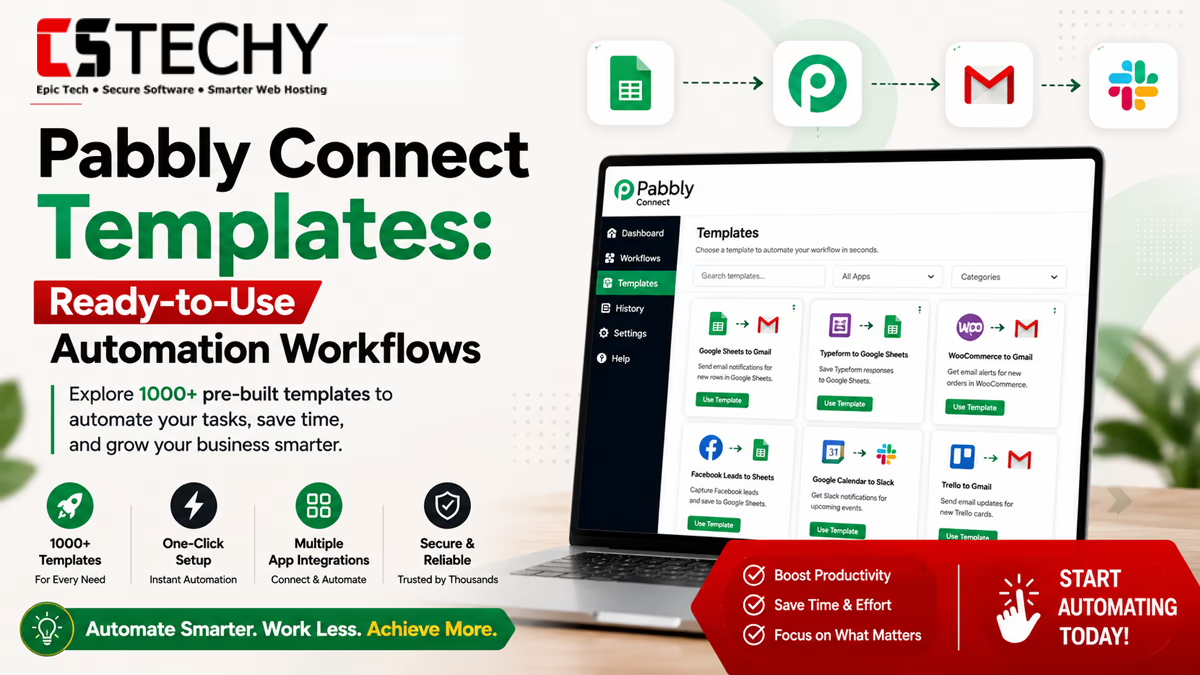
A Pabbly Connect template is a pre-built workflow that already has the trigger and action steps mapped out for a common automation scenario. Instead of configuring everything yourself, you clone the template and adjust it to your accounts.
Templates exist for the most popular automation needs, such as syncing leads into a spreadsheet or sending Slack alerts for new orders. They act as a starting point rather than a rigid, unchangeable solution.
- Pre-configured trigger and action steps for a specific use case
- Built around commonly connected apps like Gmail, Sheets, and Slack
- Fully editable once imported into your account
- Designed to save setup time, especially for beginners
Benefits of Using Templates
Templates solve a real problem: staring at a blank workflow builder without knowing where to start. They shortcut the learning curve and reduce the chance of configuration mistakes.
- Cuts setup time from an hour to just a few minutes
- Reduces errors since the trigger-action logic is already correct
- Helps beginners learn how a working automation is structured
- Gives agencies a repeatable starting point across multiple clients
A freelancer setting up their first CRM automation can clone a lead-capture template instead of researching which trigger and action combination actually works.
How Templates Work
When you open a template, Pabbly Connect creates a copy of that workflow inside your own account. The trigger and action steps are already selected, but the app connections and field mappings still need your input.
- Browse or search for a template matching your use case
- Click to clone it into your account
- Connect your own accounts for each app in the workflow
- Review and adjust the field mappings to match your data
- Test the workflow before turning it on
Because templates are fully editable, you can add extra steps, insert a filter, or remove an action you do not need after cloning.
Where to Find Templates
Pabbly Connect templates are available directly inside your dashboard, organized by category and by app. You can also find templates shared through Pabbly’s community and tutorial resources.
- In-dashboard template library: Browse by category such as CRM, ecommerce, or marketing
- App-specific templates: Search by the exact app you want to connect
- Community forum: Users share custom workflow ideas and setups
- Video tutorials: Many official tutorials walk through building a specific template step by step
How to Import Templates
Importing a template is one of the fastest ways to get a working automation live. Here is the general process.
- Log in to your Pabbly Connect dashboard
- Open the template library and select a category
- Choose the template that matches your workflow goal
- Click to use the template, which clones it into your workflows list
- Authorize each connected app with your account credentials
- Send a test event to confirm the data flows correctly
- Turn the workflow on once testing is successful
Import Checklist
- Confirm every app connection is authorized correctly
- Double-check field mappings match your actual data structure
- Run at least one test before enabling the workflow
- Rename the workflow so it is easy to identify later
Best Workflow Templates
Some templates are used far more often than others because they solve universal business problems. Here are widely used examples and who benefits most from each.
Notice that most of these popular templates connect just two apps. That simplicity is intentional, since a two-step workflow is easiest to test, understand, and extend later with filters or extra actions.
| Template | Apps | Difficulty | Best For |
|---|---|---|---|
| Lead Capture to Sheet | Facebook Lead Ads → Google Sheets | Beginner | Marketers & small businesses |
| Order Alert | WooCommerce → Slack | Beginner | Ecommerce store owners |
| Payment Notification | Stripe → Gmail | Beginner | Freelancers & consultants |
| Meeting Setup | Calendly → Zoom | Intermediate | Coaches & service providers |
| AI Content Logging | ChatGPT → Google Docs | Intermediate | Content teams & writers |
CRM Templates
CRM automation templates focus on getting new leads and customer data into your sales pipeline without manual entry.
- Facebook Lead Ads → Google Sheets: Every new lead is instantly logged for your sales team to follow up on
- Google Forms → CRM: Form submissions automatically create new contact records
- Webhook → CRM: Custom landing pages send lead data directly into your CRM in real time
These templates matter most for sales teams and agencies who cannot afford to lose a lead simply because nobody copied it into the system in time.
Once cloned, most teams add a filter step to route leads by source or interest level, turning a basic capture template into a smarter qualification workflow.
Email Marketing Templates
Email templates connect your lead sources directly to your email marketing platform, keeping your subscriber list current without manual uploads.
- New order → Add to email list: Customers are automatically added to a post-purchase nurture sequence
- Form submission → Welcome email: New subscribers receive an instant welcome message
- CRM tag change → Email campaign trigger: Moving a lead to a new stage triggers a targeted email series
Google Sheets Templates
Google Sheets is one of the most common destinations in Pabbly Connect templates, since spreadsheets double as a simple, shareable database.
- Gmail → Google Sheets: Automatically log important emails, such as invoices, into a tracking sheet
- WhatsApp → Google Sheets: Log incoming WhatsApp messages or orders for manual review later
- Form response → Google Sheets: Build a live, running record of every submission
This makes Google Sheets a practical hub for small businesses that are not ready to invest in a full database or CRM system yet.
Slack Templates
Slack templates focus on keeping teams informed the moment something important happens, without anyone needing to check multiple dashboards.
- WooCommerce → Slack: New orders post instantly into a sales channel
- Form submission → Slack: Support requests alert the right team channel immediately
- Payment received → Slack: Finance teams get real-time confirmation of incoming payments
WooCommerce Templates
WooCommerce store owners rely heavily on automation to avoid manually tracking every sale, refund, and customer update.
- New order → Google Sheets: Keeps a running log of every sale for reporting
- New order → Slack: Notifies the fulfillment team instantly
- New customer → Email marketing tool: Adds buyers to a post-purchase nurture campaign automatically
Shopify Templates
Shopify templates follow a similar logic to WooCommerce, connecting sales events to communication and record-keeping tools.
- Shopify → Gmail: Sends a personalized order confirmation beyond Shopify’s default emails
- Shopify → Google Sheets: Tracks orders for inventory or finance reporting
- Shopify → CRM: Adds every new customer to your sales pipeline automatically
WordPress Templates
WordPress site owners often use templates to connect form plugins and content updates to other tools.
- WordPress → Discord: Announces new blog posts automatically in a community server
- Contact form → Google Sheets: Logs every website inquiry for follow-up
- New user registration → Email tool: Sends a welcome sequence to new site members
AI Automation Templates
AI-powered templates are a newer but fast-growing category, combining AI tools with everyday business apps.
- ChatGPT → Google Docs: Automatically saves AI-generated drafts or summaries for later editing
- Form submission → AI Assistant → CRM: Uses an AI step to categorize a lead before it reaches your CRM
- Email → AI summary → Slack: Summarizes long incoming emails and posts a short version to your team channel
These templates are especially useful for content teams and support teams that deal with large volumes of text and want a faster first pass before human review.
As AI tools become more common in daily workflows, expect Pabbly Connect’s template library to keep expanding this category, since demand for AI-assisted automation is growing quickly across marketing, support, and content operations.
Marketing Automation Templates
Marketing teams benefit from templates that connect ad platforms, forms, and email tools into one continuous pipeline.
- Facebook Lead Ads → Email tool: New leads are added straight into a nurture campaign
- Landing page form → CRM + Email: A single submission updates both your sales pipeline and email list
- Webinar signup → Reminder emails: Automatically schedules reminder messages before a live event
Business Automation Examples
Beyond marketing and sales, templates support everyday operational tasks across different business types.
- Agencies: Automate client onboarding from contract signature to welcome email and project folder creation
- Ecommerce brands: Sync orders, refunds, and inventory changes across sales and reporting tools
- Service providers: Automate appointment confirmations and reminder sequences
- Content creators: Automatically log published content and notify their audience across channels
What ties these examples together is that each one replaces a task someone was previously doing by hand, often several times a day, with a workflow that runs silently in the background.
How to Customize Templates
Cloning a template is just the starting point. Customization is what makes it fit your exact business process.
Think of a template as a rough draft rather than a finished product. The core logic is proven, but your app names, field structures, and business rules will always need a personal touch.
- Add a filter step to only run the workflow under specific conditions
- Insert a router to send data down different paths based on value
- Add extra action steps, such as a second notification app
- Adjust field mappings to match your own app’s data structure
- Rename steps clearly so the workflow is easy to understand later
Customization Tips
Start with the smallest possible change and test after each edit. Making several changes at once makes it harder to pinpoint what broke if a test fails.
Best Practices
- Test every template with real sample data before going live
- Keep a clear naming convention for cloned templates
- Review field mappings carefully, since templates are built on generic examples
- Use folders to organize templates by client or department
- Revisit older templates occasionally to confirm connected apps still work correctly
Treat your template library the same way you would treat a code library: keep it organized, remove duplicates, and retire workflows that are no longer relevant to your current business processes.
Common Mistakes
- Activating a cloned template without testing it first
- Assuming field mappings automatically match your data
- Using a generic template without adding filters for your specific use case
- Cloning multiple similar templates instead of using a router for branching logic
- Forgetting to reconnect the correct app account after cloning
Most of these mistakes come down to one habit: treating a template as finished the moment it is cloned, instead of as a starting point that still needs review.
Expert Tips
- Combine two simple templates into one multi-step workflow to reduce total automations to manage
- Use webhook-based templates when an app is not natively supported
- Build your own reusable template once you have refined a workflow, so future clients or projects can start faster
- Pair AI automation templates with a filter step to avoid running AI steps on irrelevant data
Pros & Cons
Pros
- Drastically reduces setup time for common automations
- Great learning tool for beginners studying workflow structure
- Fully customizable after cloning
- Covers a wide range of categories, from CRM to AI automation
Cons
- Generic templates still need manual field mapping adjustments
- Not every niche app combination has a ready-made template
- Beginners may activate a template without testing it properly first
Comparison with Zapier Templates
Zapier calls its ready-made workflows “Zaps templates,” and it has one of the largest libraries in the industry due to its long market presence.
- Library size: Zapier generally offers a larger volume of pre-built templates
- Task cost: Pabbly Connect templates often use fewer billable tasks since internal steps stay free
- Customization: Both platforms allow full editing after cloning a template
- Learning curve: Both use a similar trigger-and-action structure, making skills transferable
Comparison with Make Templates
Make refers to its ready-made workflows as “scenarios,” presented on a visual, flowchart-style canvas.
| Comparison | Pabbly | Zapier | Make |
|---|---|---|---|
| Templates | Organized by app and category | Large, well-established library | Visual scenario templates |
| Customization | Fully editable after cloning | Fully editable after cloning | Fully editable on the canvas |
| Ease of Use | Simple, linear builder | Polished, linear builder | Steeper learning curve for beginners |
| Pricing | Annual or one-time lifetime plans | Subscription only | Subscription only |
Frequently Asked Questions
What are Pabbly Connect templates?
They are pre-built workflows with the trigger and action steps already mapped out for common automation scenarios.
Are Pabbly Connect templates free to use?
Yes, templates themselves are free to clone, though running the workflow still uses your regular monthly task allowance.
Can I customize a Pabbly Connect template?
Yes, every template is fully editable after cloning, including adding filters, routers, or extra action steps.
Where can I find Pabbly Connect templates?
Templates are available inside your dashboard’s template library, organized by category and connected app.
Do I need coding skills to use templates?
No, templates are designed for no-code use, though advanced users can still add custom code steps if needed.
What is the best template for beginners?
A simple lead-capture template, such as Facebook Lead Ads to Google Sheets, is a great beginner starting point.
Can templates save me time?
Yes, templates cut setup time significantly since the core trigger and action logic is already built for you.
Are there AI automation templates available?
Yes, templates connecting tools like ChatGPT to Google Docs or Slack are becoming increasingly common.
Do templates work with ecommerce platforms?
Yes, both WooCommerce and Shopify have widely used templates for order alerts and customer syncing.
Final Verdict
Pabbly Connect templates are one of the fastest ways to get real automation value without spending hours configuring a workflow from scratch. They are especially valuable for beginners learning how trigger and action steps fit together.
Start with a simple template that matches a task you already do manually, test it thoroughly, and customize it as your process evolves. Once you get comfortable, combining and adapting templates becomes one of the most efficient ways to scale automation across your business.
Templates work best when they are treated as a foundation rather than a finished product. The businesses that get the most value are the ones that keep refining their workflows over time, rather than setting them up once and forgetting about them.
Want to explore more automation strategies? Check out more guides on CSTechy to compare tools, learn advanced workflow techniques, and find the right automation setup for your needs.