Automation > Workflow Automation > Zapier
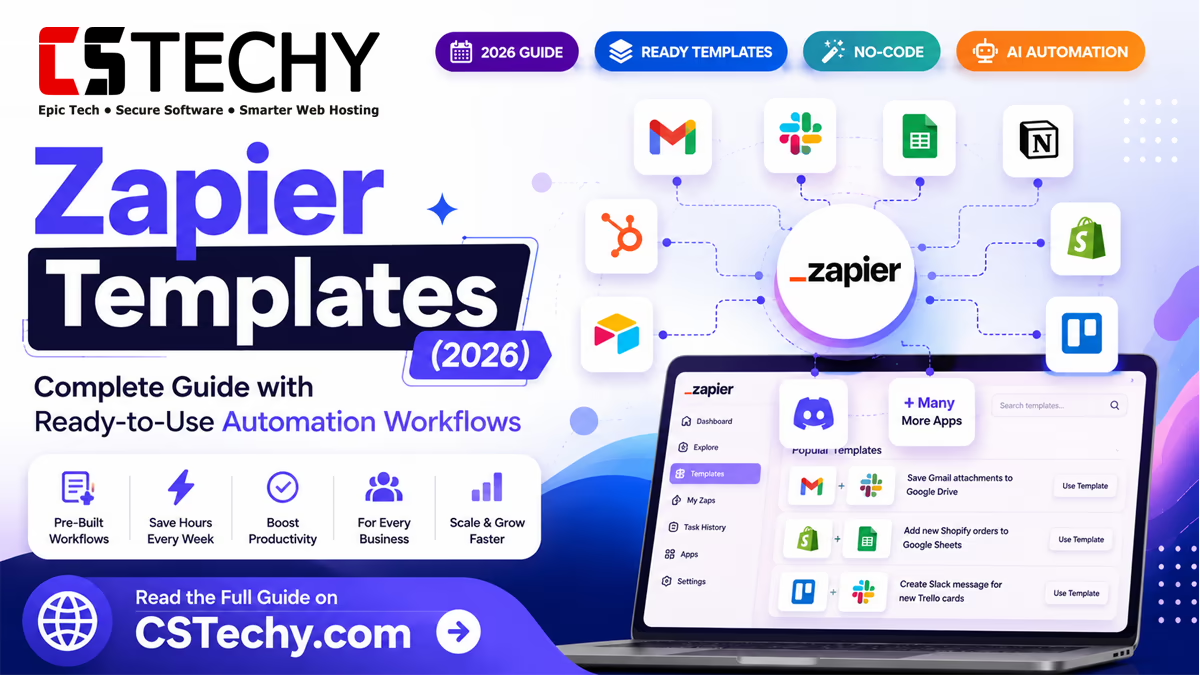
Zapier Templates (2026): Complete Guide with Ready-to-Use Automation Workflows
Most small teams lose hours every week copying data between apps that should already be talking to each other. A new lead fills in a form, and someone still has to paste it into a spreadsheet. An order comes through, and someone still has to message the fulfilment channel by hand. Zapier templates exist to remove that busywork before it ever reaches your to-do list.
A Zapier template is a pre-built automation, sometimes called a Zap, that connects two or more apps around a specific job: forwarding form entries, syncing invoices, or logging new customers into a CRM. Instead of starting from a blank canvas, you pick a template that matches your goal, plug in your own accounts, and the workflow runs on its own from that point forward.
This guide walks through what Zapier templates are, how they work behind the scenes, and which ones are worth your time in 2026 — whether you run a one-person blog, a growing agency, or a sales team that is drowning in manual follow-ups.
What Are Zapier Templates?
A Zapier template is a ready-made automation recipe built around a common trigger-and-action pair, such as “when a new row is added to Google Sheets, send a Slack message.” Zapier’s template library groups thousands of these recipes by app, industry, and use case, so you rarely need to design a workflow from nothing.
Templates work by mapping a trigger (the event that starts the automation) to one or more actions (what happens next). Businesses use them because they compress a task that might take thirty minutes of manual setup into a two-minute configuration job, without touching a line of code.
Compared with manual workflows, templates give you a tested starting point. Someone else has already worked out the field mapping and the logical order of steps; you are simply customising it for your own apps and data.
A typical example: an online shop uses a Shopify-to-Gmail template so that every new order triggers a personalised confirmation email, without the store owner opening their inbox at all.
How Zapier Templates Work
Every Zapier template is built from the same handful of building blocks. Understanding them makes it far easier to customise a template once you have installed it.
See the basic workflow structure
- Trigger — the event that starts the Zap, such as a new email, form submission, or payment.
- Action — what happens as a result, such as creating a row, sending a message, or updating a record.
- Multi-step workflow — a single trigger firing off several actions in sequence, across different apps.
- Filters — conditions that stop the Zap from running unless specific criteria are met.
- Paths — branching logic that sends the workflow down one of several routes depending on the data.
- AI actions — steps that call an AI model to summarise, draft, or classify content mid-workflow.
- Testing — running the Zap once with sample data before switching it on fully.
- Publishing — turning the Zap on so it runs automatically going forward.
In practice, a filter might stop a lead-notification Zap from firing unless the lead’s budget field is above a set amount. A path might send high-value leads to a sales rep’s Slack channel while routing everyone else into a nurture sequence. AI actions are the newest addition, letting a Zap draft a reply or summarise a support ticket before it lands in a human’s inbox.
Key Benefits of Zapier Templates
The appeal of templates goes beyond convenience. Here is what teams consistently report after adopting them.
- Time savings — a pre-built template can be live in minutes instead of hours.
- Error reduction — automated data transfer removes manual copy-paste mistakes.
- Productivity — staff spend less time on repetitive admin and more on higher-value work.
- Scalability — the same Zap handles ten leads a day or ten thousand, without extra effort.
- No coding required — templates are configured through simple dropdown fields, not scripts.
- Easy deployment — most templates can be switched on the same day they are found.
- Reusable workflows — a template built for one client or project can be cloned for the next.
- Team collaboration — shared folders let whole teams reuse and edit the same automations.
Best Zapier Templates for Business
These are the combinations businesses reach for most often, spanning support, sales, ecommerce, and content operations.
| Template | Apps Used | Purpose | Difficulty | Est. Time Saved | Best For |
|---|---|---|---|---|---|
| Gmail → Slack | Gmail, Slack | Alert the team to important emails | Beginner | 2–3 hrs/week | Support teams |
| Typeform → Google Sheets | Typeform, Sheets | Log survey and form responses | Beginner | 3–4 hrs/week | Marketers, researchers |
| Stripe → Notion | Stripe, Notion | Track payments in a shared workspace | Intermediate | 2–3 hrs/week | Freelancers, agencies |
| Shopify → Gmail | Shopify, Gmail | Send automatic order confirmations | Beginner | 4–5 hrs/week | Ecommerce stores |
| HubSpot → Gmail | HubSpot, Gmail | Sync new contacts to email sequences | Intermediate | 3–4 hrs/week | Sales teams |
| WooCommerce → Slack | WooCommerce, Slack | Notify staff of new orders instantly | Beginner | 2–3 hrs/week | Small online stores |
| Calendly → Zoom | Calendly, Zoom | Auto-create meeting links on booking | Beginner | 1–2 hrs/week | Consultants, coaches |
| OpenAI → Gmail | OpenAI, Gmail | Draft reply suggestions automatically | Intermediate | 3–5 hrs/week | Support, sales teams |
| Google Drive → Dropbox | Drive, Dropbox | Keep backup copies of shared files | Beginner | 1–2 hrs/week | Agencies, teams |
| Notion → Trello | Notion, Trello | Turn notes into actionable tasks | Intermediate | 2–3 hrs/week | Project managers |
Best Marketing Templates
Marketing teams tend to lean on Zapier for the connective tissue between lead capture and nurture. Popular workflows include forwarding new leads from ad platforms straight into a CRM, triggering welcome email sequences the moment someone joins a list, and posting fresh blog content automatically to social channels.
CRM syncing templates keep contact records current across tools without manual exports, while campaign-tracking Zaps log clicks and conversions into a shared spreadsheet or dashboard. Newsletter automation templates are especially popular with solo creators, pulling new subscribers from a landing page directly into an email platform like Mailchimp or ConvertKit.
Best Sales Templates
Sales teams use templates to remove the gap between a lead arriving and a rep acting on it. CRM automation templates create or update a deal record the moment a form is submitted, while proposal-sending Zaps generate and email a document as soon as a deal reaches a certain stage.
Meeting-scheduling templates connect a booking tool to a calendar and CRM in one step, and lead-nurturing Zaps enrol new contacts into a drip sequence automatically. Invoice workflows and follow-up automation round out the set, prompting reps to check in on stalled deals before they go cold.
Best Productivity Templates
Beyond sales and marketing, Zapier is widely used to tie general work tools together. Common combinations include Google Workspace to Slack for calendar reminders, Microsoft Teams to Trello for task creation, and ClickUp or Asana synced with Notion for cross-team visibility.
Airtable-based templates are popular with operations teams that track inventory, applicants, or content calendars in a database format and want changes reflected instantly across other tools.
Best AI Templates
AI-powered templates are the fastest-growing category in the Zapier library. Typical workflows connect ChatGPT, OpenAI, Claude, or Gemini to everyday business tools: drafting email replies, summarising long documents, generating first drafts of content, or triaging customer support tickets by urgency.
An AI customer support template, for example, might read an incoming ticket, generate a suggested response, and hand it to an agent to approve rather than write from scratch — cutting first-response time significantly without replacing the human review step.
How to Install Zapier Templates
- Log in to your Zapier account and open the template library.
- Search for the workflow you need, such as “Shopify Gmail” or “Typeform Sheets”.
- Select a template and click “Use this template”.
- Connect the required app accounts when prompted.
- Map the fields between the trigger and action steps.
- Run a test to confirm the data flows correctly.
- Publish the Zap to switch it on permanently.
How to Create Your Own Zapier Template
Building a custom Zap starts the same way a template does: pick a trigger app and event, then choose one or more action apps to respond to it. Test each step individually before connecting the next, since errors are far easier to catch one step at a time.
Once the Zap runs reliably, publish it and consider saving it as a shareable template if teammates or clients might need the same workflow later. Good practice includes naming steps clearly, adding filters early to avoid wasted tasks, and documenting what each Zap does for anyone who inherits it.
Zapier Templates vs Building Automations from Scratch
| Factor | Templates | From Scratch |
|---|---|---|
| Flexibility | Good for common cases | Fully custom logic |
| Speed | Minutes to set up | Hours to design and test |
| Maintenance | Lower, tested structure | Higher, self-managed |
| Customisation | Moderate | Unlimited |
| Cost | Same plan pricing | Same plan pricing |
| Learning curve | Low | Higher |
Best Zapier Template Categories
- Marketing
- Sales
- HR
- Finance
- Customer Support
- Operations
- Ecommerce
- Productivity
- AI Automation
Common Mistakes to Avoid
- Incorrect triggers — choosing an event that fires too often or too rarely for the task.
- Duplicate automations — two Zaps unintentionally acting on the same event.
- Authentication failures — expired tokens silently breaking a workflow.
- Task limits — hitting a plan’s monthly cap without warning.
- Infinite loops — a Zap that triggers itself through a connected app.
- Poor testing — publishing before confirming the field mapping works with real data.
- Missing filters — a Zap running on data it should have ignored.
Expert Tips
- Start with a single-step Zap before adding complexity.
- Name every Zap and step descriptively, not “Untitled Zap”.
- Add filters as early in the workflow as possible.
- Test with real sample data, not placeholder text.
- Check task usage regularly to avoid mid-month interruptions.
- Use paths instead of duplicating near-identical Zaps.
- Re-authenticate connected apps periodically.
- Document what each Zap does for future reference.
- Group related Zaps into folders by department or client.
- Review error notifications weekly rather than ignoring them.
- Use AI actions to draft, not to auto-send, sensitive replies.
- Turn off unused Zaps rather than leaving them dormant.
- Clone working Zaps for similar clients instead of rebuilding.
Pros and Cons
| Pros | Cons |
|---|---|
| Fast to set up, no coding needed | Complex logic still needs manual building |
| Reduces manual data entry errors | Task limits can apply on lower plans |
| Large library covering most common tools | Some apps require premium connections |
| Scales without extra staff time | Occasional maintenance when apps update |
Who Should Use Zapier Templates?
Templates suit almost any team that repeats the same digital task more than a few times a week. Small businesses use them to handle orders and enquiries without hiring extra admin staff. Agencies rely on them to replicate reporting and onboarding workflows across clients. Content creators automate publishing and newsletter sign-ups, while ecommerce stores lean on order and inventory Zaps. Developers often start from a template and extend it with webhooks, and solopreneurs use them simply to buy back hours in the day.
Final Verdict
Zapier templates are not a replacement for thoughtful process design, but they remove almost all of the friction of getting started. For the vast majority of everyday business tasks — notifications, data syncing, follow-ups, and simple AI-assisted drafting — a template gets you running faster and with fewer mistakes than building from scratch.
If your workflow is genuinely unusual, you may eventually need custom-built Zaps. But for almost everyone starting out, browsing the template library first is the sensible move.
Frequently Asked Questions
What are Zapier Templates?
Zapier templates are pre-built automations that connect a trigger in one app to an action in another. Instead of designing a workflow from scratch, you select a template that already matches your goal and customise the details.
Each template comes with the trigger and action steps already chosen, so all you typically need to do is connect your own app accounts and map a few fields. This makes them ideal for beginners who want results quickly, while still being flexible enough for more advanced users to adjust filters, add extra steps, or branch the workflow with paths once it is running.
Are Zapier Templates free?
Many templates are free to use on Zapier’s free plan, but only for single-step workflows within the monthly task limit.
Templates that require multi-step workflows, filters, paths, or premium app connections need a paid plan to run. The template itself does not cost anything extra beyond your existing Zapier subscription; what determines cost is the complexity of the workflow and which apps are involved, since some integrations are marked as premium and require at least a starter paid tier to connect.
How do Zapier Templates work?
A template links a trigger event in one app to one or more actions in another, using pre-mapped fields you can adjust.
When the trigger event happens — a new form response, a new row, a new payment — Zapier checks any filters you have set, then runs the connected action steps in order. Multi-step templates can fan out to several actions at once or follow a branching path depending on the data received, and AI-enabled templates can insert a generative step, such as drafting a reply, before the final action runs.
Can beginners use Zapier Templates?
Yes, templates are specifically designed to be beginner-friendly, since no coding knowledge is required to set one up.
The setup process is mostly a matter of connecting accounts and matching fields using dropdown menus, similar to filling in an online form. Zapier also provides a built-in test step before publishing, so beginners can confirm a workflow behaves correctly with real data before it goes live, reducing the risk of mistakes reaching customers or teammates.
Can I customise Zapier Templates?
Yes, every template can be edited after installation, including adding filters, extra action steps, or entirely new branches.
Once a template is added to your account, it behaves like any other Zap. You can rename steps, change which fields map to which, insert filters to control when it runs, or add paths to send data down different routes depending on conditions you set. This makes templates a starting point rather than a fixed, unchangeable workflow.
What is the difference between Templates and Zaps?
A template is a pre-built starting point; a Zap is the live, working automation created once you install and configure that template.
Put simply, every Zap running in your account started from either a blank canvas or a template. Templates exist purely to save the design step: they package a proven trigger-and-action combination so you skip straight to configuration. Once installed, there is no functional difference between a Zap built from a template and one built entirely from scratch.
Are Zapier Templates secure?
Zapier templates rely on the same authentication and data-handling standards as the rest of the platform, since a template only defines the workflow logic, not a separate connection method.
App connections use OAuth or API keys managed directly by Zapier, and data passed between steps is encrypted in transit. As with any automation, security also depends on your own account hygiene — using strong passwords, reviewing connected apps periodically, and avoiding templates that request unnecessary permissions from apps you connect.
Which Zapier Template is best for small businesses?
For most small businesses, an order or enquiry notification template, such as Shopify to Gmail or WooCommerce to Slack, delivers the fastest visible benefit.
These templates are simple to install, require no technical knowledge, and immediately remove a task the owner would otherwise handle manually every day. From there, small businesses typically add a CRM-syncing template and an invoice or follow-up automation once the first Zap proves its value.
Can I create and share my own Zapier Templates?
Yes, Zapier allows you to save a working Zap as a shareable template so teammates or clients can reuse it.
This is particularly useful for agencies that repeat the same onboarding or reporting workflow for multiple clients, since a saved template only needs new account connections rather than being rebuilt from zero each time. Shared templates can be kept private within a team folder or shared more broadly, depending on your plan and settings.