Automation Tools · Step-by-Step Tutorial
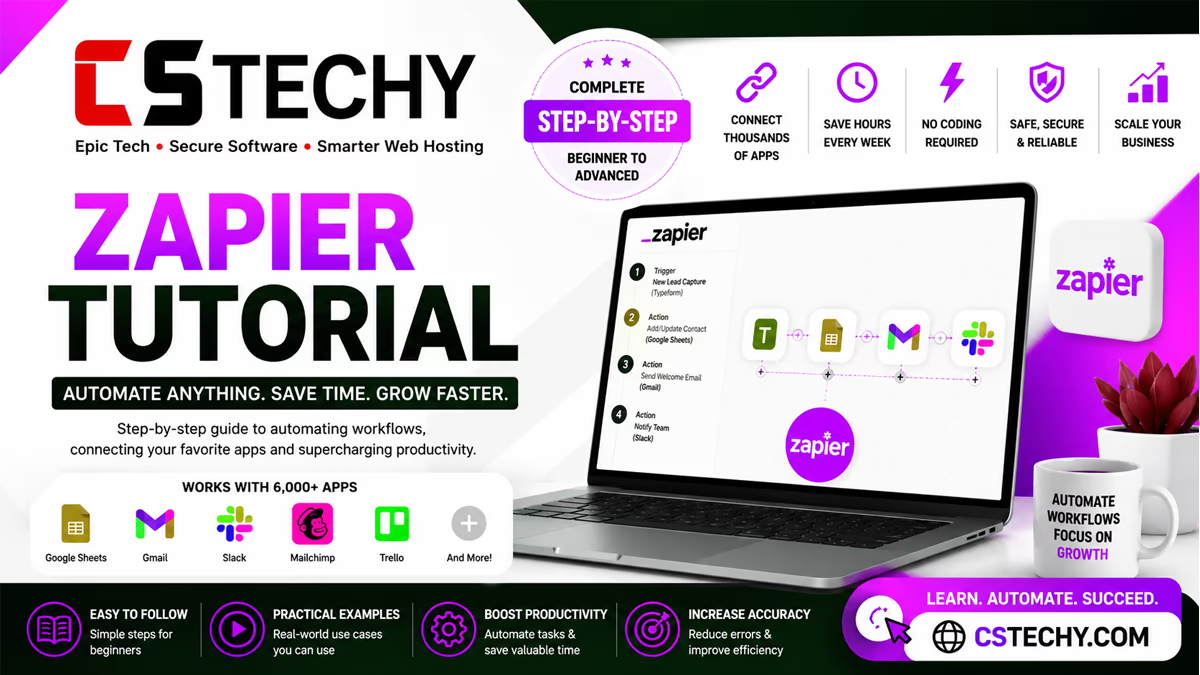
Zapier Tutorial (2026): Step-by-Step Guide to Automate Workflows Like a Pro
Learn Zapier from absolute zero — build your first Zap, master multi-step workflows and AI automation, and avoid the mistakes that trip up almost every beginner.

If you’ve never built an automation in your life, this tutorial is for you. We’re going to start from the very beginning — what Zapier actually is — then walk through building your first real Zap, step by step, the way you’d learn it sitting next to someone who’s done it a hundred times. By the end, you’ll know how to connect apps, use Zapier’s most useful features, avoid the common beginner mistakes, and decide how Zapier fits next to tools like Make and n8n.
What you’ll learn in this Zapier tutorial
What Is Zapier?
Zapier is a no-code automation platform that connects the apps you already use so they can pass information between each other automatically, without you copying and pasting anything by hand. Every automation you build in Zapier is called a Zap, and every Zap follows the same basic pattern: something happens in one app (a trigger), and Zapier makes something happen in another app in response (an action).
How Zapier Works
Under the hood, Zapier constantly listens for the trigger event you’ve chosen — a new email, a new form submission, a new row in a spreadsheet — and the moment it detects one, it passes that data through your workflow, step by step, until every action has run. You never have to manually check for updates again; Zapier does the checking for you in the background.
Key Benefits
- No coding required to connect two or more apps together
- Saves hours of repetitive manual data entry every week
- Reduces human error in tasks like copying leads or updating spreadsheets
- Works across thousands of supported apps, so almost any tool in your stack fits in
- Frees up time for the parts of your job that actually need a human
Who Should Use Zapier
Zapier is a great fit for freelancers automating client admin work, small business owners who don’t have a developer on staff, marketing teams automating lead follow-up, and even large companies automating internal processes between departments. If you regularly do the same manual task more than a few times a week, it’s worth automating.
Supported Apps
Zapier connects to thousands of apps across categories like email, CRM, spreadsheets, project management, e-commerce, social media, and AI tools. Popular examples include Gmail, Google Sheets, Slack, HubSpot, Shopify, Mailchimp, Notion, and Trello — but the real strength is how many smaller, niche tools are also supported, which is rare among automation platforms.
AI Features
Zapier has steadily added AI throughout the platform: an AI assistant called Copilot that helps you build Zaps by describing what you want in plain language, AI steps you can drop directly into a workflow (for example, to summarize or classify incoming data), and more autonomous AI agents that can be given a goal and a set of tools to complete it. We’ll cover these in more depth further down.
How to Create Your First Zap
Let’s build one together, step by step. This is the exact process you’ll follow no matter which apps you’re connecting.
Create an Account
Head to Zapier’s homepage and sign up using your email or a Google account. You’ll land on your dashboard, which is where every Zap you build will live.
Choose a Trigger
Click “Create Zap,” then choose the app and specific event that should start your automation — for example, “New Row in Google Sheets” or “New Email Matching Search in Gmail.” Connect your account when prompted, and select the exact sheet, inbox, or folder you want Zapier to watch.
Add an Action
Choose the app and event that should happen next — sending a Slack message, creating a CRM contact, adding a calendar event. Then map the data from your trigger into the right fields, so the right information lands in the right place.
Test Your Workflow
Use Zapier’s built-in test feature to send a real sample through your Zap. This shows you exactly what data moves through each step, so you can catch mapping mistakes before anything goes live.
Turn It On
Once the test looks right, publish and turn on your Zap. It will now run automatically in the background, 24 hours a day, every time the trigger event happens.
Beginner tip: build your very first Zap with just one trigger and one action. Once you’re comfortable, come back and add more steps — trying to build a ten-step workflow on day one is the fastest way to get confused.
Essential Zapier Features
Once you’re past your first Zap, these are the features that separate a basic automation from a genuinely powerful one.
Multi-Step Zaps
Instead of one trigger and one action, a multi-step Zap can chain together many actions in sequence — for example, adding a lead to your CRM, then sending a welcome email, then posting a Slack alert, all from a single trigger.
Filters
A Filter step stops a Zap from continuing unless certain conditions are met. For example, “only continue if the deal value is above $500” prevents your Zap from wasting a task on records that don’t matter.
Paths
Paths let a single Zap branch into different routes based on conditions — sending high-priority leads down one path and low-priority leads down another, all within the same automation.
Formatter
Formatter is a built-in tool for reshaping data as it moves through your Zap — converting dates, capitalizing text, splitting full names into first and last, or doing basic math on numbers.
Webhooks
Webhooks let Zapier trigger from or send data to apps that don’t have a native integration, using raw HTTP requests. This is the feature developers reach for when they need something custom.
AI Builder
Zapier’s AI-powered building tools, including Copilot, let you describe an automation in plain English and have Zapier suggest or partially build the Zap for you, which dramatically speeds up setup for common use cases.
Tables
Tables is Zapier’s built-in database feature, letting you store and manage structured data directly inside Zapier without needing a separate spreadsheet or database tool.
Interfaces
Interfaces lets you build simple forms, portals, and mini-apps that feed directly into your Zaps, useful for collecting data from clients or teammates without needing a separate form tool.
Scheduler
The built-in Schedule app lets you trigger a Zap at a specific time or on a recurring interval — daily, weekly, or at custom intervals — rather than relying on an external app event.
Best Zapier Automations to Try First
If you’re not sure what to build first, these are some of the most popular, genuinely useful starting points.
Gmail to Google Sheets
Automatically log incoming emails matching a certain search into a Google Sheet — useful for tracking inquiries, applications, or orders without manual data entry.
WordPress Publishing
Automatically share a new WordPress post to social media, notify your team in Slack, or add it to a content tracking spreadsheet the moment it goes live.
Slack Notifications
Get instant Slack alerts for new form submissions, new sales, new support tickets, or any other event your team needs to know about immediately.
CRM Lead Capture
Automatically create a new CRM contact the moment someone fills out a website form, tagging them appropriately based on which form they submitted.
Email Marketing
Automatically add new customers or leads to the correct email marketing list or automation sequence based on their behavior or signup source.
AI Content Workflows
Use an AI step to draft social captions, summarize long-form content into short posts, or classify incoming customer messages before routing them to the right team.
Common Mistakes to Avoid
Incorrect Triggers
Choosing the wrong trigger event (for example, “New Spreadsheet” instead of “New Row”) is one of the most common beginner errors, and it means your Zap simply never fires the way you expect.
Task Limits
Not understanding how tasks are counted leads to Zaps pausing unexpectedly mid-month. Always estimate your real monthly task usage before committing to a plan tier.
Duplicate Automations
Building overlapping Zaps that both react to the same trigger can cause duplicate emails, duplicate CRM records, or duplicate notifications — always check for existing Zaps before building a new one.
Missing Filters
Skipping Filter steps means your Zap runs (and uses tasks) on records you never actually wanted to process, quietly inflating your bill and cluttering your destination apps.
Error Handling
Ignoring failed Zap notifications is a common trap — a broken automation can go unnoticed for weeks unless you check your Zap history or set up alerts for failures.
Zapier Tips to Save Time
Templates
Start from one of Zapier’s pre-built templates whenever possible rather than building from a blank canvas — most common automations already have a template you can adapt in minutes.
AI Assistance
Use Copilot to describe your automation in plain language first, then refine the suggested Zap manually — it’s often faster than building every step from scratch yourself.
Folder Organisation
Group related Zaps into folders (by client, by department, or by project) so your dashboard stays manageable as your automation library grows.
Naming Conventions
Give every Zap a clear, consistent name describing what it does and where it applies — “Client A – Lead to CRM” is far easier to maintain than “Zap 14.”
Task Optimisation
Regularly review your busiest Zaps and look for ways to combine steps, add Filters earlier, or remove automations you no longer need — this is the single biggest lever for keeping your bill under control.
Zapier vs Other Automation Tools
Zapier vs Make
Make offers a more visual, flexible canvas and typically bills per operation rather than per task, which often works out cheaper for complex workflows. Zapier wins on raw ease-of-use and its larger app library.
Zapier vs n8n
n8n is open-source and can be self-hosted for free, billing per workflow execution rather than per step. It requires more technical comfort but offers far more flexibility and cost control at scale, especially for AI agent-style workflows.
Zapier vs Pabbly Connect
Pabbly Connect uses a flat lifetime or annual pricing model instead of Zapier’s recurring per-task billing, which appeals strongly to budget-conscious users, though its app library and AI features are less extensive than Zapier’s.
| Tool | Learning Curve | Pricing Model | Best For |
|---|---|---|---|
| Zapier | Easiest | Per task | Beginners, largest app library |
| Make | Moderate | Per operation | Visual builders wanting more for less |
| n8n | Steeper | Per execution (self-host free) | Technical teams, AI agent workflows |
| Pabbly Connect | Easy | Flat lifetime/annual fee | Budget-conscious users |
Frequently Asked Questions
1. Is Zapier good for complete beginners with no technical background?
Yes, Zapier is widely considered the easiest automation platform to learn, thanks to its guided interface, templates, and plain-language AI assistant, Copilot.
2. How long does it take to learn Zapier?
Most people can build a working single-step Zap within their first 15 minutes, and become comfortable with multi-step Zaps, Filters, and Paths within a week of regular use.
3. Do I need to know how to code to use Zapier?
No. The vast majority of automations can be built entirely without code, though Webhooks and custom code steps are available for advanced, developer-level use cases.
4. What is the difference between a trigger and an action?
A trigger is the event that starts a Zap, such as a new form submission. An action is what happens as a result, such as sending an email or updating a spreadsheet.
5. Can Zapier connect to apps that don’t have a native integration?
Yes, using the Webhooks feature, Zapier can send and receive data from virtually any app that supports HTTP requests, even without an official integration.
6. What’s the best first automation for a beginner to build?
A simple one, like logging new form submissions into a Google Sheet or sending a Slack alert for a new lead, is the best starting point before moving into multi-step workflows.
7. How do I avoid running out of tasks too quickly?
Add Filter steps early in your Zaps to avoid processing irrelevant records, and regularly review your busiest automations to estimate real monthly task usage before upgrading plans.
8. What should I do if a Zap suddenly stops working?
Check your Zap history for error details first — most failures come from a disconnected account, a changed field name in the connected app, or a reached task limit.
9. Is Zapier better than Make or n8n for beginners?
For pure beginners, yes — Zapier’s interface and template library make it the fastest way to get a working automation live, though Make and n8n can offer better value once you’re comfortable and scaling up.
Final Verdict
Bottom line
Zapier remains the best starting point for anyone new to automation. The combination of a simple trigger-and-action model, a huge template library, and increasingly capable AI assistance means you can go from “never automated anything” to “running real workflows” in a single afternoon. Master the essentials in this tutorial — triggers, actions, Filters, Paths, and Multi-Step Zaps — and you’ll be equipped to automate the vast majority of repetitive tasks in any small business or freelance workflow.