Cursor vs GitHub Copilot (2026): Which AI Coding Tool Is Better?
If you’re choosing between Cursor and GitHub Copilot, you’re really choosing between two different philosophies of AI-assisted development. Cursor is an AI-native code editor built by Anysphere on a Visual Studio Code fork, designed around agent workflows and deep codebase context from the ground up. GitHub Copilot is an AI coding assistant from GitHub (a Microsoft subsidiary) that layers onto the editors you already use — VS Code, Visual Studio, JetBrains IDEs, and more — while tying directly into GitHub’s pull request and code review workflow. The biggest practical difference in 2026: Cursor asks you to adopt a new editor in exchange for a more integrated agent experience, while Copilot asks you to stay where you are and brings the AI to you. Solo developers doing heavy multi-file refactors tend to lean toward Cursor; teams already living inside GitHub’s ecosystem tend to lean toward Copilot. This guide compares both on features, pricing, agents, and real development scenarios so you can decide which fits your workflow.
Not sure which AI coding tool fits your workflow? Compare the features below before choosing a plan.
Cursor vs GitHub Copilot at a Glance
| Feature | Cursor | GitHub Copilot |
|---|---|---|
| Product type | Standalone AI-native code editor (VS Code fork) | AI coding assistant/extension inside existing editors |
| Core workflow | Agent-centric, codebase-aware editing | Completion- and chat-first, GitHub-integrated |
| Code completion | Tab autocomplete, predictive multi-line edits | Inline completions and Next Edit Suggestions |
| Agent capabilities | Agent mode, Composer, cloud/background agents | Agent mode, GitHub coding agent, cloud agents |
| Codebase context | Deep, project-wide indexing built into the editor | Repository-aware via Copilot Chat and coding agent |
| Multi-file editing | Native, central to the product | Supported via agent mode and coding agent |
| IDE support | Cursor editor only (plus a CLI) | VS Code, Visual Studio, JetBrains, Neovim, Xcode, GitHub.com, mobile, CLI |
| GitHub integration | Available (Bugbot reviews PRs), not native | Native — built into GitHub pull requests and Actions |
| Model choice | Multiple frontier models plus first-party Composer | Multiple frontier models depending on plan tier |
| CLI capabilities | Cursor CLI available | Copilot CLI available |
| Team features | Teams plan: shared context, admin controls, SSO | Business plan: policy controls, audit logs, SSO |
| Enterprise features | Pooled usage, SCIM, audit logs, access controls | Enterprise seat, IP indemnity, requires GitHub Enterprise Cloud |
| Pricing (verified Aug 18, 2026) | Free–$20/mo individual, $40–$120/user/mo team | Free–$100/mo individual, $19–$39/user/mo team |
| Best for | Agent-heavy, multi-file, context-driven coding | Teams already standardized on GitHub and existing IDEs |
What Is Cursor?
Cursor is an AI-first coding editor built by Anysphere on top of the Visual Studio Code foundation, so it looks and feels familiar to VS Code users while rebuilding much of the experience around AI. Rather than bolting AI onto an existing editor, Cursor treats codebase understanding as a core feature: it indexes your project so its Agent can search, edit, and run terminal commands with awareness of how your files relate to each other.
Cursor’s documentation describes Agent mode, cloud agents, and Composer as central product features, alongside model context protocol (MCP) support, skills, and hooks for extending the workflow. In practice, this means a developer can describe a feature in natural language and have Cursor propose edits across multiple files, run build or test commands in an integrated terminal, and iterate based on the output — all without leaving the editor. Autocomplete (Tab) handles smaller, in-the-moment predictions, while Agent and Composer handle larger, multi-step tasks.
It’s worth being precise about autonomy here: Cursor’s agents can search, edit, and execute commands, but developers remain responsible for reviewing every change before it ships. Cursor’s own workflow is built around review — diffs are shown before they’re applied, and features like Bugbot exist specifically to catch issues in agent-generated code during pull requests. Cursor is available as a downloadable editor plus a command-line interface and a mobile companion app for reviewing and steering agent work remotely.
What Is GitHub Copilot?
GitHub Copilot is an AI coding assistant built by GitHub, integrated into the editors developers already use rather than requiring a new one. Copilot works alongside developers directly in their editor, suggesting whole lines or entire functions as they type. Beyond completions, Copilot includes Chat for asking questions about code, Agent mode for multi-step in-editor tasks, and a separate coding agent that can be assigned GitHub issues and open pull requests autonomously.
Copilot’s core advantage is ecosystem reach. It supports VS Code, Visual Studio, JetBrains IDEs, Neovim, Xcode, and github.com itself, plus a CLI and mobile access — so teams don’t need to standardize on a single editor to adopt it. Because it’s a GitHub product, it plugs directly into pull requests, Copilot code review, and GitHub Actions, which matters most for teams whose entire workflow already runs through GitHub. GitHub AI Credits — where one credit equals $0.01 — meter usage across Chat, agent mode, code review, the Copilot cloud agent, Copilot CLI, and Copilot Apps.
One clarification worth making explicitly: GitHub Copilot is not the same product as Microsoft 365 Copilot. They share a brand name and Microsoft ownership but are separate products with different pricing, contracts, and use cases — Copilot is specifically for code, built into GitHub and supported development environments.
Cursor vs GitHub Copilot — Key Differences
1. Editor Philosophy
Cursor is an AI-first coding environment — the editor itself is designed around AI workflows. GitHub Copilot is an AI layer added to development environments that already exist, prioritizing compatibility over reinvention.
2. Codebase Context
Cursor indexes the full project locally as a core part of the editor, so context retrieval is built into every interaction. Copilot builds context primarily through Chat and its agent products, which reference repository content but operate as an assistant layered on top of the IDE rather than as the IDE’s foundation.
3. AI Agents
Both tools now offer agent workflows capable of multi-step tasks: Cursor’s Agent and Composer, and Copilot’s agent mode plus its separate autonomous coding agent for GitHub issues. Based on documented capabilities, neither company publishes independent benchmarks establishing one as more autonomous than the other, and real-world results depend heavily on the model selected and the complexity of the task.
4. Multi-File Development
Multi-file editing is central to Cursor’s design — Composer and Agent are built to touch several files as a single coherent change. Copilot supports multi-file edits through agent mode and the coding agent, but the workflow originates from a completion-and-chat foundation rather than being the product’s starting point.
5. IDE Compatibility
Cursor is a standalone editor based on VS Code — you use Cursor itself, not an extension inside another IDE. GitHub Copilot is available as an extension across multiple development environments, so teams with mixed editor preferences (VS Code, JetBrains, Visual Studio) can standardize on one AI assistant without standardizing on one editor.
6. GitHub Integration
GitHub Copilot has a natural advantage for teams deeply invested in GitHub: it’s native to pull requests, code review, and Actions. Cursor connects to GitHub for repository access and PR review through Bugbot, but it isn’t a GitHub-native product.
7. Model Choice
Both tools offer access to multiple frontier models rather than locking users into a single provider, and both have introduced first-party or credit-metered access tiers. Exact model lineups change frequently on both platforms, so availability may vary by plan and should be verified on the provider’s current documentation before you commit to a workflow built around a specific model.
Cursor vs GitHub Copilot Features Compared
| Capability | Cursor | GitHub Copilot |
|---|---|---|
| Autocomplete | Tab, unlimited on paid plans | Inline completions, unmetered on paid plans |
| Inline editing | Yes, native | Yes, via Chat and agent mode |
| Natural-language coding | Core workflow (Agent, Composer) | Core workflow (Chat, agent mode) |
| Codebase search | Built-in project indexing | Repository search via Chat/agent |
| Agent mode | Yes | Yes |
| Terminal access | Yes, integrated | Yes, via Copilot CLI |
| Multi-file editing | Yes, core feature | Yes, via agent/coding agent |
| Debugging support | Yes, via Agent and Chat | Yes, via Chat and agent mode |
| Code review | Bugbot (add-on) | Copilot code review (built-in) |
| Pull requests | Connects to GitHub repos | Native to GitHub PR workflow |
| GitHub integration | Partial (via Bugbot) | Native |
| CLI | Cursor CLI | Copilot CLI |
| MCP/tool integrations | Yes (MCPs, skills, hooks) | Yes, growing support |
| Model selection | Multiple frontier models + Composer | Multiple frontier models by tier |
| Team administration | Teams plan (SSO, analytics, shared context) | Business plan (SSO, policy, audit logs) |
| Enterprise controls | Enterprise: SCIM, pooled usage, audit logs | Enterprise: requires GitHub Enterprise Cloud |
Four differences matter most in daily use. First, Cursor’s project-wide indexing tends to make large refactors feel more coherent because context retrieval is native rather than assembled per request. Second, Copilot’s unmetered completions mean light users on a $10/month Pro plan get essentially the same autocomplete experience as heavier tiers — completions never draw down credits on either platform’s paid plans. Third, code review lives natively inside Copilot’s GitHub workflow, while Cursor’s Bugbot is a capable but separate add-on. Fourth, both companies moved to credit- or usage-based billing for agentic work in 2026, so the flat subscription price is now a starting point rather than a ceiling for anyone running agents heavily.
Cursor vs GitHub Copilot for Coding
Scenario 1 — Writing a New Function
For a single, well-scoped function, both tools are fast: Tab completions in Cursor and inline suggestions in Copilot both handle this well, and the experience is close enough that editor preference matters more than tool choice.
Scenario 2 — Refactoring Multiple Files
This is where codebase context and multi-file editing matter most. Cursor’s Composer and Agent were built specifically for changes that span many files, and its native project indexing tends to reduce back-and-forth clarification. Copilot’s agent mode can also handle multi-file changes, but its context assembly happens through Chat and repository search rather than a built-in index.
Scenario 3 — Debugging
Both tools let you paste an error or point the assistant at a failing test and ask for a diagnosis. Based on documented capabilities, both can reason about stack traces and suggest fixes; neither company publishes independent benchmark comparisons for debugging accuracy, so treat vendor claims with appropriate skepticism.
Scenario 4 — Building a New Feature
Agent-based workflows help most here, letting a developer describe the feature and have the tool draft an initial implementation across the relevant files. Cursor’s Agent and Composer, and Copilot’s agent mode and coding agent, are both built for this — the coding agent in Copilot can even be assigned directly from a GitHub issue, which is a distinct workflow Cursor doesn’t natively replicate.
Scenario 5 — Working Inside GitHub
If your day-to-day already revolves around GitHub issues, pull requests, and Actions, Copilot’s native integration removes friction that Cursor doesn’t fully replicate. Reviewing an agent’s suggested changes as a normal PR, with Copilot code review commenting inline, keeps everything in one system.
Cursor vs GitHub Copilot for Beginners
Neither tool is objectively easier for every beginner — the right choice depends on what you already know. If you’re already comfortable in VS Code, JetBrains, or Visual Studio, GitHub Copilot lets you add AI assistance without changing editors, which lowers the learning curve to “install an extension.” If you’re starting fresh and don’t have entrenched editor habits, Cursor’s AI-first design means you won’t need to unlearn a completion-first mental model — the agent and chat are built into the primary workflow from day one rather than layered on top.
Beginners learning to code (not just learning AI tools) may benefit from Copilot’s ubiquity: tutorials, courses, and Stack Overflow-style discussions are more likely to reference GitHub Copilot given its broader IDE footprint and longer market presence. Beginners specifically learning AI-assisted, agent-driven development may find Cursor’s workflow easier to reason about, since the entire editor is organized around that use case.
Cursor vs GitHub Copilot for Professional Developers
For large codebases, Cursor’s native indexing and multi-file Composer workflow are frequently cited as a strength for context-heavy refactoring, while Copilot’s agent mode and coding agent close much of that gap for teams that don’t want to leave their existing IDE. For repetitive engineering tasks — boilerplate generation, test scaffolding, documentation — both tools perform comparably well through their respective agent and chat features.
Where the two diverge for professionals is workflow integration: Copilot’s code review and coding agent are built around GitHub’s pull request lifecycle, which fits naturally into existing Git workflows for teams already standardized there. Cursor’s Bugbot adds a comparable review layer but as a distinct product rather than a native GitHub feature.
Regardless of which tool a professional developer chooses, AI-generated code should be treated the same way as any other contribution: it requires review, testing, and security checks before merging. Both companies frame their agents as assistants that draft changes for human review, not as unsupervised committers, and experienced teams should keep their existing CI, linting, and security scanning in place around either tool.
Cursor vs GitHub Copilot for Teams
Both platforms offer centralized administration for organizations. Cursor’s Teams plan includes centralized billing, usage analytics, team-wide privacy mode, and SAML/OIDC SSO, with an Enterprise tier adding pooled usage, invoice billing, SCIM seat management, and audit logs. GitHub Copilot’s Business plan adds policy management and organizational license controls, with Enterprise layering on IP indemnity — though Enterprise requires a separate GitHub Enterprise Cloud license, an added cost worth budgeting for.
For collaboration and auditability, Copilot’s advantage is structural: because it’s part of GitHub, admin controls, audit logs, and code review sit inside the same system your team already uses for source control. Cursor’s Teams and Enterprise tiers offer comparable administrative depth but as a separate system that connects to your existing Git provider rather than being one.
Availability of specific compliance certifications, data-handling guarantees, and security features may vary by plan and should be verified on each provider’s current documentation before making a procurement decision — this is not an area to take on faith from a comparison article, including this one.
Cursor vs GitHub Copilot Pricing
Pricing verified against each provider’s official pricing page on August 18, 2026. Both companies have changed billing structures multiple times in 2026, so confirm current figures before purchasing.
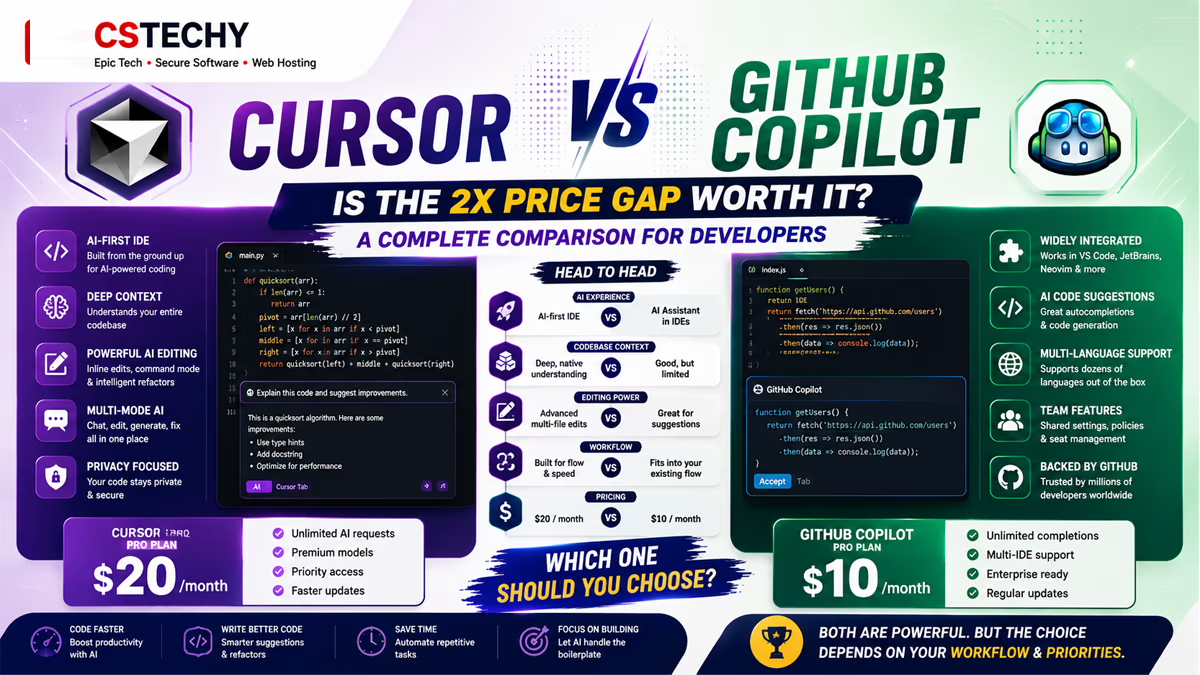
Cursor offers a free Hobby plan with limited Agent requests and access to Composer. The Individual tier starts at $20/month and includes Pro, Pro+, and Ultra options, with Pro+ recommended for daily agent users and Ultra for agent power users; each paid plan includes a pool of model usage, with additional on-demand usage billed in arrears once that pool is exhausted. Cursor Teams runs $40/user/month for the Standard seat, with a Premium seat available at a higher price offering expanded agent limits; Enterprise is custom-priced and adds pooled usage, invoice/PO billing, and SCIM management.
GitHub Copilot offers a free tier, then Pro at $10/month and Pro+ at $39/month for individuals, with a Max tier at $100/month for sustained, high-volume agent use. As of June 1, 2026, all Copilot plans moved to usage-based billing: instead of counting premium requests, every plan includes a monthly allotment of GitHub AI Credits, with the option to purchase additional usage. Copilot Business remains $19/user/month and Copilot Enterprise $19 seat pricing was unchanged in the announcement, holding at $39/user/month — though Enterprise requires a separate GitHub Enterprise Cloud license, so budget for that add-on cost. Inline code completions and Next Edit Suggestions remain free and unmetered on every paid plan; only Chat, agent mode, code review, and the CLI draw down AI Credits.
At face value, Copilot’s $10/month entry point is half the price of Cursor’s $20/month Pro plan, but both now bill agentic work on usage, so the sticker price alone doesn’t determine your real monthly cost — a developer running agents heavily can exceed either plan’s included allowance. Availability may vary by plan and should be verified on the provider’s current documentation before budgeting a team rollout.
Cursor vs GitHub Copilot — Real-World Workflow Test
CSTechy has not run a controlled, timed benchmark pitting Cursor and GitHub Copilot against each other on identical tasks, so the comparisons in this article are based on documented capabilities and publicly available product information rather than “our testing shows” claims. Where we describe strengths or weaknesses in code completion, debugging, refactoring, multi-file editing, agent tasks, codebase understanding, Git/GitHub workflow, ease of use, developer control, and overall productivity, treat those as informed editorial interpretation grounded in each vendor’s own documentation — not independent lab results. If you’re making a purchase decision that hinges on measurable performance differences, we’d recommend running your own small benchmark inside your actual codebase (a bug fix, a UI change, a multi-file refactor, and a documentation update are a reasonable starting set) before committing a whole team to either tool.
Advantages and Disadvantages
Cursor Pros
- Deep, native codebase indexing built into the editor rather than assembled per request
- Multi-file Composer and Agent workflows designed for large-scale changes
- Access to multiple frontier models plus a first-party model option
- MCP, skills, and hooks support for extending the agent’s capabilities
- Cloud agents and a mobile app for reviewing work away from the desktop
- Generous free Hobby tier with no credit card required
Cursor Cons
- Requires switching to a new editor rather than augmenting an existing one
- Usage-based credit system means real monthly cost can exceed the plan price
- No native GitHub pull request or code review integration — Bugbot is a separate add-on
- Pricing structure has changed multiple times, which can complicate budgeting
GitHub Copilot Pros
- Works inside the editor you already use — VS Code, JetBrains, Visual Studio, and more
- Native integration with GitHub pull requests, code review, and Actions
- Unmetered code completions and Next Edit Suggestions on every paid plan
- Lower individual entry price at $10/month for Pro
- Coding agent can be assigned directly from a GitHub issue
- Broadest IDE and platform footprint of any major AI coding assistant
GitHub Copilot Cons
- Context and multi-file editing are layered on top of existing editors rather than native to them
- Enterprise tier requires a separate GitHub Enterprise Cloud license, adding cost
- Usage-based AI Credits mean agent-heavy sessions can consume a monthly allowance quickly
- Frequent billing and policy changes in 2026 have made costs harder to predict
Which Is Better — Cursor or GitHub Copilot?
Choose Cursor if:
- You want an AI-first coding environment built around agent workflows.
- You frequently work across multiple files in the same change.
- You want deep, native project context without assembling it per request.
- You’re comfortable adopting a dedicated AI coding editor.
Choose GitHub Copilot if:
- You want AI added to the development workflow and editor you already use.
- Your team relies heavily on GitHub pull requests and code review.
- You need support across multiple IDEs rather than standardizing on one.
- GitHub-native collaboration and enterprise procurement matter to your organization.
Consider Using Both If:
Some developers run Cursor for heavy, agent-driven feature work and keep GitHub Copilot active for completions and PR-native code review in their team’s shared repositories. This only makes sense if your workflow genuinely benefits from both — there’s no reason to pay for two AI coding subscriptions unless each one is solving a different problem for you.
Final Verdict
Cursor is the stronger choice for developers who want AI to become the center of their coding environment, particularly for context-heavy and multi-file workflows. GitHub Copilot is the stronger choice for developers who want AI integrated into an existing IDE/GitHub workflow and value the broader GitHub ecosystem. There’s no absolute winner here — the right tool depends on whether you’d rather adopt a new AI-native editor or extend the one you already use, and how central GitHub’s own pull request and review workflow is to your team’s day-to-day.
Frequently Asked Questions
Is Cursor better than GitHub Copilot in 2026?
Neither tool is universally better — it depends on your workflow. Cursor tends to win for developers doing heavy multi-file, agent-driven work who are comfortable adopting a dedicated AI-native editor. GitHub Copilot tends to win for developers who want AI added to an existing IDE and rely heavily on GitHub’s pull request and code review workflow. Evaluate both against your own codebase before deciding.
What is the main difference between Cursor and GitHub Copilot?
Cursor is a standalone AI-native code editor built on a VS Code fork, designed around agent workflows and native codebase indexing. GitHub Copilot is an AI assistant that integrates into editors you already use — VS Code, JetBrains, Visual Studio, and others — and ties natively into GitHub’s pull request and code review workflow. One requires a new editor; the other doesn’t.
Is Cursor better for large codebases?
Cursor’s native project indexing and Composer/Agent multi-file editing are frequently highlighted as strengths for large, context-heavy codebases. GitHub Copilot’s agent mode and coding agent also handle multi-file changes, but context assembly happens through Chat and repository search rather than a built-in index. Test both against your actual repository size and structure before choosing.
Is GitHub Copilot better for GitHub users?
Yes, generally. Copilot is a native GitHub product, so it integrates directly with pull requests, code review, and GitHub Actions without a separate connection layer. Teams whose entire workflow already runs through GitHub typically find this integration removes friction that Cursor’s GitHub connection (via Bugbot) doesn’t fully replicate.
Which is better for beginners, Cursor or GitHub Copilot?
Neither is objectively easier for everyone. Existing VS Code, JetBrains, or Visual Studio users may find Copilot easier since it adds AI without changing editors. Developers with no entrenched editor habits may find Cursor’s AI-first design easier, since agent and chat workflows are built into the primary experience rather than added on top.
Which has better AI agent capabilities, Cursor or GitHub Copilot?
Both offer capable agent workflows: Cursor’s Agent and Composer, and GitHub Copilot’s agent mode plus its separate autonomous coding agent for GitHub issues. Based on documented capabilities, neither vendor has published independent benchmarks establishing a clear leader, so real-world results depend on the model chosen and task complexity.
Is Cursor more expensive than GitHub Copilot?
At entry level, yes — Cursor’s Pro plan is $20/month versus Copilot Pro at $10/month. But both tools now bill agentic usage through credit systems on top of the base subscription, so actual monthly cost depends heavily on how much agent and chat usage you consume, not just the sticker price. Verify current usage-based costs before budgeting.
Can I use Cursor and GitHub Copilot together?
Yes, some developers run both — Cursor for agent-driven feature work and Copilot for completions and PR-native code review. This only makes financial sense if each tool is solving a genuinely different problem in your workflow; otherwise, one subscription is likely sufficient.
Which AI coding assistant should I choose in 2026?
Start by identifying whether you want AI to be the center of your editor (Cursor) or an addition to the editor and GitHub workflow you already use (Copilot). From there, weigh multi-file editing needs, GitHub integration depth, team administration requirements, and current usage-based pricing for your expected workload before committing.