Automation Tools · Pricing Deep Dive
Zapier Pricing in 2026: Every Plan, Every Hidden Cost, and How to Avoid Overpaying
A plain-English breakdown of exactly what Zapier costs, how “tasks” are really counted, what the refund policy actually says, and real ways to shrink your monthly bill.
Let’s talk about the one question almost everyone Googles right before they commit to Zapier: “what is this actually going to cost me?” The pricing page shows a friendly number like $19.99 a month, but that number hides a lot of nuance — and plenty of users only discover the real cost after their first surprise bill. This guide walks you through Zapier pricing exactly the way you’d want a knowledgeable friend to explain it: plan by plan, task by task, with real examples and no marketing spin.
What we’ll cover in this Zapier pricing guide
- What Is Zapier Pricing Actually Based On?
- Why Does Zapier Pricing Confuse So Many People?
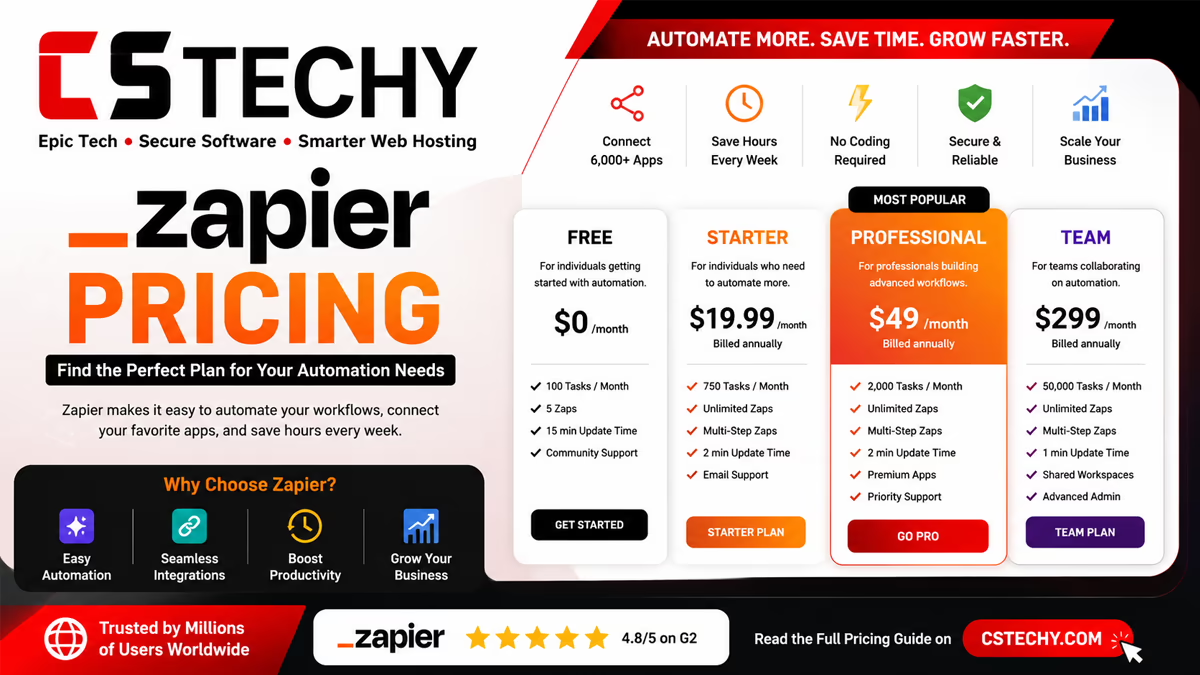
- Zapier Pricing Plans in 2026: The Full Breakdown
- How Zapier Counts a “Task” — Explained With Real Examples
- Zapier Free Plan: What You Really Get (and Don’t)
- Professional, Team, and Enterprise Pricing Explained
- Hidden Costs: Overage Billing, Premium Apps, and AI Task Multipliers
- Zapier Refund Policy: Can You Actually Get Your Money Back?
- Real Zapier Pricing Complaints From Reddit and G2
- How to Reduce Your Zapier Bill: Practical Tips
- Zapier Pricing vs Make vs n8n vs Pabbly Connect
- Is Zapier Pricing Worth It in 2026?
- 9 Frequently Asked Questions
What Is Zapier Pricing Actually Based On?
Zapier’s entire pricing model is built around one unit: the task. A task is counted every single time one of your Zaps successfully completes an action step. It has nothing to do with how many Zaps you’ve built, how many apps you use, or how much time your automations save you — it’s purely a count of “how many action steps ran this month.”
Here’s the part most people miss on their first read: the trigger step (the event that starts your Zap) is free. Only the steps that happen after the trigger — sending an email, updating a spreadsheet, posting a Slack message — actually use up your monthly task allowance.
Example, one-to-one: Imagine your Zap watches Gmail for new emails, pulls out the sender’s details, adds a row to Google Sheets, and sends a Slack notification. The Gmail trigger is free. But parsing the data, updating the sheet, and posting to Slack are three separate action steps — so this one Zap uses three tasks every single time it runs.
Why Does Zapier Pricing Confuse So Many People?
If you’ve read a few Zapier pricing complaints online, you’ll notice the same frustration repeated in different words: people budget for the “starting from” price on the pricing page, then get hit with a much bigger bill once real usage kicks in. There are three reasons this keeps happening.
1. The advertised price only applies at the lowest task tier
The “$19.99/month” figure you see advertised is the Professional plan’s starting price, tied to a specific number of monthly tasks. As your usage grows, Zapier lets you slide that allowance up — and the price rises right along with it.
2. Multi-step Zaps multiply fast
A single Zap with five action steps, running 100 times a day, uses 500 tasks a day — that’s 15,000 tasks in a month from just one automation. Many users only build one or two Zaps like this and are shocked at how quickly the allowance disappears.
3. The pricing page shows annual billing by default
The lower “starting from” numbers usually reflect annual billing paid upfront. Choosing monthly billing instead means a noticeably higher sticker price for the same plan.
Zapier Pricing Plans in 2026: The Full Breakdown
Here’s what each current Zapier plan actually includes, based on the latest published pricing.
| Plan | Starting Price | Tasks Included | Key Features | Best For |
|---|---|---|---|---|
| Free | $0/month | 100 tasks/month | Two-step Zaps only, Tables, Interfaces, capped daily Copilot use | Testing the platform before committing |
| Professional | From ~$19.99/month | 750 tasks (slider adjustable up to millions) | Multi-step Zaps, unlimited premium apps, webhooks, AI fields | Solo operators and freelancers |
| Team | From ~$69/month | 2,000+ tasks | 25 users, shared Zaps and folders, SSO, priority support | Small teams needing collaboration |
| Enterprise | Custom (roughly $600+/month) | Custom / annual task pools | Unlimited users, advanced permissions, dedicated account manager | Larger organizations with governance needs |
Every plan now bundles Zaps (workflows), Tables (built-in data storage), Interfaces (simple forms and mini-apps), and Zapier’s AI tool connections into one subscription, rather than charging separately for each piece as older plans once did.
Key detail people miss: the Professional plan’s task allowance is a slider, not a fixed number. Push that slider from 750 tasks up to 5,000, and the monthly price can jump to roughly $300. Push it to 10,000 tasks, and you’re looking at around $600 a month on the same “Professional” tier.
How Zapier Counts a “Task” — Explained With Real Examples
This is the single most important thing to understand before you pick a plan, so let’s walk through it slowly with a few real scenarios.
Example 1: A simple two-step Zap
Trigger: new form submission. Action: add a row to Google Sheets. That’s one task per submission, because only the action step counts.
Example 2: A four-step Zap
Trigger: new lead in a form. Actions: create a CRM contact, send a welcome email, and post a Slack alert. That’s three tasks every time a new lead comes in, since there are three action steps after the free trigger.
Example 3: An eight-step lead-processing workflow
This is the scenario that trips up growing businesses. An eight-step Zap processing 100 leads a day can burn through roughly 24,000 tasks in a single month — which, on the Professional plan’s default tier, would need a much higher task allowance than the entry-level price covers.
In plain terms: count the number of action steps in your busiest Zap, multiply by how many times it realistically runs per day, then multiply by 30. That number — not the number of Zaps you plan to build — tells you which task tier you actually need.
Zapier Free Plan: What You Really Get (and Don’t)
The Free plan is genuinely useful for learning the platform, but it comes with real restrictions worth knowing upfront:
- 100 tasks per month, which resets on a rolling basis
- Only single or two-step Zaps are allowed — no multi-step automations
- Access to Zapier Copilot, but with a daily cap on how many AI messages you can send
- Unlimited Zaps, Tables, and Interfaces at the structural level, even though task volume is capped
In short, the Free plan is best treated as a trial run rather than a production tool — it’s enough to prove a workflow idea works, but not enough to run a real business process at any volume.
Professional, Team, and Enterprise Pricing Explained
Professional plan
This is where most solo users and small businesses land. It unlocks multi-step Zaps, unlimited access to premium (paid-tier) app integrations, webhooks for custom triggers, and AI-powered fields inside your workflows. The starting price assumes a lower task tier — bump up your usage and the price scales with it.
Team plan
Built for shared use across a company. It adds support for up to 25 users, shared Zaps and connection folders so teammates aren’t rebuilding the same automation twice, SAML single sign-on (SSO), and faster priority support.
Enterprise plan
Aimed at larger organizations that need unlimited users, advanced admin permissions, custom deployment options, annual (rather than monthly) task pooling, and a dedicated technical account manager. Pricing here is negotiated directly with Zapier’s sales team.
Hidden Costs: Overage Billing, Premium Apps, and AI Task Multipliers
Beyond the sticker price, a few extra cost factors catch new users off guard.
Pay-per-task overage billing
If you go over your monthly task allowance and have overage billing enabled, Zapier will keep your Zaps running but charge you a higher per-task rate for everything beyond your plan’s limit. If overage billing isn’t enabled, your Zaps simply pause until the next billing cycle instead.
Premium app connections
Some integrations are labeled “Premium” and require at least the Professional plan to use — the Free plan won’t connect to them at all, regardless of task count.
AI step multipliers
When you add an AI step inside a Zap (for example, having a model summarize a support ticket), more advanced or premium AI models typically consume more than one task per run, meaning your effective task usage can rise faster than expected once AI steps are involved.
Practical takeaway: two Zaps with the same number of steps can cost very different amounts if one of them uses a premium AI model step. Always check the task multiplier for AI actions before scaling a workflow that includes them.
Zapier Refund Policy: Can You Actually Get Your Money Back?
This is a commonly searched question, and the honest answer is: rarely, and only in narrow circumstances. According to Zapier’s official refund policy, all purchases are generally treated as non-refundable, and once a charge is processed it’s considered final.
A few practical notes based on the current policy and how it plays out in practice:
- Canceling a plan doesn’t trigger a refund — you keep access until the end of your current billing cycle, and simply won’t be charged again unless you reactivate.
- If you add a card during a free trial, your account can auto-upgrade to a paid plan at the end of the trial unless you opt out beforehand — and charges after that point are treated as non-refundable.
- Some users report success requesting a refund when a charge happens very shortly after an accidental renewal, but this is handled case-by-case through support, not guaranteed by policy.
- If Zapier’s support team can’t resolve a billing dispute, the documented fallback is to contact your bank or card provider directly to dispute the charge.
Bottom line on refunds: treat every Zapier subscription as a real financial commitment from the moment you enter payment details. Turn off auto-renewal or downgrade to Free well before a renewal date if you’re not sure you’ll continue using it — don’t count on a refund as a safety net.
Real Zapier Pricing Complaints From Reddit and G2
Zapier holds strong review scores overall — around 4.5 out of 5 across thousands of G2 reviews — but pricing is consistently the most common complaint, even among happy users. A few patterns show up again and again across Reddit threads:
- Users building “basic” automations (a form, a spreadsheet, an email) are surprised to find themselves paying $40 to $50 a month just for 750 tasks once the workflow has more than one or two steps.
- Higher-volume users running workflows with many steps, at scale, describe monthly bills climbing into the hundreds of dollars once actual usage is accounted for.
- Several threads describe pricing changes over time that increased costs for existing workflows without much warning, which is a recurring source of frustration.
The overall picture: Zapier’s ease-of-use earns real loyalty, but almost every serious complaint traces back to the same root cause — task-based billing being harder to predict than it looks on the pricing page.
How to Reduce Your Zapier Bill: Practical Tips
- Audit your busiest Zaps first. A handful of high-frequency workflows usually account for the majority of your task usage — optimize those before anything else.
- Combine steps where possible. Some actions can be consolidated using built-in tools like Formatter or Paths, which typically don’t count against your task total the way full action steps do.
- Avoid unnecessary polling triggers. Triggers that check for new data very frequently can indirectly inflate downstream task usage if they fire more often than needed.
- Choose annual billing if you’re committed. The discount versus monthly billing is meaningful over a year, provided you’re confident you’ll keep using the plan.
- Reserve AI steps for workflows that truly need them. Since AI actions can use more than one task per run, save them for high-value automations rather than routine ones.
- Re-evaluate at scale. Once your monthly task usage climbs into the thousands, it’s worth pricing out operation-based or execution-based alternatives before renewing.
Zapier Pricing vs Make vs n8n vs Pabbly Connect
Since pricing is the main reason people go looking for alternatives, here’s how Zapier’s billing model compares to its closest competitors.
| Tool | Billing Unit | Core USP | Best For |
|---|---|---|---|
| Zapier | Per task (per action step) | Largest app library, easiest setup, strong AI add-ons | Beginners and teams prioritizing ease over cost |
| Make | Per operation | Visual builder with fair, usage-based pricing | Users wanting more automation for less money |
| n8n | Per workflow execution (regardless of step count) | Open-source, self-hostable on your own low-cost server | Technical teams running complex, multi-step workflows |
| Pabbly Connect | Flat lifetime or annual fee, triggers excluded from limits | One-time payment model instead of recurring subscription | Budget-conscious users wanting to avoid ongoing bills |
The clearest pattern: Zapier’s per-task model is the most expensive way to bill automation once your workflows have several steps, while Make’s per-operation model and n8n’s per-execution model both tend to stretch further for the same amount of actual automation work.
Is Zapier Pricing Worth It in 2026?
Bottom line
Zapier’s pricing is fair for what it is — as long as you understand exactly what you’re paying for before you commit. If your automations are simple, low-frequency, and mostly single or two-step, the Professional plan is genuinely reasonable value. The moment your workflows grow past a handful of steps or run hundreds of times a day, the task-based model starts working against you, and it’s worth seriously comparing Make or n8n before renewing at a higher tier. The refund policy is strict, so the safest approach is to estimate your real usage upfront rather than hoping to undo the decision later.
9 Frequently Asked Questions About Zapier Pricing
1. How much does Zapier actually cost per month?
Prices start at $0 for the Free plan and roughly $19.99/month for Professional, $69/month for Team, and custom pricing for Enterprise — but the real cost depends heavily on how many tasks your automations use each month.
2. What counts as a “task” in Zapier pricing?
A task is counted every time an action step in your Zap runs successfully. The trigger step itself is free — only the steps that happen after it use up your monthly allowance.
3. Is Zapier free to use forever?
Yes, the Free plan has no expiration, but it’s limited to 100 tasks per month and only supports single or two-step Zaps, which makes it more of a trial tool than a production solution.
4. Does Zapier offer a money-back guarantee?
No. Zapier’s official policy treats subscriptions as non-refundable once a charge is processed, so it’s safest to downgrade or cancel before a renewal date rather than expecting a refund afterward.
5. Why did my Zapier bill suddenly increase?
This usually happens when a multi-step Zap runs more often than expected, pushing you past your task allowance, or when pay-per-task overage billing kicks in automatically to keep your automations running.
6. Is Zapier cheaper than Make or n8n?
Generally, no. Make bills per operation and n8n bills per workflow execution regardless of step count, both of which tend to cost less than Zapier’s per-task model once workflows involve several steps.
7. What happens if I go over my monthly task limit?
If pay-per-task overage billing is enabled, your Zaps keep running at a higher per-task rate. If it isn’t enabled, your Zaps simply pause until your next billing cycle begins.
8. Do AI steps cost more in Zapier?
Often, yes. More advanced AI models used inside a Zap can consume more than one task per run, so workflows with AI steps may use up your allowance faster than purely app-to-app automations.
9. How can I estimate the right Zapier plan for my needs?
Count the action steps in your busiest Zap, multiply by how many times it runs per day, then multiply by 30 to estimate your real monthly task usage — and pick a plan tier based on that number, not the number of Zaps you plan to build.