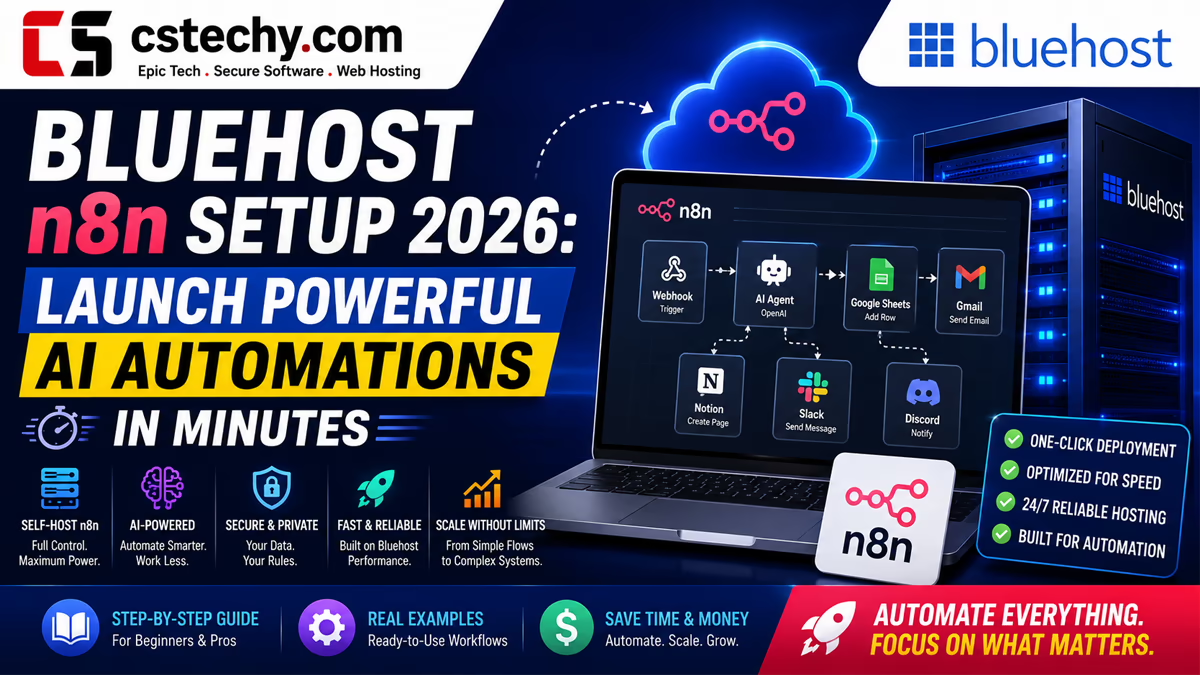
Bluehost n8n Setup 2026: Launch Powerful AI Automations in Minutes
Welcome to the ultimate guide on mastering workflow automation. If you are tired of hitting expensive task limits on platforms like Zapier or Make, you are in the right place. In this comprehensive, easy-to-read tutorial, we will walk you through exactly how to set up a hosted n8n instance on your own server.
Why Choose a VPS Plan for Automation?
To successfully install n8n, you cannot rely on basic shared hosting. Automation software requires constant background processing to listen for webhooks and execute complex data transfers. Therefore, selecting the right vps plan is the most critical first step.
While standard managed vps hosting is great for standard WordPress websites, it often restricts the root access required to install Docker and Node.js. This is why a bluehost self managed vps is the perfect environment for this project. It gives you the raw server control of a dedicated machine, allowing you to configure the environment exactly as n8n demands.
Understanding Server Requirements: CPU and RAM
Before you begin the installation, we need to talk about server resources. Automation workflows—especially those processing large JSON payloads from AI tools or e-commerce platforms—can be resource-intensive.
To ensure your workflows run without crashing, your server must have adequate cpu ram allocation. If your server runs out of memory (OOM), your n8n instance will crash halfway through a task. We highly recommend starting with a plan that offers at least 2 CPU cores and 4GB of RAM. This provides a comfortable buffer for running the database, the n8n core application, and concurrent workflow executions.
Step-by-Step: Preparing Your Bluehost Environment
Let us break down the technical setup into simple, actionable steps so you can launch your automation engine quickly and securely.
Step 1: Accessing Your Server
First, you need to log into your Bluehost server using SSH. Open your computer’s terminal and use the root credentials provided in your Bluehost dashboard. This gives you the highest level of access needed for the installation.
Step 2: Installing Docker
The most stable and efficient way to run n8n is through Docker. Docker packages the application and all its dependencies into a single, standardized unit. Run the following commands to update your server and install Docker:
sudo apt-get update(This refreshes your server’s package list)sudo apt install docker.io -y(This installs the Docker engine)sudo apt install docker-compose -y(This installs the tool we will use to configure n8n)
Launching Your n8n Instance
With Docker installed, you are ready to deploy. You will need to create a docker-compose.yml file. Think of this file as the blueprint that tells your server exactly how to build and run your automation environment.
Once your file is configured with your specific domain name and secure passwords, a single command (docker-compose up -d) will download the n8n software and boot it up in the background. From there, you simply connect your domain to the server’s IP address, secure it with a free SSL certificate, and log into your brand-new visual workflow builder.
Introduction to n8n and Bluehost
In today’s fast-paced digital world, automation is no longer a luxury; it is a necessity. Businesses rely on moving data seamlessly between different applications, from customer relationship management (CRM) systems to email marketing tools. This is where n8n comes into play.
n8n is a powerful, fair-code, self-hosted workflow automation tool. It serves as an exceptional alternative to platforms like Zapier or Make (formerly Integromat). Because you can host it yourself, you are not charged per task or per execution. You are only limited by the power of the server you choose to host it on.
Bluehost is one of the most popular and reliable web hosting providers in the world. While known heavily for WordPress hosting, Bluehost also provides robust Virtual Private Server (VPS) and Dedicated Server environments that are perfect for running Node.js applications like n8n.
By combining the flexibility of n8n with the reliability of a Bluehost VPS, you can build an automated empire that scales with your business.
Why Choose Bluehost for Your n8n Instance?
When selecting a host for an automation platform, stability, uptime, and server control are paramount. Here is why deploying n8n on Bluehost makes sense:
- Root Access: Bluehost VPS plans provide full root access. This is essential, as n8n requires server-level installations like Node.js or Docker.
- Reliable Uptime: Webhooks need a server that is always awake. Bluehost offers excellent uptime, ensuring your automation triggers never miss a beat.
- Scalability: Start with a basic VPS for light workflows and easily upgrade your Bluehost plan as your n8n workflows become more complex and demand more RAM.
- Dedicated IP: Bluehost VPS plans come with dedicated IP addresses, which is crucial for whitelisting your n8n server with strict third-party APIs.
Prerequisites: What You Need Before You Start
Before we dive into the installation process, let us ensure you have everything required to succeed. Reading through these prerequisites will save you from common errors later on.
1. A Bluehost VPS or Dedicated Server Plan
Important Note: You cannot run n8n effectively on a standard Bluehost Shared Hosting plan. Shared hosting restricts access to the command line, root privileges, and continuous background processes. You must purchase a Bluehost VPS or Dedicated server.
2. A Domain Name or Subdomain
To use n8n securely (and to receive webhooks from services like Stripe, GitHub, or Shopify), you need a domain name. For example, n8n.yourdomain.com. You can easily register and manage this directly within your Bluehost dashboard.
3. Basic Command Line Knowledge
We will be using SSH (Secure Shell) to access your Bluehost server. While this guide provides the exact commands you need to copy and paste, a basic understanding of terminal commands will make the process much smoother.
Step 1: Accessing Your Bluehost Server via SSH
The first step in our journey is to log into your Bluehost server. Here is how to do it securely.
- Open your computer’s terminal (Command Prompt on Windows, Terminal on Mac/Linux).
- Locate your Bluehost VPS IP address, username (usually ‘root’), and password from your Bluehost dashboard.
- Type the following command:
ssh root@your_bluehost_ip_address - Press Enter. When prompted, type your password (the characters will not appear on screen for security reasons) and press Enter again.
You are now inside your Bluehost server, ready to prepare the environment for n8n.
Step 2: Preparing the Environment (Installing Docker)
There are two main ways to install n8n: using npm (Node Package Manager) or using Docker. For unparalleled stability, easy updates, and better resource management on your Bluehost server, we highly recommend using Docker.
Updating Your Server
Before installing anything new, always update your server’s existing packages. Run these commands:
sudo apt-get update
sudo apt-get upgrade -y
Installing Docker on Bluehost
Execute the following commands one by one to install Docker and Docker Compose on your server:
sudo apt install docker.io -y
sudo systemctl start docker
sudo systemctl enable docker
Now, install Docker Compose, which allows us to manage multi-container applications easily:
sudo apt install docker-compose -y
Verify the installation by typing docker --version. If it returns a version number, you are ready to proceed!
Step 3: Installing n8n on Bluehost
Now that Docker is ready, installing n8n is remarkably simple. We will create a specific folder to hold your n8n data so it persists even if the server restarts.
- Create a directory for n8n:
mkdir ~/n8n-docker - Move into that directory:
cd ~/n8n-docker - Create a docker-compose file:
nano docker-compose.yml
In the text editor that opens, paste the following basic configuration. This tells your Bluehost server exactly how to run n8n.
version: "3"
services:
  n8n:
    image: n8nio/n8n
    restart: always
    ports:
      - "5678:5678"
    environment:
      - N8N_HOST=n8n.yourdomain.com
      - N8N_PORT=5678
      - N8N_PROTOCOL=https
      - NODE_ENV=production
      - WEBHOOK_URL=https://n8n.yourdomain.com/
      - GENERIC_TIMEZONE=America/New_York
    volumes:
      - n8n_data:/home/node/.n8n
volumes:
  n8n_data:
Make sure to replace n8n.yourdomain.com with your actual domain and adjust the timezone. Save the file and exit the editor.
Start your n8n instance by running: sudo docker-compose up -d
Your Bluehost server will now download the n8n software and launch it in the background!
Step 4: Setting up a Reverse Proxy and SSL (Nginx)
Right now, n8n is running on port 5678. You do not want users or webhooks to have to type http://your-ip:5678. We need to route traffic from standard web ports (80 and 443) to n8n, and secure it with an SSL certificate.
Installing Nginx
Run: sudo apt install nginx -y
Configuring Nginx for n8n
We will create a new server block configuration. Run: sudo nano /etc/nginx/sites-available/n8n
Paste the following configuration, replacing your domain:
server {
    listen 80;
    server_name n8n.yourdomain.com;

    location / {
        proxy_pass http://localhost:5678;
        proxy_set_header Connection '';
        proxy_http_version 1.1;
        chunked_transfer_encoding off;
        proxy_buffering off;
        proxy_cache off;
    }
}
Enable the site and restart Nginx:
sudo ln -s /etc/nginx/sites-available/n8n /etc/nginx/sites-enabled/
sudo systemctl restart nginx
Securing n8n with Let’s Encrypt SSL
Webhooks require HTTPS. We will use Certbot to generate a free SSL certificate.
sudo apt install certbot python3-certbot-nginx -y
sudo certbot --nginx -d n8n.yourdomain.com
Follow the prompts on your screen. Certbot will automatically configure Nginx to use the new SSL certificate. Once finished, you can navigate to https://n8n.yourdomain.com and log into your fully functional n8n dashboard hosted on Bluehost!
Step 5: Building Your First Automation Workflow
Now that your infrastructure is perfectly set up, it is time to put n8n to work. The interface is incredibly user-friendly, relying on a visual node-based editor.
Understanding Nodes and Connections
In n8n, everything is a node. A node can be a Trigger (something that starts the workflow, like receiving an email or an HTTP request) or an Action (something that happens, like creating a row in Google Sheets or sending a message on Slack).
Example Workflow: Webhook to Google Sheets
- Click Add Workflow in your n8n dashboard.
- Click the + button and search for Webhook. Add it to the canvas.
- Double-click the Webhook node, change the HTTP Method to POST, and copy the Test URL provided.
- Click the + button again and search for Google Sheets. Add it to the canvas.
- Connect the output of the Webhook node to the input of the Google Sheets node by clicking and dragging a line between them.
- Double-click the Google Sheets node to authenticate your Google Account securely. Choose the “Append” operation to add data to an existing sheet.
- Click Execute Workflow. Send a POST request to your Webhook URL, and watch the data magically appear in your Google Sheet!
Advanced Bluehost n8n Configurations
Once you are comfortable with basic workflows, you might want to optimize your Bluehost n8n setup for heavy enterprise usage.
Scaling with PostgreSQL
By default, n8n uses an SQLite database. This is great for small workloads. However, if you are processing thousands of executions a day on your Bluehost server, you should switch to PostgreSQL. You can add a PostgreSQL container to your docker-compose.yml file and update the n8n environment variables to connect to it. This vastly improves read/write speeds and prevents database locking errors.
Environment Variables for Optimization
n8n is highly customizable via environment variables. Consider adding these to your Docker configuration:
- EXECUTIONS_DATA_PRUNE: Set this to ‘true’ to automatically delete old execution logs, saving disk space on your Bluehost server.
- EXECUTIONS_DATA_MAX_AGE: Defines how many hours execution data should be kept (e.g., 168 for one week).
- N8N_EMAIL_MODE: Configure SMTP settings so n8n can send you emails for user invitations or workflow failure alerts.
Troubleshooting Common Issues
Even with a perfect setup, you might encounter occasional bumps in the road. Here are the most common issues when running n8n on Bluehost and how to fix them in plain English.
Issue 1: 502 Bad Gateway Error
If you visit your domain and see a 502 error, it means Nginx is working, but n8n is not responding.
Fix: Log into your Bluehost server via SSH. Navigate to your n8n directory (cd ~/n8n-docker) and run docker-compose ps. Check if the n8n container is marked as “restarting” or “exited”. If it is, run docker-compose logs to see the exact error message. Usually, this is caused by a typo in the docker-compose.yml file or a lack of server RAM.
Issue 2: Webhooks Returning 404 Errors
If external apps cannot reach your n8n webhooks, ensure the WEBHOOK_URL environment variable in your docker-compose file perfectly matches your actual domain name (including the trailing slash). You must also restart the Docker container for changes to take effect.
Issue 3: Node OOM (Out of Memory) Crashes
If n8n keeps crashing during large file transfers or complex data manipulations, your Bluehost VPS might be running out of RAM. Fix: You can either upgrade your Bluehost VPS plan to one with more RAM, or configure a swap file on your current Linux server to handle memory overflow.
Security Best Practices
Security should never be an afterthought, especially when hosting software that connects to your sensitive business accounts.
- Keep Docker and n8n Updated: n8n releases updates frequently. Routinely SSH into your Bluehost server, run
docker-compose pull, and thendocker-compose up -dto apply the latest security patches. - Strong Authentication: Always use a strong, unique password for your n8n admin account. Never disable user authentication in the environment variables unless it is strictly for a local offline test.
- Firewall Rules: Use a tool like UFW (Uncomplicated Firewall) on your Bluehost server to block all incoming traffic except for SSH (port 22), HTTP (port 80), and HTTPS (port 443).
Conclusion
Building your own automation infrastructure might seem daunting at first, but the rewards are immense. By deploying n8n on a Bluehost server, you have created a powerful, scalable, and completely customizable engine to drive your business forward.
You are no longer bound by artificial execution limits or expensive monthly fees. You own your data, you control your server, and you can automate practically anything. From syncing CRM data to managing complex e-commerce fulfillment chains, the combination of n8n’s flexibility and Bluehost’s reliable hosting gives you the ultimate technological advantage.
Take your time, explore the vast library of n8n nodes, and start building automations that will save you hundreds of hours a week. Happy automating!
1. Why choose a Bluehost n8n setup over cloud automation platforms with bluehost n8n?
A self-hosted Bluehost n8n setup gives you complete data privacy, zero workflow execution limits, and the ability to run heavy AI automations without paying expensive monthly SaaS fees.
2. Can I run n8n on a standard Bluehost shared hosting plan?
No, n8n requires a Docker environment to function. To successfully complete a Bluehost n8n setup, you must use a Bluehost VPS (Virtual Private Server) plan that allows root access.
3. What are the minimum VPS requirements for a Bluehost n8n server?
For basic automations, a Bluehost VPS with 2GB of RAM and 2 CPU cores will work. However, if you are running complex AI workflows, upgrading to 4GB of RAM is highly recommended for smooth performance.
4. How long does a complete Bluehost n8n installation take?
If you follow our step-by-step Docker Compose method, you can have your Bluehost n8n instance fully installed, secured with SSL, and ready for workflows in under 20 minutes.
5. Is a self-hosted Bluehost n8n environment secure for my API keys?
Yes. Because the data lives entirely on your own Bluehost VPS rather than a third-party server, your OpenAI, database, and affiliate network API keys remain strictly under your control.
6. Do I need to know coding to manage n8n on Bluehost?
While basic command-line knowledge is helpful for the initial Docker setup on your server, building and managing the actual automations inside your Bluehost n8n dashboard is a visual, drag-and-drop experience.
7. Can I connect OpenAI and ChatGPT to my Bluehost n8n instance?
Absolutely. One of the biggest advantages of a dedicated Bluehost n8n setup is the ability to securely connect OpenAI nodes to process massive amounts of AI content generation autonomously.
8. Will hosting n8n on Bluehost slow down my WordPress site?
It will not affect your blog’s Core Web Vitals if you keep them isolated. The best practice is to run your n8n Docker container on a separate Bluehost VPS instance rather than the server hosting your main WordPress site.
9. How do I safely update my Bluehost n8n instance to the latest version?
Updating is incredibly simple. By logging into your Bluehost server via SSH and running a quick Docker pull and recreate command, you can update n8n instantly without losing any of your saved workflow data.