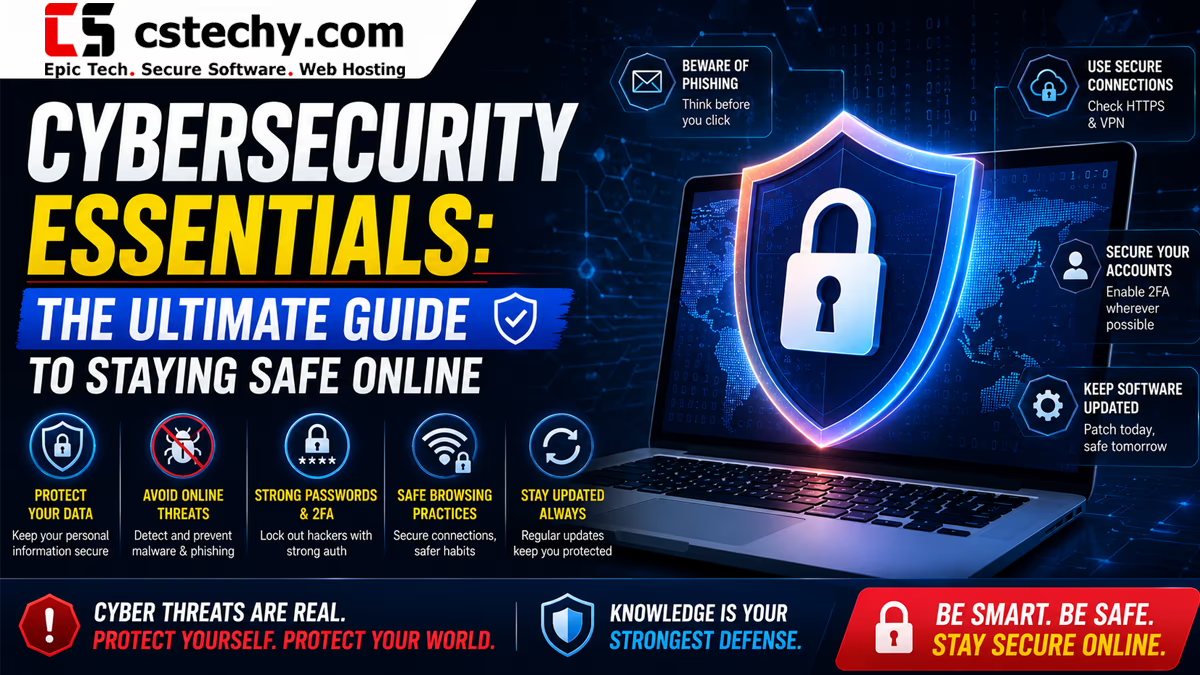
Cybersecurity Essentials
Learn cybersecurity from the ground up with a practical learning path covering digital safety, passwords, common threats, networks, devices, VPS security, websites, cybersecurity tools, hands-on practice, and career paths.
Introduction
One stolen password can become a chain reaction: an attacker gets into your email, resets another account, reaches your cloud files, and eventually touches your website or business tools. Cybersecurity is the practice of stopping that chain reaction before it starts — and keeping it contained if it does.
Most people think of cybersecurity as antivirus software. It’s much broader than that. It’s how you manage passwords, how you configure a server, how a website handles logins, and how you respond when something goes wrong. It applies whether you’re protecting a personal email account or administering a VPS that hosts a business website.
This guide is CSTechy’s Cybersecurity Essentials learning hub — a structured path from everyday account protection through networks, servers, websites, and self-hosted automation, all the way to cybersecurity specializations and careers. You don’t need any prior security knowledge to start. You do need to know where to begin, and that’s what this page is for.
The learning path follows one progression: Understand → Protect → Secure → Practice → Specialize → Career. Jump to whichever stage matches where you are today.
Learning Path Overview
Cybersecurity isn’t one skill — it’s layered. Start wherever matches your current need, then move down the path as you’re ready.
- Level 1 — Digital Safety: passwords, MFA, phishing awareness, device basics.
- Level 2 — Cybersecurity Fundamentals: the CIA Triad, authentication, risk, threats.
- Level 3 — Networks + Operating Systems: how traffic moves, Windows and Linux security basics.
- Level 4 — VPS + Website + Cloud Security: server hardening, SSH, WordPress, cloud accounts.
- Level 5 — Cybersecurity Tools + Practice: Wireshark, Nmap, home labs, safe practice environments.
- Level 6 — Specializations + Careers: blue team, SOC, pentesting, and how to enter the field.
What Is Cybersecurity?
Cybersecurity is the practice of protecting devices, accounts, networks, applications, and data from unauthorized access, damage, or disruption. It covers people (how they authenticate and behave), devices (phones, laptops, servers), networks (Wi-Fi, the internet, internal infrastructure), and the data that moves through all of it.
It’s closely related to a few terms that get used interchangeably but aren’t quite the same:
- Information security is broader than cybersecurity — it covers protecting information in any form, including paper records, not just digital systems.
- Privacy is about who gets to see or use your data and under what terms — a well-secured system can still have poor privacy practices.
- Data protection focuses specifically on safeguarding data itself, including backups, encryption, and regulatory compliance.
In practice, cybersecurity protects: individual people and their accounts, personal devices, home and office networks, websites and web applications, servers and cloud infrastructure, and the businesses that depend on all of it staying available and untampered with.
Why Cybersecurity Matters
The consequences of weak security are concrete, not abstract:
- Stolen passwords lead directly to account takeover — especially when the same password is reused elsewhere.
- Identity theft can follow from a breached email account, since email is usually the recovery method for everything else.
- Malware and ransomware can destroy or lock access to files, photos, and business data.
- Financial fraud often starts with a phishing message or a compromised login, not a sophisticated hack.
- Website or server compromise can take a business offline, damage search rankings, and expose customer data.
- Privacy loss happens quietly, through tracking, data broker exposure, and oversharing on social platforms.
None of this requires being a high-value target. Automated attacks, credential-stuffing bots, and mass phishing campaigns treat everyone as a potential victim. The good news: a small set of consistent habits — unique passwords, MFA, updates, and backups — blocks the overwhelming majority of these attacks.
The Cybersecurity Essentials Learning Path
This page is organized around six stages. Each builds on the one before it, but you can jump straight to the stage relevant to your situation.
| Stage | Focus | Goal |
|---|---|---|
| Understand | CIA Triad, authentication, threats, risk | Know the vocabulary and core concepts |
| Protect | Passwords, MFA, devices, email, browsers | Lock down everyday digital life |
| Secure | Networks, VPS, websites, cloud, automation | Harden technical infrastructure |
| Practice | Wireshark, Nmap, home labs, CTFs | Build hands-on skill safely |
| Specialize | Blue team, pentesting, cloud security, GRC | Pick a technical focus area |
| Career | Roles, certifications, portfolios | Move toward professional work |
Cybersecurity Fundamentals
The CIA Triad
Almost every security decision maps back to three goals:
- Confidentiality — only authorized people can see the data. Example: encrypting a laptop’s hard drive so a thief can’t read its files.
- Integrity — the data hasn’t been tampered with. Example: a checksum confirming a downloaded file wasn’t modified in transit.
- Availability — authorized users can actually get to the data when they need it. Example: backups and redundancy that keep a website online during an attack.
Authentication
Authentication answers who are you? It’s the process of proving your identity — typically with a password, a biometric, a security key, or a combination of these (MFA).
Authorization
Authorization answers what are you allowed to do? Being authenticated doesn’t mean having unlimited access — a logged-in employee, for instance, shouldn’t automatically have admin access to every system.
Access Control
Access control ties authentication and authorization together through permissions and roles. The guiding principle is least privilege: give accounts only the access they actually need, nothing more.
Threats, Vulnerabilities, and Risk
A threat is anything that could cause harm — an attacker, a piece of malware, a natural disaster. A vulnerability is a weakness that a threat could exploit — an outdated plugin, a weak password, an open port. Risk is the combination of a threat, a vulnerability, and the potential impact if the two meet. Reducing risk means reducing vulnerabilities, limiting what threats can reach, or lowering the impact of a successful attack — not eliminating threats entirely, which isn’t realistic.
Attack Surface
Your attack surface is everything an attacker could potentially target: every account, every open port, every plugin, every device. The smaller and better-managed your attack surface, the fewer opportunities exist for something to go wrong. A VPS running unnecessary services has a larger attack surface than one running only what it needs.
Common Cybersecurity Threats
These are the threats you’re most likely to encounter as an everyday user, website owner, or server administrator.
| Threat | How It Works | Warning Signs | Protection |
|---|---|---|---|
| Phishing | Fake messages impersonate a trusted source to steal credentials or install malware | Urgent tone, mismatched sender address, unexpected links | Verify sender, don’t click unexpected links, use MFA |
| Malware | Malicious software installed via downloads, attachments, or compromised sites | Slow device, unfamiliar programs, pop-ups | Updated OS/antivirus, avoid untrusted downloads |
| Ransomware | Malware that encrypts files and demands payment for the key | Files suddenly inaccessible, ransom note appears | Backups, updates, endpoint protection, cautious clicking |
| Credential stuffing | Attackers try leaked username/password pairs across many sites | Login alerts from unfamiliar locations | Unique passwords per site, MFA |
| Social engineering | Manipulating a person rather than a system to gain access | Pressure to act fast, requests to bypass normal process | Verify requests independently, security awareness |
| Fake websites/apps | Lookalike sites or apps designed to harvest logins or payment info | Slightly wrong domain, poor design, unusual permissions | Check URLs carefully, use official app stores |
| DDoS | Flooding a service with traffic to make it unavailable | Sudden downtime or extreme slowness | CDN/DDoS protection, scalable hosting |
| Man-in-the-middle | Intercepting traffic between two parties, often on unsecured Wi-Fi | Certificate warnings, unexpected HTTP instead of HTTPS | HTTPS, VPN on public Wi-Fi |
| Supply-chain attacks | Compromising a trusted vendor, plugin, or dependency to reach many targets | Unexpected behavior after a routine update | Vet sources, keep dependencies minimal, monitor changes |
The pattern behind most of these threats is the same: they target either a weak credential, an out-of-date system, or a moment of human distraction. That’s why the “Protect” and “Secure” stages of this learning path focus so heavily on credentials, updates, and configuration.
Password & Account Security
Account security is the single highest-leverage area of personal cybersecurity. Most real-world compromises trace back to a weak, reused, or stolen password rather than an advanced technical exploit.
- Password strength matters, but uniqueness matters more — a strong password reused across ten sites is only as safe as the weakest of those ten.
- MFA (multi-factor authentication) adds a second proof of identity — typically a code from an authenticator app or a hardware key — so a stolen password alone isn’t enough to log in.
- Passkeys are a newer, phishing-resistant alternative to passwords, tied to your device and biometrics instead of something you type.
- Recovery codes should be stored securely and separately — they’re often the weakest link in an otherwise well-secured account.
- Login alerts from services (email or push notifications about new sign-ins) are an early-warning system worth keeping enabled.
Password Managers
What Is a Password Manager?
A password manager is an application that generates, stores, and autofills unique passwords for every account, protected behind a single master password (and ideally MFA).
Why Use One?
It removes the two habits that cause the most damage: reusing passwords and choosing weak ones out of convenience. It also makes phishing harder to fall for, since most password managers won’t autofill credentials on a lookalike domain.
What Should a Password Manager Do?
- Generate long, random, unique passwords automatically
- Encrypt stored data so even the provider can’t read it (zero-knowledge design)
- Support MFA and, ideally, passkeys
- Sync securely across devices
- Alert you to reused or breached passwords
- Allow secure export in case you switch providers
Password Manager vs. Browser-Saved Passwords
Browser-based password storage is better than nothing, but dedicated password managers generally offer stronger security models, cross-browser support, and better breach monitoring. For an important account, a dedicated password manager is the safer default.
How to Choose a Password Manager
Evaluate options against these criteria rather than marketing claims:
- Encryption architecture and zero-knowledge design
- MFA and passkey support
- Cross-device and cross-browser support
- Breach monitoring features
- Independent security audits and track record
- Recovery options if you lose the master password
- Export functionality and pricing transparency
[INTERNAL LINK: Password Manager Guide]
Everyday Cybersecurity
Computer Security
- Keep the operating system and installed software updated
- Use built-in or reputable antivirus/endpoint protection
- Enable the built-in firewall
- Use a separate standard user account for daily work, not an administrator account
- Enable full-disk encryption where available
- Download software only from official sources
- Maintain regular backups
Smartphone Security
- Use a screen lock and biometrics
- Keep the operating system updated
- Review app permissions periodically
- Install apps only from official app stores
- Enable device encryption (usually on by default on modern phones)
- Enable remote lock/wipe in case the device is lost
- Be cautious of SMS and messaging-app phishing
Email Security
- Treat unexpected attachments and links with suspicion, even from known contacts
- Check sender addresses carefully — spoofed domains often look almost identical
- Watch for fake invoices and business email compromise attempts
- Keep recovery information on your email account current and accurate
Browser Security
- Confirm HTTPS before entering sensitive information
- Keep the browser updated
- Review installed extensions periodically and remove unused ones
- Be cautious of unexpected download prompts
Social Media Security
- Enable MFA on every account that supports it
- Review privacy settings regularly
- Be skeptical of unsolicited DMs, especially those with urgency or links
- Watch for impersonation accounts using your name or photos
Essential Cybersecurity Tools for Everyday Safety
No single tool provides complete security. Security comes from layers, not one magic application.
| Security Need | Tool Category | Why It Matters | Beginner Action |
|---|---|---|---|
| Passwords | Password manager | Removes reuse and weak-password risk | Migrate your most important accounts first |
| Login verification | Authenticator app / security key | Blocks account takeover even if a password leaks | Enable MFA on email first |
| Device protection | Antivirus / endpoint security | Catches known malware | Enable built-in protection, keep it updated |
| Network filtering | Firewall | Blocks unwanted inbound/outbound connections | Confirm the OS firewall is active |
| Public Wi-Fi | VPN | Encrypts traffic on untrusted networks | Use on public Wi-Fi, not as a full anonymity tool |
| Data loss | Secure backup | Recovers files after ransomware or hardware failure | Automate backups and test restoring one file |
| Suspicious links | URL checker | Flags known malicious domains before you click | Check unfamiliar links before opening |
| Breach awareness | Breach monitoring | Alerts you when your email/password appears in a leak | Check your email against known breach databases |
Network Security Basics
Every online interaction depends on a chain of underlying systems. Understanding the basics makes every later security decision easier.
- IP addresses identify devices on a network. DNS translates human-readable domain names into IP addresses.
- TCP/IP is the protocol suite that moves data across the internet. Ports are numbered endpoints that specific services listen on (for example, HTTPS uses port 443).
- HTTP vs. HTTPS: HTTPS encrypts traffic between a browser and a server; plain HTTP does not. Always look for HTTPS on any site handling logins or payments.
- Routers and NAT sit between your home devices and the internet, translating private addresses to a public one and providing a basic layer of protection.
- Wi-Fi security means using strong encryption (WPA2/WPA3), a strong Wi-Fi password, an updated router, and a separate guest network for visitors and smart-home devices.
- Public Wi-Fi is inherently less trustworthy — avoid sensitive logins on it unless you’re using a VPN or the site is HTTPS.
[INTERNAL LINK: Network Security Basics Guide]
VPN Security
A VPN (Virtual Private Network) encrypts your traffic between your device and the VPN provider’s server, and masks your IP address from the sites you visit.
What it does: protects your traffic on untrusted networks like public Wi-Fi, and hides your IP address from the destination site.
What it doesn’t do: make you completely anonymous, protect you from malware, replace a password manager, or guarantee privacy — the VPN provider itself can usually see your traffic, so provider trust matters.
A VPN is a useful layer, particularly on public networks, but it isn’t a substitute for good account security or endpoint protection.
Firewall Basics
Simple: a firewall controls which network connections are allowed or blocked.
Technical: it evaluates inbound and outbound traffic against configured rules, permitting or denying connections based on source, destination, and port.
Example: a VPS firewall can prevent unnecessary internet traffic from reaching services that don’t need public access, such as a database port that should only accept connections from the application server itself.
Action: only expose services that genuinely need to be reachable from the internet. Everything else should be blocked by default.
Network firewalls protect an entire network’s perimeter; host firewalls run on an individual device or server. Firewalls limit exposure, but they don’t fix vulnerabilities in the services they allow through — they’re one layer, not a complete solution.
Windows & Linux Security
Windows Security
- Keep Windows Update running automatically
- Use Windows Security (Defender) and its built-in firewall
- Use a standard account for daily use, not an administrator account
- Enable BitLocker device encryption where available
- Download software only from trusted sources
- Maintain regular backups
Linux Security
- Use separate users and groups with appropriate permissions
- Apply package updates regularly
- Disable or remove services you don’t need running
- Secure SSH access (covered in detail below)
- Configure a host firewall (such as ufw or firewalld)
- Review system logs periodically
- Follow least privilege — avoid working as root day-to-day
This is a foundation, not full server administration — the VPS section below goes further.
VPS Security for Beginners
What Is a VPS?
A VPS (Virtual Private Server) is a virtualized slice of a physical server that gives you dedicated resources and full administrative control — unlike shared hosting, where the hosting provider manages most of the underlying security for you.
Why VPS Security Matters
With shared hosting, the provider handles server-level hardening. With a VPS, that responsibility shifts largely to you. More control means more responsibility.
Core VPS security responsibilities include: system updates, user account management, SSH configuration, firewall rules, backups, monitoring, log review, SSL/TLS certificates, file permissions, and general server hardening.
How to Secure SSH
SSH is commonly used to securely administer remote Linux servers. Because a VPS can be directly reachable from the internet, securing SSH is one of the most important parts of server security.
- Use SSH keys instead of password authentication where possible
- Avoid logging in directly as root — use a non-root administrative user with sudo access
- Restrict SSH access to specific IP addresses where feasible
- Keep SSH and the underlying OS updated
- Use firewall rules to limit exposure of the SSH port
- Monitor authentication logs for repeated failed login attempts
- Consider additional protections such as rate-limiting failed login attempts
VPS Security Checklist
- Update the server and installed packages
- Create a non-root administrative user
- Configure SSH securely, ideally with key-based authentication
- Configure a host firewall
- Close unnecessary ports and disable unused services
- Enable HTTPS with a valid SSL/TLS certificate
- Configure automated backups
- Monitor logs for unusual activity
- Keep hosted applications updated
- Protect secrets and credentials — never commit them to source code
- Review file and directory permissions
- Test that backups actually restore
[INTERNAL LINK: VPS Security Guide]
Website Security Essentials
- HTTPS / SSL/TLS — encrypts traffic between visitors and your site; a baseline requirement, not optional.
- Secure hosting — choose a provider with a track record of timely security patching.
- CMS, plugin, and theme updates — outdated software is one of the most common routes to website compromise.
- Strong admin authentication and MFA — admin accounts are high-value targets.
- Backups — automated, tested, and stored separately from the live site.
- Malware monitoring — scanning for injected code or unexpected file changes.
- Security headers and permissions — reduce what an attacker can do even if they find a foothold.
WordPress Security
WordPress powers a large share of the web, which makes it a frequent target — but the fundamentals of securing it are straightforward:
- Use a strong, unique admin password and enable MFA on the WordPress login
- Keep WordPress core, plugins, and themes updated
- Install plugins and themes only from trusted sources, and remove unused ones
- Maintain regular, tested backups
- Apply least privilege to user roles — not every contributor needs admin access
- Use secure hosting with HTTPS enabled by default
- Add login protections such as limiting failed login attempts
- Review file permissions and monitor for unexpected changes
No single security plugin makes WordPress completely secure — these practices work together, not as a substitute for one another.
[INTERNAL LINK: WordPress Security Guide]
Self-Hosted Application & n8n Security
Self-hosting applications — including automation platforms like n8n — gives you control, but that control comes with the same responsibilities as securing a VPS, plus a few specific to the application layer.
- Put a reverse proxy in front of self-hosted apps and enforce HTTPS
- Use strong authentication on the application itself, not just the server
- Store API keys and secrets in environment variables, never in source code
- Rotate credentials periodically and after any suspected exposure
- Secure webhooks — validate their source and restrict what they can trigger
- Apply access control and user permissions within the application
- Keep the application and its dependencies updated
- Back up workflow and configuration data
- Review logs and limit network exposure to only what’s necessary
A secure automation workflow is only as secure as the systems, credentials, APIs, and server infrastructure around it. Securing n8n itself means little if the underlying VPS or the API keys it uses are poorly protected.
[INTERNAL LINK: Secure Self-Hosted n8n Guide]
Cloud Security Basics
- Identity and access management — who can access what, enforced through roles and permissions
- MFA on cloud accounts — especially on accounts with billing or infrastructure control
- Least privilege — scope access keys and service accounts narrowly
- Secrets management — avoid hardcoding API keys and credentials
- Backups and monitoring — cloud infrastructure still needs both
- Shared responsibility — the cloud provider secures the underlying infrastructure; you’re responsible for how you configure and use it
Web & Application Security
For anyone building or maintaining web applications, a few concepts recur constantly. Each is presented here at an educational level — what it is, why it matters, and how developers defend against it.
- SQL injection — malicious input manipulates a database query. Defended against with parameterized queries and input validation.
- XSS (cross-site scripting) — malicious scripts run in another user’s browser. Defended against with output encoding and content security policies.
- CSRF (cross-site request forgery) — a user is tricked into performing an unintended action while authenticated. Defended against with anti-CSRF tokens.
- Broken authentication — weak session or login handling. Defended against with secure session management and MFA.
- Access-control flaws — users reaching data or actions they shouldn’t. Defended against with server-side authorization checks on every request.
- Insecure configuration — default settings or excessive permissions left unchanged. Defended against with hardening checklists and regular review.
These map closely to the OWASP Top 10, a widely referenced list of common web application risks maintained by the security community.
Cybersecurity Tools for Learners
These are tools used in authorized security testing and analysis — distinct from the everyday-safety tools covered earlier.
- Wireshark — captures and analyzes network traffic; teaches protocols and packet-level behavior.
- Nmap — scans networks to discover live hosts, open ports, and running services.
- Burp Suite — intercepts and tests HTTP requests for web application security testing.
- OWASP ZAP — an open-source tool for finding vulnerabilities in web applications.
- SIEM platforms — aggregate logs and alerts for security monitoring and event correlation.
- Vulnerability scanners — identify known weaknesses in systems and help prioritize remediation.
Every one of these tools should be used only against systems you own or are explicitly authorized to test.
How to Practice Cybersecurity Safely
Safe places to build hands-on skill include:
- Local virtual machines on your own computer
- Intentionally vulnerable applications and labs built for training
- Capture-the-Flag (CTF) platforms
- Authorized test systems in a formal training program
- An isolated home lab network, kept separate from your main devices
Cybersecurity Home Lab
A basic home lab can be built with a laptop or desktop, virtualization software, a Linux distribution, some basic networking tools, and an intentionally vulnerable training environment — ideally on an isolated network segment, with snapshots so you can reset to a clean state and backups of anything important.
Cybersecurity Roadmap for Beginners
- Learn basic computer concepts
- Learn networking fundamentals
- Learn Linux basics
- Learn cybersecurity fundamentals (CIA Triad, authentication, risk)
- Learn common threats and how they work
- Learn authentication and identity concepts in depth
- Learn core security tools (Wireshark, Nmap, and similar)
- Practice in authorized labs and CTFs
- Choose a specialization
- Build projects and practical evidence of skill
A Structured 30-Day Introduction
This isn’t a path to mastery in a month — it’s a structured way to get oriented:
| Week | Focus |
|---|---|
| Week 1 | Fundamentals, passwords, MFA, phishing awareness, device security |
| Week 2 | Networking basics, DNS, ports, HTTP/HTTPS, VPN, firewalls |
| Week 3 | Linux basics, VPS concepts, SSH, website security, basic tools |
| Week 4 | Hands-on labs with Wireshark and Nmap, web security basics, specialization research |
Cybersecurity Specializations
- Blue Team — defense, monitoring, detection, and incident response.
- SOC (Security Operations Center) — alert triage, SIEM monitoring, and investigation.
- Penetration Testing — authorized security testing, vulnerability assessment, and reporting.
- Web Application Security — finding and fixing application-level vulnerabilities.
- Cloud Security — securing cloud identities, infrastructure, and configurations.
- Application Security — secure software development, dependency management, code review.
- Digital Forensics — investigating and analyzing security incidents after the fact.
- GRC (Governance, Risk, and Compliance) — policies, controls, and regulatory alignment.
- Security Engineering — designing and building secure systems and infrastructure from the ground up.
Cybersecurity Careers
| Role | Main Focus | Beginner Entry Point |
|---|---|---|
| SOC Analyst | Monitoring alerts, triaging incidents | Networking + SIEM fundamentals |
| Security Analyst | Assessing and reporting on security posture | Fundamentals + risk concepts |
| Security Engineer | Building and maintaining security infrastructure | Networking + systems administration |
| Penetration Tester | Authorized testing of systems and applications | Web security + hands-on labs |
| Cloud Security | Securing cloud identities and infrastructure | Cloud fundamentals + IAM concepts |
| Application Security | Secure development and code review | Programming + OWASP fundamentals |
| Incident Responder | Investigating and containing active incidents | Fundamentals + forensics basics |
| GRC Analyst | Policy, compliance, and risk management | Fundamentals + regulatory frameworks |
None of these roles require a specific certification to enter, and no certification guarantees employment — hands-on skill, demonstrated through labs and projects, carries significant weight alongside formal credentials.
Cybersecurity Certifications
Certification landscapes change over time, so treat this as a strategy rather than a fixed list — verify current names, prerequisites, and pricing directly with the certifying body before committing.
- Foundation level: broad, vendor-neutral certifications that establish core security knowledge.
- Intermediate level: certifications focused on a specific discipline, such as defensive security or penetration testing.
- Specialized level: advanced, often hands-on certifications tied to a specific specialization like cloud security or offensive security.
Certifications are most valuable when paired with hands-on practice — labs, home projects, and CTF participation — rather than pursued in isolation.
Small Business & Freelancer Security
Cybersecurity Essentials for Small Businesses
- Enforce MFA across employee accounts
- Use a shared password manager with proper access controls
- Maintain endpoint protection on all company devices
- Apply email security practices company-wide, including phishing awareness
- Secure the business website, domain, and hosting accounts
- Apply least privilege across systems and accounts
- Establish basic incident response steps before you need them
Creator & Freelancer Security
Freelancers, bloggers, developers, and affiliate marketers typically manage more accounts — domain, hosting, WordPress admin, email, payment processors, and cloud storage — making a password manager and MFA especially valuable.
Domain & Hosting Account Security
- Domain: enable MFA on your registrar account, keep contact details current, enable domain lock where available, and stay alert to registrar-impersonation phishing.
- Hosting: use a strong password and MFA on the hosting dashboard, secure SSH access, keep backups current, review file permissions, and keep the server updated.
API & Secret Security
- Never store API keys or secrets directly in source code
- Use environment variables or a dedicated secrets manager
- Rotate credentials periodically and immediately after any suspected exposure
- Scope API keys to the minimum permissions needed
- Secure webhook endpoints against unauthorized triggers
Backup, Recovery & Incident Response
Backups
A backup is only useful if you can actually restore from it. Combine automated backups, versioning, and at least one copy stored offline or separately from the primary system — this matters especially for ransomware, which can also encrypt connected backup drives. Test recovery periodically rather than assuming it works.
If an Account Is Compromised
- Secure the account immediately from a trusted device
- Change the password and any reused passwords elsewhere
- Enable MFA if it wasn’t already active
- Review active sessions and revoke anything unfamiliar
- Check and update recovery information
- Review recent financial activity if the account is financial
- Check other accounts for reused credentials
- Scan affected devices for malware
- Document what happened for future reference
For serious incidents — particularly involving financial loss or business systems — contact the relevant service provider or a qualified professional. This guide provides general defensive practices, not a substitute for professional incident response.
Cybersecurity Best Practices Checklist
Account Security
- Unique passwords
- Password manager
- MFA
- Passkeys where supported
- Recovery codes stored securely
- Login alerts enabled
Device Security
- Updates applied promptly
- Antivirus/endpoint protection active
- Firewall enabled
- Disk encryption enabled
- Screen lock configured
Network Security
- Strong Wi-Fi password
- Router firmware updated
- Guest network configured where appropriate
- Caution on public Wi-Fi
Data Security
- Automated backups
- Encryption where appropriate
- Secure storage location
- Recovery tested
Website Security
- HTTPS enabled
- CMS/plugins updated
- Secure admin credentials
- Backups automated
- Least privilege on user roles
VPS Security
- SSH keys configured
- Firewall configured
- System updated
- Backups automated
- Logs monitored
Cybersecurity Myths
“I don’t need cybersecurity because I have nothing valuable.”
Your email, photos, contacts, and accounts all have value — to you and to attackers, who can use a compromised account to reach other people or other accounts, even if there’s no money directly attached to it.
“Antivirus protects me from everything.”
Antivirus catches known malware patterns, but it’s one layer among many. It won’t stop a phishing attack that tricks you into handing over a password directly.
“A VPN makes me completely anonymous.”
A VPN hides your IP address from the destination site and encrypts your traffic to the VPN provider — but the provider can typically still see your traffic, and a VPN does nothing to stop tracking through logged-in accounts or browser fingerprinting.
“A password manager is unsafe because all passwords are in one place.”
Reputable password managers use zero-knowledge encryption, meaning even the provider can’t read your stored passwords. The realistic alternative — reusing or writing down passwords — carries significantly higher risk.
“Mac and Linux can’t get malware.”
Both can be infected. They’re targeted less often than Windows in some contexts, but “less often” is not “never,” and this assumption leads to skipped basic precautions.
“HTTPS means the website is trustworthy.”
HTTPS means the connection is encrypted — it says nothing about whether the site itself is legitimate. Phishing sites can and do use HTTPS.
“Cloud providers handle all security.”
Cloud security follows a shared responsibility model: the provider secures the underlying infrastructure, but you’re responsible for configuration, access control, and how you use the service.
“A VPS automatically means better security.”
A VPS gives you more control, which means more responsibility — security depends entirely on how you configure and maintain it, not on the hosting type itself.
Frequently Asked Questions
What are cybersecurity essentials?
The core practices that protect everyday digital life and technical infrastructure — unique passwords, a password manager, MFA, updated devices, backups, and basic network and server hardening.
Is cybersecurity difficult for beginners?
The everyday-safety fundamentals are approachable for anyone. Technical areas like networking, Linux, and server security take more time, but they build progressively on the fundamentals.
How should I start learning cybersecurity?
Start with account security — a password manager and MFA — then move into fundamentals like the CIA Triad and authentication before progressing to networking and technical topics.
What should I learn first in cybersecurity?
Account security and the core fundamentals (confidentiality, integrity, availability, authentication, authorization) before diving into tools or specializations.
Do I need programming to learn cybersecurity?
Not to start. Many foundational and defensive-security roles rely more on networking and systems knowledge. Programming becomes more relevant for application security and advanced offensive security work.
Is Linux necessary for cybersecurity?
Strongly recommended. A large share of servers, security tools, and professional environments run on Linux, and many cybersecurity tools are Linux-first.
Should I use a password manager?
Yes — it’s one of the highest-impact security decisions an individual can make, provided the master account itself is protected with a strong password and MFA.
Is MFA better than a password alone?
Yes. MFA blocks the majority of account-takeover attempts that rely solely on a stolen or guessed password.
What cybersecurity tools should beginners learn?
Wireshark and Nmap are common starting points for understanding networks and hosts, alongside a password manager and authenticator app for everyday safety.
Is a VPN enough to stay safe online?
No. A VPN protects your traffic on untrusted networks, but it doesn’t replace strong passwords, MFA, updated software, or cautious behavior.
How do I secure a VPS?
Use SSH keys, a non-root administrative user, a configured firewall, regular updates, and automated, tested backups — see the VPS security checklist above for the full list.
How do I secure a WordPress website?
Keep WordPress core, plugins, and themes updated; use MFA and strong admin credentials; maintain tested backups; and apply least privilege to user roles.
Can beginners practice cybersecurity safely?
Yes, using local virtual machines, intentionally vulnerable training labs, and CTF platforms — always limited to systems you own or are explicitly authorized to test.
What cybersecurity career should beginners choose?
There’s no single right answer — SOC analyst and security analyst roles are common entry points, while penetration testing and cloud security are popular later specializations once fundamentals are solid.
Are certifications necessary for cybersecurity?
Not strictly required, but they can help demonstrate knowledge, particularly early in a career. Hands-on labs and projects carry real weight alongside them.
What to Learn Next
Want better everyday security?
→ [INTERNAL LINK: Password Manager Guide] · [INTERNAL LINK: MFA Guide] · [INTERNAL LINK: Device Security Guide]
Want technical security?
→ [INTERNAL LINK: Network Security Basics Guide] · [INTERNAL LINK: Linux Security Guide] · [INTERNAL LINK: VPS Security Guide]
Want website security?
→ [INTERNAL LINK: WordPress Security Guide] · [INTERNAL LINK: Website Security Guide] · [INTERNAL LINK: Web Application Security Guide]
Want cybersecurity as a career?
→ [INTERNAL LINK: Networking Basics Guide] · [INTERNAL LINK: Cybersecurity Home Lab Guide] · [INTERNAL LINK: Cybersecurity Careers Guide]