How to Change Webhook URL in n8n: The Complete 2026 Masterclass
In the world of high-stakes automation, your Webhook URL is the digital front door to your business. If that door isn’t properly labeled, your data—whether it’s Stripe payments, HubSpot leads, or AI-driven customer replies—simply won’t find its way home. If you’ve ever looked at your n8n dashboard and seen a http://localhost:5678/webhook/... address when you need a public https://automation.yourdomain.com link, you’ve hit the single most common roadblock in self-hosted n8n.
🚀 Master n8n Self Hosting in 2026 (Ultimate CSTechy Guide)
Changing the webhook URL in n8n isn’t just about editing a text field; it’s about configuring the Environment Variables that dictate how n8n interacts with the global internet. In 2026, as we move toward “Agentic” workflows that rely on complex tunnels and reverse proxies, understanding this technical foundation is a “High Technical Trust Builder” for any serious developer or agency owner.
This 2,500-word deep dive is the only guide you’ll ever need to master n8n webhook configuration. We will cover Docker Compose, Environment Variable overrides, Reverse Proxy headers, and how to handle the critical “Test vs. Production” URL logic.
Why n8n Defaults to ‘Localhost’ (And Why It Breaks): How to Change Webhook URL in n8n
When you first install n8n on a VPS (like Hostinger or Bluehost), the application is “blind.” It knows it is running on a server, but it doesn’t know what domain name you’ve pointed at that server. Because n8n runs internally on port 5678, it defaults to using localhost as its base.
If you send a localhost webhook URL to an external service like Slack, Slack will try to send the data to its own internal 5678 port, find nothing, and return a 404 or Timeout error. To fix this, we must explicitly tell n8n its “Public Identity.”
Method 1: Changing the Webhook URL via Docker Compose (How to Change Webhook URL in n8n)
For 99% of professional setups in 2026, Docker Compose is the tool of choice. To change your webhook URL permanently, you need to edit your docker-compose.yml file and inject the WEBHOOK_URL environment variable.
Step 1: Open Your Configuration
Navigate to your n8n installation folder and open your compose file:
nano docker-compose.yml
Step 2: Add the WEBHOOK_URL Variable
Under the environment: section of your n8n service, add the following line. Ensure you include the trailing slash!
environment:
  - WEBHOOK_URL=https://n8n.yourdomain.com/
  - N8N_EDITOR_BASE_URL=https://n8n.yourdomain.com/
N8N_EDITOR_BASE_URL: In 2026, this variable is equally important. It ensures that when you share workflow links or use the “Open in Editor” buttons, they lead back to your public domain rather than an internal IP.
Step 3: Apply the Changes
Save the file and recreate your containers to apply the new settings:
docker compose up -d
Method 2: Reverse Proxy Setup (Nginx & Cloudflare): How to Change Webhook URL in n8n
Sometimes, you set the environment variable, but the URL still shows http instead of https. This is usually a Reverse Proxy issue. Your proxy (like Nginx Proxy Manager or Caddy) is talking to n8n over plain HTTP, and n8n doesn’t realize the external connection is actually secure.
Forwarding the Correct Headers
To fix this, your reverse proxy must pass “Forwarded Headers.” If you are using Nginx, ensure your config block includes these:
proxy_set_header Host $host;
proxy_set_header X-Real-IP $remote_addr;
proxy_set_header X-Forwarded-For $proxy_add_x_forwarded_for;
proxy_set_header X-Forwarded-Proto $scheme;
By sending X-Forwarded-Proto $scheme, n8n will see that the original request was https and will generate the Webhook URL correctly.
“Test” vs Production URLs in n8n: How to Change Webhook URL in n8n
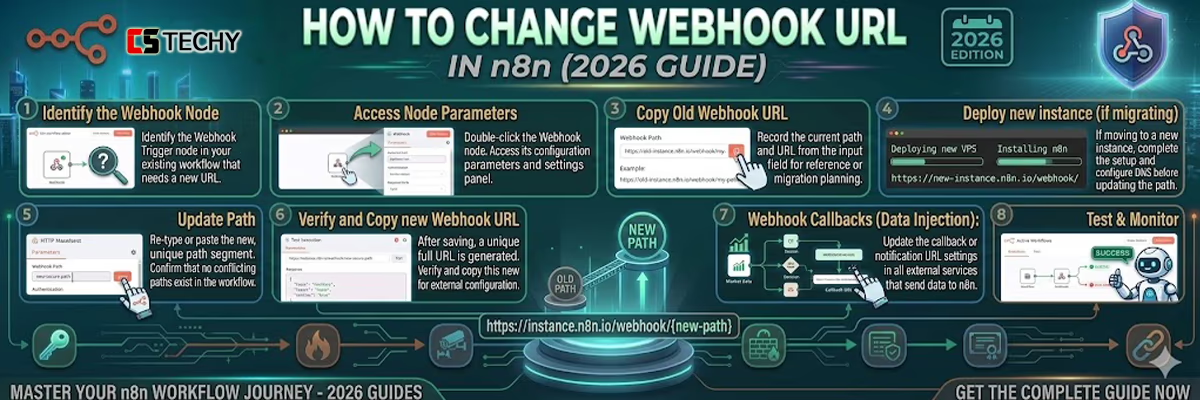
In n8n, every Webhook node has two distinct URLs. This is a common point of confusion for new users:
- Test URL: Ends in
/webhook-test/.... This URL is ONLY active when you have the n8n editor open and have clicked “Execute Workflow.” It is designed for one-time debugging. - Production URL: Ends in
/webhook/.... This URL is active ONLY when the workflow is toggled to Active in the top right corner.
To ensure reliable DNS performance and reduce webhook failures, refer to Cloudflare’s official DNS documentation , which explains how DNS resolution and caching impact request routing.
For deeper understanding of container-based deployments and networking, check Docker’s networking documentation , covering how services communicate within VPS environments.
To ensure reliable DNS performance and reduce webhook failures, refer to Cloudflare’s official DNS documentation , which explains how DNS resolution and caching impact request routing.
For deeper understanding of container-based deployments and networking, check Docker’s networking documentation , covering how services communicate within VPS environments.
Common Pitfall: If you try to send real data to the “Test URL” while the editor is closed, you will get a 404 error. When you change yourWEBHOOK_URL variable, n8n automatically updates both URLs. Ensure you copy the “Production” version when setting up your live integrations in Stripe or HubSpot.Advanced: Changing Webhook URLs for Local Tunnels (ngrok/Cloudflare) – How to Change Webhook URL in n8n
If you are running n8n on your laptop but want to test a webhook from a live site, you might use a tunnel. Since tunnel URLs (like https://random-words.trycloudflare.com) change every time you restart them, you must update n8n to match.
In 2026, you can use a .env file in your local directory to swap these out quickly:
# .env file
WEBHOOK_URL=https://your-new-tunnel-url.com/
Restart n8n, and every Webhook node in every workflow will instantly reflect the new tunnel address.
Troubleshooting: “I Changed It, but It’s Still Wrong!” – How to Change Webhook URL in n8n
If your URLs haven’t updated, try these three “Pro-Fixes”:
- Clear n8n Cache: Sometimes the UI hangs onto old values. Hard-refresh your browser (Ctrl+F5).
- Check for N8N_HOST: In older versions of n8n,
N8N_HOSTandN8N_PROTOCOLwere used instead ofWEBHOOK_URL. In 2026,WEBHOOK_URLis the dominant override, but check if an oldN8N_HOSTvariable is conflicting with your new settings. - Re-Activate Workflows: Toggling a workflow Off and then On again forces n8n to re-register the webhook with the internal router.
The Best Infrastructure for Stable Webhooks
If your VPS has a flappy IP or poor DNS resolution, your webhooks will fail regardless of your settings. As explained in this how to change webhook url in n8n guide, stability at the network level is just as important as correct configuration.
For the most stable webhook performance in 2026, we recommend choosing a VPS with consistent uptime, reliable DNS propagation, and low-latency routing to ensure your webhook URLs resolve and trigger without delays.
- Hostinger VPS: For their ultra-fast NVMe storage and stable Dedicated IPs.
- Bluehost VPS: For their enterprise-grade Oracle Cloud network that handles high-concurrency webhook spikes with ease.
Conclusion
Mastering how to change webhook url in n8n is the difference between a “hobbyist” setup and a “production-grade” automation engine. By leveraging WEBHOOK_URL environment variables and proper reverse proxy headers, you ensure that your automation hub is always reachable, secure, and ready to scale.
How to Change Webhook URL in n8n, FAQ:
1. How do I change the webhook URL in n8n?
You can change the webhook URL by updating the WEBHOOK_URL environment variable in your n8n configuration. After saving the changes, restart the n8n service or Docker container for the new webhook URL to take effect.
2. Why should I change the webhook URL in n8n?
Changing the webhook URL is useful when moving n8n to a new domain, switching servers, or setting up HTTPS with a reverse proxy to ensure external services can correctly trigger workflows.
3. Does changing the webhook URL break existing workflows?
No, but external services using the old webhook URL must be updated. Otherwise, triggers like Stripe, Slack, or Zapier webhooks will stop sending data to your workflows.
4. What is the correct webhook URL format in n8n?
A typical webhook URL looks like:https://yourdomain.com/webhook/unique-workflow-id
This endpoint allows external apps or APIs to trigger workflows inside n8n.
5. Do I need to restart n8n after changing the webhook URL?
Yes. After updating the webhook configuration or environment variables, you must restart the n8n service or Docker container so the system registers the new webhook endpoint.